Category: How-To & Everyday Solutions

  • How do i get self tan off

    How do i get self tan off

    how do i get self tan off

    Learn how to get self tan off safely at home with gentle exfoliation, bathing, and aftercare tips to remove uneven color without irritating your skin.

    how do i get self tan off

    A self-tan can look great until the color starts fading in patches, collecting around your ankles, or leaving darker hands than you expected. How do I get self tan off becomes less about scrubbing harder and more about loosening the color gradually without upsetting the skin underneath. The goal is to fade the artificial color evenly, not strip your skin.

    By the end of this guide, you will know how to soften and remove self-tanner at home, which areas need extra attention, and when to stop exfoliating. And you will also know why some popular shortcuts can leave you with redness instead of a cleaner result. Most self-tanners use dihydroxyacetone (DHA), which darkens the outer skin surface rather than creating a natural UV tan.

    Before you start

    You do not need an expensive kit. A warm shower or bath, a mild body cleanser, a soft washcloth or gentle exfoliating mitt, and a fragrance-free moisturizer are enough for most people. If your self-tan is especially stubborn, a commercially formulated self-tan remover can be an optional extra, but follow its label rather than combining several exfoliating products.

    The first mistake to avoid is treating the tan like paint. It is not sitting on the skin as one removable layer — much of the visible color develops through a reaction involving the outermost skin cells.

    Check your skin before starting. If you have sunburn, open cuts, a rash, active irritation, or recently irritated skin, wait until it has recovered (aggressive exfoliation can make irritation worse). The American Academy of Dermatology recommends gentle exfoliation and advises against exfoliating over wounds or sunburned skin.

    If you use retinoids, retinol, benzoyl peroxide, strong acids, or another product that makes your skin sensitive, be especially conservative. The AAD warns that exfoliating already sensitive skin can increase dryness, irritation, or breakouts.

    Step-by-step instructions

    1. Start with a warm shower

    Take a comfortably warm shower for several minutes before trying to exfoliate. The purpose is to soften the outer layer of skin and make cleansing easier, rather than trying to force the color away immediately.

    Do not use very hot water just because it feels like it will work faster. Hot water can leave skin dry and uncomfortable, while it does not magically dissolve a developed self-tan.

    And give the water a little time to do its job. A few minutes of normal bathing is more useful than repeatedly scrubbing the same area.

    2. Wash the skin gently

    Use a mild body cleanser and your hands or a soft washcloth to clean the area. Pay attention to places where sweat, skincare products, and self-tanner may have built up, such as the neck, underarms, hands, knees, and ankles.

    This first pass removes surface residue and lets you see where the remaining tan actually is. It also prevents you from using an exfoliating mitt aggressively on skin that simply needed ordinary cleansing.

    3. Exfoliate gradually

    After washing, use a soft washcloth or gentle exfoliating method on the darker areas. Work in small circular motions with light pressure for roughly 20 to 30 seconds on an area before rinsing.

    The AAD describes both mechanical and chemical exfoliation, but stresses that the method should match your skin type and that exfoliation should be gentle.

    Do not chase the last trace of color in one session. If the tan has developed strongly, several gentle sessions are generally a better approach than one aggressive attempt — especially on sensitive or dry skin.

    Or, if you are using a self-tan remover, follow the product instructions exactly. Some removers are designed to loosen the color before bathing, while others are used during a shower, so the correct timing depends on the formula.

    4. Give darker areas extra, but gentle, attention

    Hands, fingers, elbows, knees, ankles, and feet often look darker because these areas can collect more self-tanner and have different skin texture.

    Use a little more attention here, but not dramatically more pressure. The AAD specifically points out that elbows, knees, and ankles tend to need extra exfoliation when preparing skin for self-tanner.

    For hands, concentrate on the backs of the hands, between the fingers, around the knuckles, and near the wrists. For ankles and feet, check the edges around the heel and the tops of the toes.

    A common failure point is scrubbing the knuckles until they become red while the darker color between the fingers remains. Stop when the skin becomes irritated; redness is not evidence that more tan has been removed.

    5. Rinse and check the result in good light

    Rinse thoroughly with lukewarm water and gently pat your skin dry. Then check the color under normal, bright lighting.

    This matters because wet skin can temporarily make the color look different from how it appears when dry. You may also notice that the first wash has softened the contrast rather than removed every trace.

    So resist the temptation to immediately repeat the entire process. Let your skin settle first.

    6. Moisturize immediately afterward

    Apply a plain moisturizer while the skin is still slightly damp. Exfoliation can make the skin drier, and the AAD recommends moisturizing after exfoliating.

    Choose a product your skin already tolerates well rather than introducing several new ingredients at once. If your skin feels tight, stings, or looks unusually red, stop exfoliating and focus on gentle cleansing and moisturizing.

    7. Repeat only when your skin tolerates it

    If the color is still uneven, repeat a gentle removal routine later rather than trying to erase everything in one session. The right interval depends on your skin type, the strength of the self-tan, and the exfoliation method.

    Sensitive or dry skin generally needs a more cautious approach. Oily or thicker body skin may tolerate exfoliation better, but stronger is not automatically better.

    The truth is, there is no reliable home trick that instantly removes every self-tanner. DHA-based color develops through the outer skin layer, so fading is usually a gradual process rather than a single dramatic wash-off.

    Common mistakes

    Scrubbing until the skin turns red

    This is probably the most common mistake. People see uneven color, increase pressure, and keep going because the skin feels smoother afterward.

    But redness means the skin has been irritated; it does not prove that the self-tanner is being removed effectively. Gentle, repeated exfoliation is safer than attacking one patch with a rough mitt.

    Using harsh household ingredients

    Lemon juice, baking soda, strong acids, undiluted vinegar, or abrasive homemade mixtures are often suggested online as quick fixes. They can irritate the skin, especially when combined with physical scrubbing.

    A safer approach is to use a product formulated for skin or a gentle washcloth. If you choose a chemical exfoliant, follow its directions and consider your existing skincare routine first. Some exfoliating acids can increase sun sensitivity, and FDA guidance advises sun protection when using AHAs.

    Repeatedly exfoliating sensitive skin

    Someone with dry, sensitive, acne-prone, or easily irritated skin may make the problem worse by repeating the same removal routine several times in one day.

    And people using retinoids, retinol, benzoyl peroxide, or other irritating products need extra caution because additional exfoliation may increase irritation.

    Expecting moisturizer to remove the tan

    Moisturizer helps maintain the skin barrier and reduces dryness after exfoliation, but it is not a self-tan remover.

    Use it after cleansing and exfoliating rather than expecting it to dissolve developed color.

    Forgetting that self-tan is not sunscreen

    A darker appearance does not mean your skin is protected from UV radiation. FDA guidance explains that sunless tanning products generally do not provide sunscreen protection unless a separate sunscreen product is included and appropriately labeled.

    Tips to do it better

    Work from the most uneven areas first. If your arms look fine but your wrists and ankles are much darker, concentrate your gentle exfoliation there instead of treating your entire body repeatedly.

    Use a washcloth when your skin is sensitive. The AAD notes that people with dry, sensitive, or acne-prone skin may prefer a washcloth and mild exfoliating approach over more aggressive mechanical exfoliation.

    Keep the pressure light and the movements controlled — you are trying to gradually remove surface cells, not polish the skin.

    And moisturize after every exfoliation session. This simple step can make the next removal session more comfortable because excessively dry skin tends to feel rough and irritated.

    If you plan to apply self-tanner again, wait until the old color has faded evenly and your skin feels calm. Preparing the skin before the next application can also help prevent the same patchy result; the AAD recommends exfoliating before applying self-tanner and giving extra attention to thicker areas such as elbows, knees, and ankles.

    Closing

    Getting self-tan off is usually easier when you stop trying to remove it all at once. Start with a warm shower, cleanse gently, exfoliate lightly, rinse, and moisturize. Repeat only as your skin tolerates it.

    The next step is simple: check the darkest areas, begin with a gentle washcloth rather than aggressive scrubbing, and give your skin time to respond. If irritation, burning, swelling, or a persistent rash develops, stop the removal routine and seek advice from a qualified healthcare professional.

  • How do i find and replace in word

    How do i find and replace in word

    A single typo repeated hundreds of times can quietly turn a polished document into a frustrating editing job. Learning how do i find and replace in Word is one of those skills that saves far more time than most people expect. Instead of scrolling through page after page, you can locate every occurrence of a word, phrase, or formatting choice in seconds.

    By the end of this guide, you’ll know how to search for text, replace individual words or every match at once, work with formatting, and avoid the mistakes that commonly lead to unwanted edits. Whether you’re using Microsoft Word on Windows, Mac, or the web, the steps are straightforward once you know where to look.

    Before you start

    You don’t need any special software beyond Microsoft Word, but the exact menus can vary slightly depending on your version (Microsoft 365, Word 2021, Word 2019, or Word for Mac). The Find and Replace feature is available in all modern versions, although some advanced options may appear in different locations.

    Before replacing text across an entire document, save your work first—or create a copy if the document is especially important. That small precaution can save a lot of time if you accidentally replace something you didn’t intend to. And if you’re working in a shared document with Track Changes enabled, remember that replacements may appear as tracked edits rather than changing the text immediately.

    Step-by-step instructions

    1. Open your document

    Start by opening the Microsoft Word document you want to edit.

    This sounds obvious, but many beginners accidentally open a different version of the same file, make changes, and later discover they edited the wrong copy.

    2. Open the Find and Replace window

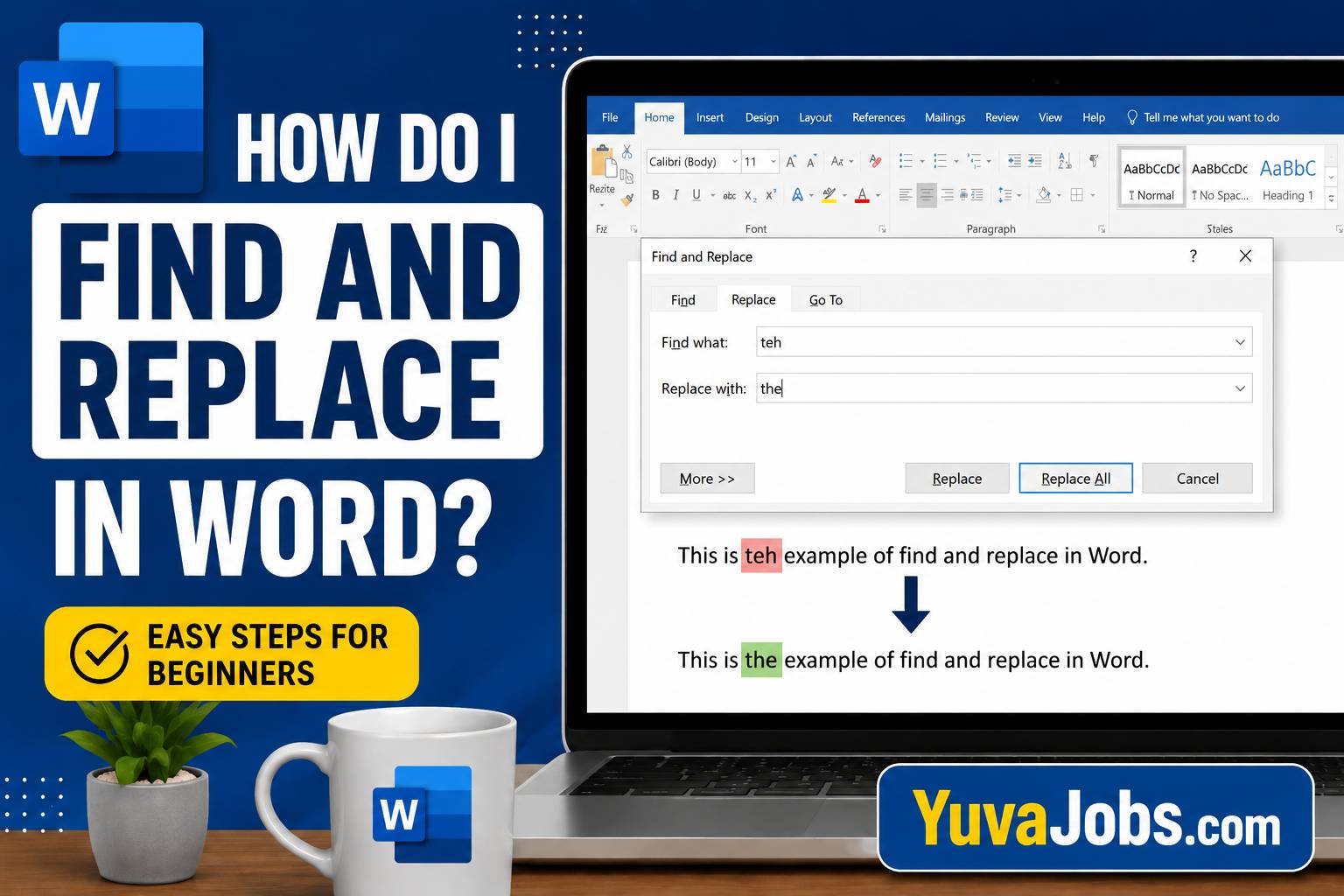
    Press Ctrl + H on Windows or Command + Shift + H on many Mac versions of Word.

    Or, go to the Home tab and select Replace in the Editing group.

    Using the keyboard shortcut is usually the fastest method—and once you memorize it, you’ll rarely need the menu again.

    3. Enter the text you want to find

    In the Find what box, type the exact word or phrase you’re searching for.

    Be careful with spelling, spaces, punctuation, and capitalization if those details matter. Even an extra space can prevent Word from finding matches.

    4. Enter the replacement text

    Type the new word or phrase into the Replace with box.

    Double-check the replacement before continuing. Here’s the thing: replacing hundreds of words takes only a second, but fixing a wrong replacement throughout a long document can take much longer.

    5. Choose Replace or Replace All

    You now have two main choices:

    1. Replace changes only the current match and then moves to the next one.
    2. Replace All changes every matching occurrence in the document immediately.

    If you’re replacing names, technical terms, or words that may appear in different contexts, use Replace first. If every occurrence should become the same new text, Replace All is much faster.

    6. Review the results

    After Word finishes, it displays the number of replacements made.

    Take a moment to scan the document (especially headings, tables, and footnotes). Sometimes a replacement makes perfect sense in one paragraph but not in another.

    7. Use advanced options when needed

    Click More >> to reveal additional search settings.

    You can search using options such as:

    • Match case (only replaces words with the same capitalization)
    • Find whole words only
    • Use wildcards for advanced pattern matching
    • Ignore punctuation or spaces (depending on your Word version)
    • Search formatting like bold, italic, font color, or paragraph styles

    But be cautious with wildcard searches—they’re powerful, yet a small mistake in the pattern can produce unexpected matches.

    8. Replace formatting instead of words

    Word can replace formatting without changing the text.

    For example, you can replace every bold word with regular text or change every instance of one font into another. Select Format in the Find and Replace dialog, choose the formatting you want to search for, then specify the replacement formatting.

    This feature is especially useful when cleaning documents imported from other sources.

    Common mistakes

    One of the biggest mistakes is clicking Replace All before checking whether every occurrence should actually change. A person’s name, abbreviation, or product title may appear in different contexts where the replacement isn’t appropriate.

    Another common issue is forgetting about capitalization. If you’re replacing “apple” but leave Match Case disabled, Word may also replace “Apple,” which could change company names unintentionally.

    And beginners often overlook extra spaces before or after words. If Word isn’t finding anything, the search term may contain an invisible space copied from another document.

    Some users also forget that Find and Replace searches more than the main body of text. Depending on your settings and document structure, you may need to check headers, footers, text boxes, footnotes, comments, or linked content separately. Realistically, spending one extra minute reviewing the document after the replacement is far better than discovering an editing error after sharing the file.

    Tips to do it better

    Use Ctrl + F first if you only want to locate text without replacing it. Once you’re sure you’ve found the correct word, switch to Ctrl + H for replacements.

    And if you’re editing a long report, replace one occurrence at a time until you’re confident the replacement works exactly as expected. After that, using Replace All becomes much safer.

    You can also combine Find and Replace with formatting searches to standardize headings, fonts, or highlighted text across an entire document (which many people overlook). The truth is, this feature isn’t just for correcting spelling mistakes—it can dramatically reduce formatting work as well.

    One limitation to remember is that very advanced replacements involving complex patterns or multiple formatting rules may require wildcard searches or even Word macros. Most everyday editing tasks, however, don’t need those advanced techniques.

    Editing a document doesn’t have to involve endless scrolling or repetitive corrections. Once you know how do i find and replace in Word, you can update text, fix repeated mistakes, and even change formatting in just a few clicks. Start by trying the feature on a copy of a document, explore the advanced options as you become comfortable, and you’ll quickly find yourself editing large files with much greater speed and confidence

  • How to get rid of coffee jitters

    How to get rid of coffee jitters

    Before trying to calm coffee jitters, first figure out how much caffeine you actually had. A homemade cup, a large café coffee, cold brew, espresso drink, energy drink, and pre-workout supplement can contain very different amounts, even when they look similar. Check the serving size and remember that caffeine from several sources adds together.

    You don’t need special equipment or a supplement to manage ordinary jitters. Keep some water nearby, have a light snack available if you haven’t eaten, and find a reasonably quiet place where you can sit or walk comfortably (your surroundings can affect how intense the experience feels).

    And don’t expect water, food, or exercise to instantly remove caffeine from your bloodstream. Your body still needs time to metabolize it—these steps are mainly about making the waiting period more comfortable.

    If you have severe symptoms such as chest pain, fainting, severe trouble breathing, confusion, seizures, or a very fast or irregular heartbeat, don’t treat the situation as routine coffee jitters. Seek urgent medical care.

    Step-by-step instructions

    1. Stop drinking caffeine immediately

    The first thing to do is stop adding more caffeine.

    This sounds obvious, but it is one of the easiest mistakes to make. Someone may feel tired after the initial caffeine boost and reach for another coffee, tea, cola, energy drink, or pre-workout product. That extra caffeine can increase the total dose and make the jitters last longer.

    Check what you’ve consumed during the entire day, not just the coffee that triggered the symptoms. Caffeine can hide in products you may not immediately associate with coffee.

    2. Drink water at a normal pace

    Have a glass of water, then continue drinking normally according to your thirst.

    Water won’t flush caffeine out of your body like a cleaning solution. However, if you are mildly dehydrated or haven’t been drinking enough fluids, correcting that can help you feel less uncomfortable.

    Avoid the common mistake of rapidly drinking huge quantities of water. It doesn’t speed up caffeine metabolism, and excessive water intake can create its own health risks.

    So think hydration, not “detox.”

    3. Eat something if you haven’t had food recently

    If you drank coffee on an empty stomach, consider eating a small meal or snack.

    A combination of carbohydrates and protein may be a practical choice, such as oatmeal with nuts, yogurt with fruit, eggs with toast, or a similar balanced option. Food won’t cancel the caffeine already absorbed into your body, but hunger, low energy, and caffeine stimulation can overlap and make you feel worse.

    The timing matters here. If you recently ate a full meal, forcing yourself to eat more is unlikely to be necessary simply because you feel jittery.

    4. Take a gentle walk

    Once you’re feeling physically stable, walk slowly for about 5 to 15 minutes.

    Light movement can give restless energy somewhere to go and may help you feel less trapped in the sensation of shaking or nervousness. Keep the intensity low.

    But don’t turn the walk into a hard workout. If caffeine has already caused a racing heart, intense exercise may increase your heart rate further and make it harder to judge how you’re actually feeling.

    5. Slow down your breathing

    Caffeine can make you feel physically activated, and that sensation can sometimes trigger worry. Worry can then lead to faster breathing, which may make the experience feel even more intense.

    Try a comfortable breathing rhythm. Breathe in gently through your nose for around four seconds, then breathe out slowly for around six seconds. Continue for several minutes.

    Don’t force enormous breaths. The goal is a relaxed, slower pattern—not filling your lungs as hard as possible.

    And if counting makes you more anxious, stop counting and simply focus on making your breathing quieter and slower.

    6. Reduce stimulation around you

    Give your nervous system fewer things to process.

    Lower the volume of loud music, step away from stressful conversations, put your phone aside for a few minutes, or sit somewhere comfortable. This won’t make caffeine disappear faster, but it can reduce the mental side of feeling overstimulated.

    A calm environment is particularly helpful when your jitters are accompanied by racing thoughts or a sense of uneasiness.

    7. Wait for your body to process the caffeine

    This is the step people often want to avoid, but it is unavoidable.

    Your body needs time to metabolize caffeine. There is no proven home remedy that instantly removes caffeine from your bloodstream, and the exact duration of effects varies between individuals.

    Factors such as your metabolism, genetics, medications, pregnancy, and regular caffeine habits can affect how strongly and how long caffeine affects you.

    Realistically, the best approach is to reduce additional stimulation and make yourself comfortable while your body does the rest. The truth is, patience often works better than chasing an internet “caffeine detox.”

    8. Monitor how you’re feeling

    Pay attention to whether your symptoms are gradually improving.

    Mild shakiness, restlessness, nervousness, or a temporarily increased heart rate can occur after too much caffeine. These sensations often become easier to tolerate as the caffeine effect decreases.

    However, don’t automatically blame every symptom on coffee. If something feels severe, unusual, or continues to worsen, get medical advice rather than repeatedly trying home remedies.

    Common mistakes

    One of the biggest mistakes is trying to “cancel” caffeine with another substance. Drinking alcohol, taking unverified supplements, or consuming other products advertised as caffeine blockers is not a reliable solution. Some combinations can create additional health risks.

    Another common error is drinking excessive water. Staying hydrated is sensible, but water doesn’t neutralize caffeine. Drinking far beyond your normal needs won’t make your liver process caffeine instantly.

    People also frequently choose intense exercise because they think they can “sweat out” caffeine. That’s not how caffeine metabolism works. Gentle movement may help with restlessness, but exhausting yourself while your heart is already racing can make you feel worse.

    And don’t assume that every large coffee contains the same amount of caffeine. Brewing method, bean type, serving size, and preparation can all change the dose. A large cold brew may affect you very differently from a small instant coffee, even if both are simply called “coffee.”

    Tips to do it better

    The most useful improvement is to identify your personal caffeine threshold. Keep a simple note of what you drank, roughly how much, when you drank it, and whether you experienced jitters afterward. After a few days, patterns may become obvious.

    Try changing one variable at a time. If you normally drink a large coffee quickly, first reduce the portion or drink it more slowly rather than changing everything at once. This makes it easier to identify what actually helps.

    Timing can matter as well. Drinking caffeine when you’re already sleep-deprived may create a cycle where you use more caffeine to compensate for fatigue, then experience more jitters and poorer sleep later.

    And pay attention to hidden caffeine. Tea, chocolate, energy drinks, supplements, and certain medications can contribute to your total intake (especially when consumed on the same day).

    Closing

    Most ordinary coffee jitters become easier to manage when you stop consuming more caffeine, stay normally hydrated, eat if you’re hungry, and give your body time to process what you’ve already consumed. Gentle movement and slow breathing may make the waiting period more comfortable, but there is no instant way to erase caffeine from your system. Your next step is simple: identify what caused today’s jitters, then reduce or adjust that caffeine dose the next time you drink coffee. If severe or unusual symptoms appear, seek medical care rather than assuming coffee is the only cause

  • Is the cicada 3301 cicada drwaing trademarked

    Is the cicada 3301 cicada drwaing trademarked

    The internet remembers Cicada 3301 as a series of elaborate cryptographic puzzles that first appeared in 2012. Instead of becoming famous through advertising or entertainment, the group gained worldwide attention by posting intellectually demanding challenges involving cryptography, steganography, programming, literature, and philosophy.

    People often associate the mystery with a distinctive cicada illustration. That drawing has become almost as recognizable as the puzzles themselves. Because it appears in documentaries, YouTube videos, fan artwork, clothing, and online discussions, many assume it must be protected by trademark law.

    The reality is more complicated—and that complexity matters if you want to reproduce the artwork commercially or include it in your own creative projects.

    Understanding how intellectual property works requires separating trademarks from copyrights rather than treating them as the same legal protection.

    Background and context

    The original Cicada 3301 puzzles appeared on image boards in January 2012 before continuing through additional puzzle cycles in 2013 and 2014. Participants were challenged to decode hidden messages using advanced mathematical concepts, encryption techniques, historical references, GPS coordinates, telephone recordings, books, and even physical clues placed around the world.

    The puzzles attracted programmers, mathematicians, cybersecurity professionals, and puzzle enthusiasts alike.

    And that popularity caused the cicada illustration to spread across thousands of websites.

    Here’s where confusion begins—people often assume that a famous image automatically has trademark protection. In reality, fame alone creates no trademark rights. Trademark law protects identifiers that distinguish goods or services in commerce, while copyright protects original creative works such as drawings, illustrations, photographs, and written content.

    The commonly shared cicada image has been reproduced countless times (sometimes with noticeable differences), making it difficult for casual observers to know which version they are actually looking at.

    Another complication (and one many articles overlook) is that anonymous creators make ownership questions much harder to answer. When the original creator is unknown, proving ownership or enforcing rights can become legally challenging even if rights technically exist.

    The main substance

    To answer the question directly, there is no widely recognized or officially established trademark covering the general Cicada 3301 drawing itself in a way that grants blanket trademark protection over every version of the image.

    But that does not automatically mean the artwork is free for anyone to use.

    Trademark law focuses on commercial branding. If a company registers a logo to identify its products, competitors generally cannot use confusingly similar marks for related goods or services. Simply because an image exists online does not place it into the public domain.

    Copyright operates differently.

    The original illustration, assuming it qualifies as an original creative work, may receive copyright protection from the moment it was created under the copyright laws of many countries. Registration often strengthens enforcement but is not always required for protection.

    And this distinction matters much more than most people realize.

    For example:

    • Someone selling clothing with a copied Cicada 3301 illustration could potentially face copyright issues if the artwork belongs to an identifiable creator.
    • A YouTube creator discussing the history of Cicada 3301 may be able to display the image under circumstances that qualify as fair use or similar legal exceptions, depending on jurisdiction and context.
    • A graphic designer who redraws the image from scratch still needs to consider whether the new work is substantially similar to the protected original.

    Realistically, internet folklore sometimes creates the false impression that “everyone uses it, so it must be free.” That assumption has caused legal disputes involving many famous online graphics long before AI-generated art entered the picture.

    Another point deserves attention—the Cicada 3301 community itself has never functioned like a conventional company publicly licensing merchandise or aggressively policing branding in the way major entertainment franchises often do. That absence of public enforcement should not be mistaken for proof that no intellectual property rights exist.

    There is also a practical limitation worth acknowledging. Because the creators remain anonymous and multiple versions of the cicada artwork circulate online, identifying the exact legal status of a particular image can be difficult without tracing its source. Legal analysis depends on the specific artwork rather than the general idea of “a cicada logo.”

    Practical angle

    Suppose you are creating content, writing an article, printing merchandise, designing stickers, or publishing educational material featuring the Cicada 3301 drawing.

    Your safest approach is not simply asking whether it is trademarked.

    Instead, ask these questions:

    Did you create the artwork yourself?

    Is the image copied from an identifiable source?

    Does your intended use qualify as commentary, criticism, education, or another possible legal exception?

    Will the image appear on products sold for profit?

    But if you are planning commercial merchandise, obtaining permission—or using artwork that you created independently—is usually the lower-risk choice.

    For educational articles, documentary discussions, or historical analysis, limited image use may fall under legal doctrines like fair use (depending on your country’s laws and the specific circumstances). Those exceptions are highly fact-dependent rather than automatic.

    So creators should avoid relying solely on internet forum advice when money or business branding is involved.

    A good habit (even for experienced designers) is documenting where every image originated before using it commercially. That small step can save significant time if ownership questions arise later.

    What to know going forward

    The mystery surrounding Cicada 3301 will probably continue attracting researchers, cybersecurity enthusiasts, and curious readers for years. Its puzzles remain influential because they blended technology, philosophy, literature, and cryptography in an unusually sophisticated way.

    The legal questions surrounding its imagery are less mysterious than they first appear.

    Trademark protection and copyright protection serve different purposes, and neither should be assumed simply because an image is famous online. The truth is that careful source verification is usually more valuable than relying on internet myths about “public domain” graphics.

    Or if absolute legal certainty is required for a commercial project, consulting an intellectual property attorney remains the most reliable option because individual facts can change the legal outcome.

    The Cicada 3301 drawing represents one of the internet’s most recognizable symbols, but recognition alone does not answer ownership questions. While there is no broadly recognized trademark protecting every version of the famous cicada illustration, that does not automatically remove possible copyright protection from the artwork. Before reproducing the image commercially, identify its source, understand the purpose of your use, and avoid assuming that widespread online availability means unrestricted permission. A little research before publishing is almost always easier than resolving legal concerns afterward

  • How do i upload a gif to instagram

    How do i upload a gif to instagram

    Before you start, make sure the GIF is saved on your phone or that you know where it came from. You will also need the latest practical version of the Instagram app available for your device, although the exact buttons and menu names can change after app updates.

    The key thing to understand is that Instagram does not treat every GIF file like a normal video. A GIF saved directly to your phone may upload as a static image, depending on the device and Instagram’s current handling of the format. For reliable animation, converting the GIF into an MP4 video is often the better route—especially when you want to publish it as a Reel or video post.

    (If your goal is simply to add a moving sticker to an Instagram Story, you usually do not need to upload your own GIF file at all.)

    Also check the file itself. A very large, unusually long, or corrupted GIF may fail even when a smaller file works correctly. If the GIF came from another website, make sure you have permission to use it, particularly for business or promotional content.

    Step-by-step instructions

    1. Decide where you want to share the GIF

    Open Instagram and first choose the destination: Story, Reel, or feed post.

    This matters because Instagram’s publishing tools handle animated content differently. A GIF that works well after conversion to video may be suitable for a Reel, while a GIF you simply want to use as a decorative element in a Story may be better added through Instagram’s built-in GIF sticker search.

    And if you only want to send a GIF privately, you do not need to publish anything—use Instagram Direct Messages and select an available GIF from the messaging interface.

    2. For an Instagram Story, open the Story creator

    Tap the + button or your profile picture to create a new Story, depending on the version of the Instagram app you are using.

    Choose a background photo or video if you want one. Then look for the Sticker button, usually shown as a square smiley-face icon at the top of the Story editing screen.

    This is the easiest method for most people because Instagram can search its available animated sticker library without requiring you to download and upload a GIF file yourself.

    3. Search for a GIF sticker

    Tap GIF in the sticker menu and enter a keyword describing the animation you want.

    For example, you might search for “thank you,” “happy birthday,” “wow,” or “sale.” Select the animation you like, then position it on your Story by dragging it around the screen. You can usually resize it with a pinch gesture and rotate it with two fingers.

    But there is a difference between this method and uploading your own GIF: you are choosing an animation from Instagram’s integrated sticker search rather than uploading your personal GIF file.

    4. If you have your own GIF, convert it to MP4

    When you created the GIF yourself—or downloaded one you have permission to use—and want to publish that exact animation, convert it into a video file.

    You can use a reputable GIF-to-video conversion tool or an editing app that exports MP4. Keep the video short and make sure it plays correctly before uploading it to Instagram.

    The reason is simple: Instagram’s video publishing workflow is generally more predictable than trying to upload a raw animated GIF file directly. The converted MP4 preserves the movement while giving Instagram a format it handles more naturally.

    5. Save the converted video to your phone

    After conversion, download or export the MP4 to your device’s camera roll or gallery.

    Check the result before opening Instagram. Play the video from beginning to end and make sure the animation has not become distorted, cropped incorrectly, or lost its intended timing.

    So, if the original GIF loops continuously but the converted video only plays once, that is not necessarily an Instagram problem—the conversion itself may have created a single-play video.

    6. Upload the video as a Reel or feed post

    Return to Instagram and tap the + button. Select Reel or Post, depending on where you want the animation to appear.

    Choose the converted MP4 from your gallery. Instagram may offer editing options such as trimming, adding music, text, filters, or a cover image.

    For a Reel, check the preview carefully before publishing. The animation should play normally as a video. For a feed post, the exact publishing options can vary by account and app version, so follow the available on-screen choices.

    7. Add your caption and publish

    Once the video looks correct, add your caption, tags, location, or other details you need.

    Before tapping the final publish button, watch the preview one more time. This small check catches problems such as unwanted black borders, an incorrectly cropped subject, or a video that starts with a blank frame.

    Then publish the content.

    Instagram may process the upload for a short time, especially if the video is larger or your internet connection is slow. Avoid repeatedly tapping the publish button while it is processing, as that can create confusion about whether the upload succeeded.

    Common mistakes

    The most common mistake is trying to upload a raw GIF and expecting Instagram to treat it exactly like an animated GIF player. Depending on the upload method, device, and current Instagram behavior, the file may appear as a still image or fail to behave as expected. Converting it to MP4 is usually the more dependable solution for your own animated content.

    Another problem is confusing GIF stickers with GIF files. Instagram’s Story sticker search lets you add animated stickers directly, but that does not mean you are uploading a GIF from your phone. The two workflows are different.

    People also sometimes download a GIF from a website without checking its actual file type. Some “GIF” download buttons provide a WebP, MP4, or another format instead. That can affect how the file appears in your gallery and what Instagram does with it.

    And watch the crop. Instagram may adjust the framing depending on whether you are creating a Story, Reel, or feed post. If the important part of your animation is near the edge, preview it before publishing.

    Finally, a poor internet connection can make an upload appear stuck when the real issue is simply processing time. Give the upload a moment before cancelling it.

    Tips to do it better

    If you want the animation to look professional, start with a high-quality source GIF rather than trying to improve a heavily compressed file. Converting a low-resolution GIF into video does not magically restore lost detail.

    For Stories, Instagram’s built-in GIF sticker search is usually the fastest option. You can add an animated element in seconds without downloading anything.

    For your own branded animations, convert the GIF to MP4 and preview the exported file before uploading. This gives you a chance to check the frame rate, dimensions, timing, and overall appearance.

    Realistically, the best method depends on what you mean by “upload a GIF.” If you want a moving sticker, use Instagram’s GIF sticker feature. If you want your own animation to appear as a standalone piece of content, use a video version of the GIF.

    One limitation deserves an honest mention: Instagram changes its publishing interface and supported formats over time, so the exact button labels you see may differ from the steps above. The underlying approach, however, remains useful—use Instagram’s GIF tools for stickers and a compatible video format when publishing your own animation.

    Closing

    Uploading animated content to Instagram is easier once you choose the right method for the job. For a quick Story decoration, search for a GIF through the Sticker menu. For your own GIF, converting it to MP4 is generally the safer way to preserve the animation when publishing it as video content. Your next step is simple: decide whether you need a GIF sticker or your own animated file, then follow the matching method above

  • How to add a server in mt5

    How to add a server in mt5

    Before you start

    A few minutes of preparation makes the process much easier.

    You’ll need your broker’s MT5 account details, including the account number, password, and most importantly, the correct server name. This information usually arrives in a welcome email after opening a trading account.

    Make sure you’re using MetaTrader 5, not MetaTrader 4. Although the platforms look similar, their servers are different and cannot be mixed. And check that your internet connection is stable because MT5 must contact MetaQuotes’ server database while searching for brokers.

    If you’ve downloaded MT5 from your broker’s website, the correct server often appears automatically. The generic MT5 application from MetaQuotes works too—but sometimes (especially with smaller brokers) you’ll need to search for the broker first before the server becomes available.

    Step-by-step instructions

    1. Open MetaTrader 5 and reach the login screen

    Launch MT5 on your device. On Windows or Mac, select File → Open an Account or File → Login to Trade Account depending on your current status.

    This tells MT5 to search for trading servers instead of simply trying to reconnect to an existing account.

    2. Search for your broker

    Type your broker’s name into the search box.

    Wait a few seconds while MT5 searches its online directory. Don’t rush this step—the results sometimes take longer than expected (especially on slower connections).

    If your broker appears, select it and continue.

    3. Choose the correct server

    Many brokers have multiple servers.

    You might see names such as:

    • BrokerName-Live
    • BrokerName-Live2
    • BrokerName-Demo
    • BrokerName-Real03
    • BrokerName-Europe

    Select the exact server listed in your broker’s email.

    Using the wrong server usually causes an “Invalid Account” or “Authorization Failed” message even if your password is correct.

    4. Enter your login credentials

    Type:

    1. Trading account number.
    2. Trading password.
    3. Selected server.

    Then click Finish or Login.

    MT5 should establish the connection within a few seconds if everything matches.

    5. Add a server manually if it doesn’t appear

    Sometimes the search returns nothing.

    In that case:

    • Download the official MT5 installer directly from your broker.
    • Install it without removing your existing MT5 installation.
    • Launch the broker-specific version.
    • Log in again.

    Many brokers include their server configuration inside their custom installer, which automatically adds servers that may not appear in the public directory.

    6. Refresh the server list

    If the broker exists but no servers appear:

    • Close MT5 completely.
    • Reopen the application.
    • Search again.
    • Restart your computer if necessary.

    And give the search a little time before assuming it failed.

    7. Add a server on Android or iPhone

    The mobile process is slightly different.

    Open MT5.

    Tap Settings.

    Choose New Account.

    Select Login to an Existing Account.

    Search for your broker.

    Pick the correct server.

    Enter your account number and password.

    Tap Sign In.

    The order is almost identical to the desktop version, although menu names vary slightly between Android and iOS.

    8. Verify the connection

    Once connected, check the lower-right corner on desktop.

    You should see a live data speed (for example, 45 kb) instead of “No Connection.”

    Open Market Watch.

    If prices are moving, your server has been added successfully and your account is connected.

    Common mistakes

    The biggest mistake is confusing MT4 and MT5 accounts. An MT4 account cannot log into an MT5 server, even when both belong to the same broker. This catches many beginners because the account numbers often look similar.

    Another frequent problem is selecting the wrong server. Brokers commonly operate separate demo, live, regional, and backup servers. Logging into “Demo” with a live account simply won’t work—even though the username and password are correct.

    But passwords also cause confusion. Many brokers provide an investor password alongside the trading password. The investor password allows viewing the account but not trading. Double-check which one you’re entering.

    A less obvious issue appears when users install the generic MT5 platform months before opening a brokerage account. Some broker servers don’t populate immediately in older installations. Installing the broker’s latest MT5 package often fixes this without changing anything else.

    Here’s the thing: if the server genuinely isn’t listed by your broker anymore, no manual typing trick inside MT5 will make it appear. You’ll need updated server information from the broker.

    Tips to do it better

    Save your broker’s welcome email instead of deleting it after opening your account. That message usually contains the exact server name, which is much easier than trying to remember whether your account belongs on “Live02” or “Real5.”

    So keep MT5 updated whenever a new version becomes available—older builds occasionally struggle to discover recently added broker servers.

    If you use several brokers (many active traders do), install each broker’s customized MT5 in its own folder. That keeps server lists separate and reduces login mistakes.

    Realistically, writing down your account number, server name, and whether it’s a demo or live account saves far more time than repeatedly searching through emails months later.

    One honest caveat: if your broker has shut down its server or migrated all clients to a new one, adding the old server isn’t possible. In that situation, only the broker can provide the replacement server information.

    Once your server appears and the account connects successfully, the hardest part is over. Open the Market Watch window, confirm live prices are updating, and place a trade only after verifying you’re logged into the correct account type. If you ever change devices, repeat the same process using the same server name and credentials, and you’ll be connected again in just a few minutes.

  • How do you get rid of logs

    How do you get rid of logs

    A pile of tree logs rarely stays as small as it first appears. One weekend of pruning or a freshly removed tree can leave heavy rounds scattered across the yard, taking up space and becoming harder to move with each passing day. Knowing how do you get rid of logs the right way saves time, prevents injuries, and helps you choose a disposal method that matches your budget and local regulations.

    After reading this guide, you’ll know exactly which option works for a handful of logs, a truckload of timber, or oversized tree rounds. You’ll also learn where people usually make mistakes, how to move logs safely, and when it’s smarter to call for help instead of trying to do everything yourself.

    Before you start

    A little planning makes the entire job easier—and much safer. Before touching the first log, spend a few minutes checking what you’re dealing with. Freshly cut wood is often much heavier than it looks, especially hardwood species such as oak, maple, or elm. Even a short section can weigh well over 100 pounds.

    Gather a pair of heavy-duty work gloves, sturdy boots, and eye protection if you’ll be cutting or splitting wood. A wheelbarrow, garden cart, or log dolly can save dozens of trips. If you intend to split large rounds, a splitting maul or hydraulic log splitter works far better than swinging an ordinary axe (which many beginners mistakenly use). And before loading anything into a truck, verify your local yard-waste rules because many municipalities have size or weight restrictions.

    Step-by-step instructions

    1. Identify the type and amount of logs

    Start by looking at how many logs you have and how large they are. Small branches and short logs require a completely different approach than thick tree rounds. Measuring the diameter also helps you estimate the weight before attempting to move anything.

    Large hardwood logs may need mechanical assistance, while smaller softwood pieces can often be handled manually.

    2. Decide whether to keep or dispose of them

    Not every log needs to become waste. Dry hardwood logs can become excellent firewood, and even rough pieces can be used for landscaping, garden borders, or woodworking projects.

    But if the wood is diseased, heavily infested with insects, or rotting badly, disposal is usually the better choice to prevent spreading pests around your property.

    3. Reduce the size first

    Smaller pieces are always easier to transport.

    If the logs are too large, cut them into shorter sections using a chainsaw if you’re trained to operate one safely. After cutting, split the larger rounds into halves or quarters. This dramatically reduces their weight and makes loading much less difficult.

    And don’t rush this step. People often try to carry whole rounds because they think splitting takes longer, yet splitting usually saves far more effort than repeated lifting.

    4. Choose the best disposal method

    The right method depends on your situation.

    If your municipality accepts yard waste, cut the logs to the required length and bundle them according to local guidelines.

    Many green-waste recycling centers accept untreated wood, where logs are processed into mulch or compost products.

    If the wood is clean and suitable for burning, advertise it as free firewood. Many homeowners, campers, and wood-burning stove users will gladly collect it.

    Some tree removal companies also provide log hauling services even if they didn’t remove the tree originally. This option costs more but saves considerable physical work.

    5. Move logs safely

    Never lift with your back bent forward.

    Instead, squat down, keep the load close to your body, and lift using your legs. For larger logs, rolling them along the ground is often much safer than carrying them.

    A garden cart or hand truck reduces strain significantly. For extremely heavy rounds, placing wooden boards as ramps into a trailer makes loading much easier than lifting vertically.

    So if a log refuses to move comfortably, stop and rethink the method instead of forcing it.

    6. Dispose of them responsibly

    Deliver the logs to the selected destination, arrange pickup, or stack them neatly if someone is collecting free firewood.

    Avoid dumping logs on vacant land or wooded areas. Besides being illegal in many locations, discarded logs can introduce insects, fungi, or diseases into nearby forests.

    Once the logs are removed, rake bark, sawdust, and wood chips from the area. These leftovers can become slippery when wet and may attract insects if left undisturbed.

    Common mistakes

    One of the biggest mistakes is underestimating weight. Freshly cut wood contains a surprising amount of moisture, making it far heavier than seasoned firewood. People often begin lifting confidently only to realize halfway through that the log is far beyond a safe weight.

    Another common error is ignoring local disposal rules. Many waste collection services reject logs that exceed specific dimensions, forcing homeowners to cut everything again before pickup.

    Using the wrong tools causes unnecessary frustration. An ordinary household axe struggles against large hardwood rounds, while a proper splitting maul or hydraulic splitter finishes the job much faster.

    And many people stack logs directly against the side of the house while deciding what to do with them. That creates an inviting environment for termites, carpenter ants, and moisture buildup.

    Here’s the thing: rushing usually creates more work. Taking ten minutes to reduce the size of each log often saves hours of lifting and hauling later.

    Tips to do it better

    Work with dry weather whenever possible. Dry logs weigh less than freshly soaked wood, making transportation noticeably easier.

    Stack logs temporarily on wooden pallets rather than directly on the ground. Better airflow speeds drying and reduces moisture absorption (especially after rain), making future handling much simpler.

    If you’re offering free firewood online, include clear photos, approximate dimensions, and an estimate of the total quantity. People are far more likely to collect logs when they know exactly what they’re getting.

    Or consider renting a hydraulic log splitter for a weekend if you have a large pile. The rental cost is often lower than paying repeated hauling fees, particularly if you intend to keep part of the wood for firewood.

    Realistically, professional removal becomes the safest option once individual logs become too heavy to roll or require machinery to lift. No disposal method is worth risking a serious back injury.

    Closing

    Removing logs doesn’t have to become an exhausting project when you break the task into manageable steps. Assess the size, reduce the weight wherever possible, choose the disposal option that fits your area, and move each piece safely rather than quickly. Start by measuring your largest logs and checking your local waste collection guidelines today. That small bit of preparation often makes the entire cleanup faster, safer, and far less stressful.

  • How to pause your location on find my iphonn

    How to pause your location on find my iphonn

    our iPhone can quietly share more than you realize, especially when Find My is connected to family members, friends, or people you previously trusted with your location. Learning how to pause your location on Find My iPhone gives you more control over when your whereabouts are visible without forcing you to change every location permission on the device. After following this guide, you’ll know how to stop sharing with one person, pause location sharing more broadly, check whether the change actually worked, and turn sharing back on later. The tricky part is choosing the correct setting. Turning off the wrong option can affect Maps and other apps, while changing the right one can solve the problem in seconds.

    Before you start

    Before touching any settings, decide exactly what you want to accomplish. If you only want one person to stop seeing your location, you don’t need to disable location access for your entire iPhone. If you want to stop sharing your location with everyone through Apple’s Find My service, you’ll need a different setting.

    You should have your iPhone nearby and know your device passcode or Apple Account credentials if your device asks for authentication. The exact wording can vary between iOS versions, so a newer iPhone may not look identical to an older tutorial (this is normal).

    Also, think about where your location is being shared. Find My, Messages, Family Sharing, and third-party apps can handle location permissions separately. So changing one setting may not affect another service.

    One more warning: stopping Find My location sharing does not mean your iPhone becomes completely untraceable. Emergency services and certain network or device functions may still have access to location information under different rules.

    Step-by-step instructions

    1. Open Find My on your iPhone

    Find the Find My app on your iPhone and open it.

    If you can’t see it on your Home Screen, swipe down and use Spotlight Search to search for Find My. The app is usually represented by a green-and-blue radar-style icon.

    Opening the app first lets you see your current location-sharing setup rather than changing a broad system setting blindly. That’s useful because the best method depends on whether you’re trying to stop sharing with one person or everyone.

    2. Open the People tab

    Once Find My opens, tap People at the bottom of the screen.

    You’ll see people who currently have access to your shared location through Apple’s location-sharing system. Select the person whose access you want to change.

    This is the most targeted approach when you only want to stop one individual from seeing your location—your other location-sharing relationships can remain unchanged.

    3. Stop sharing with the selected person

    Look for Stop Sharing My Location or a similarly worded option on the person’s information page.

    Tap the option and confirm the change if your iPhone asks you to do so. Your location should no longer be actively shared with that person through Find My.

    And this is where many beginners make a mistake: they jump straight into the iPhone’s Location Services settings because they assume that is the only way to hide their location. It isn’t. If your goal involves one specific contact, changing the sharing permission inside Find My is usually the cleaner solution.

    4. Pause location sharing more broadly

    If you want to stop sharing your location with everyone through Find My, open Settings.

    Tap your name or Apple Account at the top, then select Find My. Look for Share My Location and switch it off.

    The exact menu names may vary slightly depending on your iOS version, but the setting should be located within your Apple Account’s Find My controls.

    This option is broader than stopping sharing with one contact. So, realistically, don’t use it simply because you want to hide your location from a single person.

    5. Check your location-sharing status

    After making the change, open Find My again and check the People section.

    Confirm that the person you selected can no longer access your current location, or verify that broader location sharing has been disabled if that was your intention.

    But don’t be surprised if someone can still see an older location or a previous location status. Stopping live sharing doesn’t necessarily mean that every piece of previously displayed information instantly disappears from another person’s memory or screenshots.

    6. Check other apps if privacy is the goal

    If you’re trying to reduce location exposure rather than simply pause Find My, open Settings > Privacy & Security > Location Services.

    Review which apps have permission to access your location. You can select individual apps and choose an appropriate permission level, such as Never, Ask Next Time Or When I Share, While Using the App, or Always, depending on the app and iOS version.

    This step matters because turning off Find My sharing does not automatically revoke location access from every other app installed on your iPhone.

    7. Restore sharing when you need it again

    When you’re ready to share your location again, return to Find My and open People.

    Depending on your iOS version and previous settings, you may need to select a contact and use the option to share your location again. Follow the prompts and choose the sharing duration if Apple provides options for your situation.

    And remember that pausing location sharing isn’t always a temporary timer. In many cases, you have to manually turn sharing back on later.

    Common mistakes

    The first mistake is turning off Location Services when the real goal is simply to stop sharing through Find My. This can affect navigation, weather, ride-hailing, camera features, and other apps that depend on location.

    Another common problem is changing the global Share My Location setting when the user only wanted to hide their location from one contact. That can stop sharing more widely than intended.

    People also sometimes delete the Find My app or remove it from the Home Screen and expect location sharing to stop. But the app itself isn’t the same thing as your Apple Account’s location-sharing settings. Removing the icon doesn’t automatically change those permissions.

    So, if your location still appears somewhere after you change Find My, check whether you’re sharing it through Messages, Family Sharing, or another application. Each service can have its own controls.

    There is also a limitation that guides sometimes gloss over: stopping Find My sharing isn’t a universal “make my phone invisible” switch. It changes Apple’s location-sharing behavior, but it doesn’t override emergency location features or every possible method by which a device’s location can be determined.

    Tips to do it better

    Start with the smallest change that solves your actual problem. If only one person needs to stop seeing your location, manage that person’s access instead of switching off location services throughout the phone.

    Before changing anything, check the People tab in Find My. This gives you a clearer picture of who currently has access and helps prevent accidental changes.

    And if you’re troubleshooting, don’t change several location settings simultaneously. Make one adjustment, check the result, and then move to the next setting if necessary. This makes it much easier to identify which control actually solved the issue.

    For extra privacy, review app permissions under Privacy & Security > Location Services separately. A weather app or social platform may still have location access even after you stop sharing your location through Find My (and that’s a separate permission).

    Closing

    Pausing your location on Find My iPhone is easier when you first decide whether you want to stop sharing with one person or everyone. Use the People tab for targeted control, and check your Apple Account’s Find My settings for broader sharing changes. Avoid switching off Location Services unless you also want to affect other apps. Your next step is to open Find My, tap People, and review exactly who can currently see your location before making the change

  • What is the url to add scheduales direct

    What is the url to add scheduales direct

    Scheduling tools rarely work the same way across different platforms. Some applications provide a dedicated web address that opens the “Add Schedule” page immediately, while others require you to log in first before redirecting you to the scheduling screen.

    And that’s where many beginners get confused—they expect one universal URL, but each platform has its own routing system.

    Before trying to find a direct scheduling link, identify which service you’re using. Examples include:

    • Google Calendar
    • Microsoft Outlook Calendar
    • Calendly
    • Microsoft Bookings
    • Zoom Scheduler
    • Project management platforms such as Asana or ClickUp
    • Internal company scheduling software

    Realistically, there is no single universal URL that works for every scheduling application.

    Before you start

    A few minutes of preparation prevents most scheduling problems.

    Make sure you have:

    • Access to the correct account
    • Permission to create schedules (some organizations restrict this)
    • A modern web browser
    • Stable internet access
    • The latest version of your scheduling application (if using desktop software)

    But there’s another detail many people miss (especially in company environments). Even if you know the correct URL, your account may not have permission to create schedules. In that case, the page may display an error or redirect you to the dashboard instead.

    If you’re using a mobile app, direct URLs often open inside the browser first before switching to the application automatically.

    Step-by-step instructions

    1. Identify the scheduling platform

    Before searching for a direct URL, determine exactly which application you’re using.

    Why this matters:

    Different platforms organize their pages differently. A Google Calendar scheduling link looks nothing like a Microsoft Bookings URL.


    2. Sign in to your account

    Open the platform’s homepage and log in.

    This step matters because many scheduling pages require authentication before they’re accessible. Without signing in first, a direct URL may simply redirect you to the login screen.

    So don’t assume the link is broken if you’re asked to authenticate.


    3. Locate the scheduling section

    After logging in, navigate to the scheduling or calendar area.

    Depending on the software, look for options such as:

    • Schedule
    • Calendar
    • New Schedule
    • Create Event
    • Add Appointment
    • Booking Page

    The wording changes between platforms, but the purpose remains the same.


    4. Copy the page URL if available

    Once you’ve opened the scheduling page, look at your browser’s address bar.

    If the URL remains readable after refreshing, you can bookmark it for quicker access later.

    Some examples follow patterns similar to:

    https://example.com/schedule/new
    

    or

    https://example.com/calendar/create
    

    These examples illustrate the structure only—they are not universal URLs.


    5. Test the bookmarked URL

    Open a new browser tab.

    Paste the copied address.

    If it returns directly to the scheduling page, you’ve successfully found your platform’s direct scheduling URL.

    If you’re redirected elsewhere, the platform probably creates temporary session URLs instead of permanent ones.


    6. Check whether the platform supports deep links

    Some scheduling services intentionally prevent users from bookmarking internal pages.

    Instead, they redirect every visit through:

    • Dashboard
    • Home page
    • Workspace selector

    This behavior is normal.

    And it usually improves security by verifying permissions before opening sensitive pages.


    7. Save a shortcut instead

    When no permanent scheduling URL exists, create a browser bookmark after signing in, or save the page as a favorite within the application—this often provides faster access than repeatedly searching through menus.

    Many enterprise systems work this way because they generate dynamic URLs that expire after a session ends.

    Common mistakes

    The biggest mistake is assuming someone else’s scheduling URL will work for your account.

    Different organizations often customize their systems, meaning the same software can use different web addresses depending on the company.

    Another frequent problem is copying a temporary session link. It may work for a few hours, then stop working completely after you log out. Beginners often think the platform has changed, when in reality the session simply expired.

    Or users bookmark the login redirect instead of the scheduling page itself. Every time they open it, they land on the dashboard instead of the page they expected.

    Here’s the thing: browser autofill can also create confusion. If you have multiple accounts, the scheduling URL may automatically open under the wrong profile, making it appear as though schedules have disappeared.

    One honest limitation deserves mentioning. Some web applications simply do not offer permanent direct URLs for internal pages. In those cases, there isn’t a workaround beyond using the application’s built-in navigation or official bookmarks.

    Tips to do it better

    Bookmark the working scheduling page only after confirming it continues to function after logging out and back in.

    But if your platform changes URLs frequently, bookmark the dashboard instead. It may require one extra click, yet it remains much more reliable over time.

    Create browser shortcuts with descriptive names instead of generic titles like “Schedule.” When you manage several calendars, labels such as “Marketing Schedule,” “Team Calendar,” or “Personal Appointments” save time.

    So keep your browser updated because newer versions handle authentication redirects more reliably than older ones.

    If your workplace uses Single Sign-On (SSO), always begin by signing in through your company’s portal before opening saved scheduling links. That small habit avoids many authentication loops.

    Final thoughts

    Finding what is the url to add scheduales direct depends entirely on the scheduling platform you’re using. Some services provide permanent links, others rely on temporary session-based addresses, and many require authentication before opening scheduling pages. Start by identifying your platform, test any bookmarked URL after logging in again, and save a reliable shortcut if permanent links aren’t supported. Once you’ve confirmed the correct path, future scheduling becomes much quicker and far less frustrating

  • How to crteate a new command key in mpc-hc64.exe

    How to crteate a new command key in mpc-hc64.exe

    A media player feels faster when it responds exactly the way your hands expect. Learning how to crteate a new command key in mpc-hc64.exe can save time every time you watch a video, especially if you use features that do not already have convenient shortcuts. Instead of searching through menus, a single key press can control playback, subtitles, audio tracks, or dozens of other commands.

    By the end of this guide, you’ll know exactly how to create a new keyboard command in MPC-HC 64-bit, how to avoid shortcut conflicts, and what to do if your new key assignment refuses to work. The steps are beginner-friendly, but they also include details that many quick tutorials leave out.

    Before you start

    You only need a few things before assigning a new command key.

    • A working installation of MPC-HC 64-bit (Media Player Classic – Home Cinema).
    • Permission to change the application’s settings (some workplace computers may restrict this).
    • A keyboard connected to your PC.
    • A media file is optional, although testing shortcuts while a video is playing makes verification much easier.

    And one detail makes a bigger difference than most people expect—the version of MPC-HC matters. Older releases may arrange the Options window slightly differently (the command names are usually the same, but their order may vary).

    If your settings are stored in a read-only configuration file (this occasionally happens after copying MPC-HC from another computer), new shortcuts may not be saved after you close the program. Check that the application has permission to write its configuration before making several changes.

    Step-by-step instructions

    1. Open MPC-HC64.exe

    Launch the Media Player Classic Home Cinema application normally.

    This ensures you’re editing the correct profile. If you have both 32-bit and 64-bit versions installed, open the one you actually use because each installation may keep separate settings.

    2. Open the Options window

    Click View from the top menu.

    Select Options.

    A settings window will appear with categories listed along the left side.

    3. Find the Keys section

    Scroll through the categories until you see Player.

    Open it, then click Keys.

    This page contains every keyboard shortcut available in MPC-HC. You’ll see the command name, its current shortcut, and any alternative keys already assigned.

    4. Choose the command you want to edit

    Browse the command list until you find the action you want.

    Examples include:

    • Play/Pause
    • Next Frame
    • Increase Volume
    • Toggle Full Screen
    • Subtitle Delay
    • Audio Delay
    • Open File

    Click the command once so it becomes highlighted.

    5. Assign a new keyboard shortcut

    Press the Add button (or edit the existing shortcut, depending on your MPC-HC version).

    Click inside the shortcut field.

    Now press the key combination you want to use.

    For example:

    • Ctrl + Alt + P
    • Shift + S
    • F9
    • Ctrl + J

    The pressed combination should immediately appear in the field.

    6. Check for conflicts

    But don’t immediately save the change.

    If another command already uses that shortcut, MPC-HC may warn you, or the duplicate assignment may simply overwrite your expectations later.

    If you notice the same shortcut already assigned elsewhere, either remove the old assignment or choose another key combination. The truth is, shortcut conflicts are one of the biggest reasons people think their new command “doesn’t work.”

    7. Save the new command

    Click Apply.

    Then select OK.

    Closing the window without applying changes may discard your new shortcut depending on the program version.

    8. Test the shortcut

    Open any video.

    Press the newly assigned key.

    Watch whether the intended command executes immediately.

    So if nothing happens, return to the Keys menu and verify that:

    • the shortcut was actually saved,
    • another application is not intercepting the key combination,
    • the selected command supports keyboard activation.

    Common mistakes

    Many users accidentally assign a shortcut that’s already used by Windows or another application running in the background. For example, combinations involving Win, Alt, or multimedia keys can be intercepted before MPC-HC ever receives them.

    Another frequent issue appears when people forget to click Apply before closing the Options window. The shortcut seems configured during the session, but after restarting MPC-HC, everything returns to its previous state.

    And beginners sometimes edit the wrong installation (especially when both portable and installed versions exist on the same computer). The shortcut gets saved—but only inside the copy they rarely open.

    A less obvious problem involves portable versions stored in protected folders such as Program Files. If Windows blocks configuration changes (particularly without administrator permissions), the settings file may never update. Realistically, moving the portable folder into a writable location like Documents or another user folder often fixes this without any additional troubleshooting.

    One honest caveat deserves mentioning: not every keyboard combination is practical. Extremely complex shortcuts may technically work, but they’re harder to remember and slower to press during playback.

    Tips to do it better

    Keep frequently used playback controls on nearby keys instead of choosing combinations scattered across the keyboard. Your fingers will build muscle memory much faster.

    Or consider reserving the function keys for playback features while using Ctrl-based shortcuts for settings-related commands. This creates a natural separation that becomes easier to remember after a few days.

    Create a small backup of your MPC-HC configuration file before making many shortcut changes (especially if you’ve customized dozens of commands). Restoring one file is much easier than rebuilding every assignment from memory.

    And avoid replacing shortcuts you already use comfortably unless there’s a clear benefit. Small improvements usually produce a smoother experience than redesigning the entire keyboard layout at once.

    Final thoughts

    Creating a new command key in MPC-HC64.exe takes only a few minutes once you know where the keyboard settings are located. Most problems come from conflicting shortcuts, unsaved changes, or editing the wrong installation rather than from the feature itself. Start by assigning one shortcut you use every day, test it during playback, and then gradually customize the rest of your controls until the player feels natural for the way you watch videos.

  • How to get email when power autoamte flow fail

    How to get email when power autoamte flow fail

    A workflow usually breaks at the worst possible moment. A report never reaches your manager, a file stays unprocessed, or a customer request sits unnoticed for hours. Knowing how to get email when power autoamte flow fails means you can spot problems quickly instead of discovering them after someone complains. By the time you finish reading, you’ll know exactly how to configure failure notifications, when they work, where they don’t, and how to avoid the small setup mistakes that prevent alerts from arriving when you need them most.

    Before you start

    Before changing anything, make sure you have access to Power Automate through your Microsoft 365 account. The flow should already exist because failure notifications are configured on existing cloud flows rather than during initial creation (although you can also build them into a new flow).

    You’ll also need permission to edit the flow if someone else created it.

    And check that your email address is correct in your Microsoft account. Many people spend time troubleshooting Power Automate only to discover notifications were being delivered to a different mailbox associated with their organization.

    If your organization uses strict security policies, administrators may limit certain notification features—so verify company settings if the expected options are missing.

    Step-by-step instructions

    1. Open Power Automate and locate your flow

    Sign in to the Power Automate portal using your Microsoft account. Select My Flows, then find the flow you want to monitor.

    This matters because notification settings apply individually. Turning on alerts for one flow doesn’t automatically cover every other automation.

    2. Review the flow’s current status

    Open the flow and examine its recent run history.

    Look for failed runs, skipped actions, or timeout messages. Reading these entries first helps you understand whether failures are already occurring or you’re simply preparing for future issues.

    3. Enable standard failure notifications

    Select the flow details page and find the notification or settings options available for your environment.

    Many cloud flows already send failure emails to the owner automatically. If notifications are disabled, enable them so failed executions trigger an email.

    But remember that available options vary slightly between Microsoft updates and organizational policies.

    4. Create a custom notification using “Configure run after”

    For more reliable alerts, edit the flow instead of depending only on built-in notifications.

    Add a Send an email (V2) action after the action you want to monitor.

    Open the email action settings and choose Configure run after.

    Select:

    • Has failed
    • Has timed out
    • Has been skipped (if appropriate)

    Leave Is successful unchecked if you only want alerts during problems.

    This small setting makes the biggest difference because the email action now runs only after an error occurs.

    5. Write a useful notification email

    Don’t settle for a generic message.

    Include information such as:

    • Flow name
    • Failed action
    • Error message
    • Date and time
    • Link to the run history

    A detailed email saves time later because you won’t need to open Power Automate immediately just to identify which workflow failed.

    6. Test the flow

    Force the flow to fail safely—for example, by temporarily referencing a file that doesn’t exist.

    Then run the flow manually.

    Testing confirms both the failure detection and email delivery are working before a real business process depends on them.

    So don’t skip this step, even if everything appears correctly configured.

    7. Restore normal settings

    Undo any temporary changes used during testing.

    Run the flow once more to confirm successful execution and verify that no unnecessary failure emails are generated.

    Here’s the thing—the difference between a dependable monitoring setup and an unreliable one is almost always testing before production.

    Common mistakes

    One frequent mistake is relying only on Microsoft’s default failure notifications. Those alerts may be sufficient for personal flows, but organizations often prefer custom emails that include meaningful troubleshooting information.

    Another problem appears when people forget Configure run after. They add an email action but leave the default setting unchanged, meaning the email only sends after successful execution instead of failure.

    And many beginners place the email action inside the same scope that’s failing. If the entire scope stops unexpectedly, the notification action never runs. Moving the email outside the failing section usually fixes this.

    Some users also ignore permission issues. If connectors lose authentication, the notification itself may fail because the email connector can’t authenticate anymore.

    Realistically, no notification system can report every possible failure. If Microsoft’s services experience a wider outage affecting email delivery itself, alerts may be delayed or unavailable until service is restored.

    Tips to do it better

    Instead of emailing only yourself, consider sending alerts to a shared support mailbox so someone notices problems even when you’re away.

    Create a consistent email subject such as Power Automate Flow Failed – Invoice Processing. This makes inbox filtering much easier.

    But don’t include sensitive customer information in notification emails unless your organization’s policies allow it.

    Use scopes for larger flows (especially those with many actions), then configure a single failure email after the scope rather than attaching email actions after every individual step. The result is cleaner, easier to maintain, and simpler to troubleshoot later.

    Finally, review run history every few weeks even if no alerts arrive. Silent connector warnings sometimes appear before complete failures.

    Keeping an eye on failed flows takes only a few minutes, yet it can prevent hours of lost work. Once you’ve configured email notifications correctly, test them immediately and repeat the test after major changes to your workflow. That extra verification gives you confidence that the next failure won’t go unnoticed, allowing you to fix problems quickly before they interrupt important business processes.

  • How do you use a electric toothbrush

    How do you use a electric toothbrush

    Keeping your teeth healthy starts before the toothbrush even touches them. An electric toothbrush works differently from a manual one, so using the same scrubbing motion can actually reduce its effectiveness—and in some cases, wear down your gums over time.

    Most modern electric toothbrushes, whether they use oscillating-rotating heads or sonic vibrations, are designed to clean with very little pressure. (Many newer models even include a pressure sensor.) If your toothbrush has different cleaning modes, start with the standard daily cleaning mode until you become comfortable with the technique.

    Before you begin, make sure you have:

    • A charged electric toothbrush or fresh batteries.
    • A clean brush head that has been replaced within the last three months.
    • Fluoride toothpaste.
    • A sink and running water for rinsing.
    • Enough time to brush for the full two minutes.

    And if you’ve recently had oral surgery, braces fitted, or severe gum treatment, follow your dentist’s instructions first because the recommended brushing method may be slightly different.

    Before you start

    A few small preparations make brushing easier and more effective.

    Wet the brush head lightly before applying a pea-sized amount of toothpaste. You don’t need a large amount because the fast-moving bristles create more foam than a manual toothbrush.

    Stand in front of a mirror for the first several days. This helps you see whether you’re covering every surface instead of repeatedly brushing the same area.

    But here’s one detail many beginners overlook: place the brush inside your mouth before turning it on. Otherwise, toothpaste tends to spray everywhere.

    If your toothbrush has a built-in timer, leave it enabled. Realistically, most people overestimate how long they brush.

    Step-by-step instructions

    1. Place the toothbrush against your teeth before switching it on

    Position the brush head where the teeth meet the gumline at about a 45-degree angle. Then turn the toothbrush on. This prevents toothpaste from splattering and immediately places the bristles where they clean best.

    2. Let the brush do the cleaning

    Unlike a manual toothbrush, don’t scrub back and forth. Hold the brush gently against one or two teeth at a time while allowing the vibrations or rotating head to remove plaque.

    The truth is, pressing harder rarely cleans better. It usually reduces brush movement and can irritate sensitive gums.

    3. Move slowly around your mouth

    Spend a few seconds on each group of teeth before moving to the next.

    A simple sequence helps you avoid missing areas:

    1. Outside surfaces of the upper teeth.
    2. Outside surfaces of the lower teeth.
    3. Inside surfaces of the upper teeth.
    4. Inside surfaces of the lower teeth.
    5. Chewing surfaces.

    So instead of jumping randomly between sections, complete one area before moving on.

    4. Follow the timer

    Most electric toothbrushes divide the recommended two minutes into four 30-second intervals. When the brush briefly pauses or changes vibration, move to the next quarter of your mouth.

    This keeps your brushing balanced without needing to watch a clock.

    5. Brush the back teeth carefully

    Many people clean only the visible teeth.

    And the molars at the very back often collect the most plaque because they’re harder to reach. Tilt the brush slightly until the entire head contacts the chewing surface and back edge.

    6. Clean along the gumline gently

    Allow the tips of the bristles to reach just beneath the gum edge without forcing them into the gums.

    A light touch usually removes more plaque than aggressive brushing.

    7. Brush your tongue if appropriate

    Many electric toothbrushes can be used gently on the tongue using minimal pressure.

    This helps reduce bacteria that contribute to bad breath. (If your tongue feels sore afterward, you’re probably pressing too hard.)

    8. Rinse everything

    Turn off the toothbrush before removing it from your mouth.

    Rinse your mouth if you prefer, although some dental professionals recommend simply spitting out the excess toothpaste to leave more fluoride behind. Then rinse the brush head thoroughly and let it air dry upright.

    Common mistakes

    The biggest mistake is treating an electric toothbrush like a manual brush. Fast scrubbing motions fight against the movement built into the brush instead of letting it work.

    Another frequent problem is using excessive pressure. Many newer toothbrushes include pressure sensors because people naturally push too hard. If your gums look white while brushing or feel sore afterward, lighten your grip.

    Some users finish brushing in less than a minute because the process feels quicker. Unfortunately, plaque removal depends on covering every surface rather than brushing aggressively.

    Or they forget the inside surfaces of the teeth altogether. Since these areas aren’t immediately visible in the mirror, they’re easy to miss until plaque begins building up.

    One more issue involves old brush heads. Worn bristles lose their shape and clean less effectively, even if the toothbrush itself still works perfectly. Replace the brush head roughly every three months, or sooner if the bristles begin to flare outward.

    Tips to do it better

    Changing one small habit often produces better results than buying a more expensive toothbrush.

    Keep a relaxed grip instead of clenching the handle. This naturally reduces pressure and allows the brush head to move freely.

    And if your toothbrush offers several cleaning modes, don’t assume the highest-powered mode is always best. Sensitive teeth and gums often respond better to gentler settings while still receiving excellent plaque removal.

    Store the toothbrush upright where it can dry completely between uses. Moist, enclosed containers encourage bacterial growth.

    Here’s the thing—consistency matters far more than owning the newest model. Brushing twice daily for the full recommended time with proper technique usually delivers better long-term results than an expensive toothbrush used incorrectly.

    One honest caveat: even perfect brushing cannot remove hardened tartar once it forms. Professional dental cleanings remain necessary because plaque that hardens into calculus cannot be brushed away at home.

    Good brushing becomes almost automatic after a week or two of practice. Once you understand how do you use a electric toothbrush correctly, the process feels easier than manual brushing while cleaning more consistently. Focus on gentle pressure, slow movements, and covering every tooth instead of brushing harder. Your next step is simple: use the timer on your toothbrush for the next seven days and pay attention to each section of your mouth. That small routine can make a noticeable difference in your daily oral care

  • How to choose a minimalist computer table

    How to choose a minimalist computer table

    A desk can quietly shape your entire workday. The wrong one becomes invisible until your shoulders ache, cables spill onto the floor, or there’s nowhere left for a notebook beside your keyboard. Learning how to choose a minimalist computer table is less about following design trends and more about finding a workspace that stays useful for years without adding visual clutter. After reading this guide, you’ll know exactly how to compare sizes, materials, stability, and practical features, so you can buy a table that fits both your room and the way you actually work.

    Before you start

    Grab a measuring tape, a notebook (or your phone), and the dimensions of the room where the table will go. Measure not only the available floor space but also nearby doors, drawers, and chairs to make sure everything can move freely.

    And don’t forget to measure your computer setup instead of guessing. A laptop requires far less depth than a desktop with dual monitors. If you plan to upgrade later, leave extra room now—it usually costs less than replacing the entire table later.

    Pay attention to the floor as well (especially in older homes). Uneven flooring can make lightweight minimalist tables wobble unless they include adjustable feet.

    Step-by-step instructions

    1. Measure your available space first

    Start with the room rather than the table. Measure the width, depth, and height available, then subtract enough clearance for your chair and walking space.

    Why this matters: Many buyers focus only on tabletop dimensions and later discover they cannot fully pull out their chair or open nearby cabinets.

    2. Decide what will stay on the desk every day

    Write down everything that needs a permanent place—monitor, keyboard, laptop, speakers, notebooks, charging dock, or printer.

    A minimalist desk works best when it isn’t overloaded. (That’s one reason minimalist setups often look cleaner than they really are.)

    If your equipment barely fits on paper, choose a slightly larger tabletop instead of hoping you’ll “organize later.”

    3. Choose the right tabletop size

    Most users find these dimensions practical:

    • Around 80–100 cm wide for laptop users with limited accessories.
    • Between 100–120 cm works well for one monitor and everyday office work.
    • Approximately 140 cm or wider gives enough room for multiple monitors or creative work.

    Depth matters too. Around 60 cm provides comfortable viewing distance for most monitors, while 70–80 cm feels noticeably better for larger displays.

    4. Pick a stable material

    The appearance may be minimalist, but construction quality shouldn’t be.

    Solid wood lasts the longest and feels sturdy, although it’s usually more expensive.

    Engineered wood offers excellent value if the finish is durable and the core is dense enough.

    Metal frames paired with quality wooden tops provide an excellent balance between modern design and strength.

    But avoid choosing based only on photos. Thin tops supported by weak frames often flex under heavier monitors.

    5. Check the weight capacity

    Manufacturers usually list a maximum supported load.

    Think beyond today’s setup. A desktop computer, large monitor, books, and accessories can weigh much more than expected.

    A higher weight rating often indicates stronger construction rather than simply allowing heavier equipment.

    6. Look carefully at leg placement

    Here’s where many first-time buyers make a mistake—the legs determine how comfortable the desk feels.

    Some minimalist designs place support bars directly where your knees need space.

    Sit as if you’re working and imagine moving your chair from side to side. Plenty of legroom matters more during long work sessions than another decorative shelf.

    7. Think about cable management

    Minimalist doesn’t automatically mean organized.

    Choose a table with cable holes, hidden trays, or enough clearance behind the tabletop to secure wires neatly.

    Or plan to add adhesive cable clips later if the desk doesn’t include built-in management.

    8. Match the style to your room

    Choose a finish that complements your existing furniture instead of trying to make the desk become the center of attention.

    Light wood creates a warmer workspace.

    Black frames suit industrial interiors.

    White surfaces make smaller rooms appear brighter—but they may show stains more easily.

    The truth is, the best minimalist computer table is usually the one you stop noticing because it simply works every day.

    Common mistakes

    Many buyers purchase the smallest desk they can find because minimalist design seems to encourage tiny furniture. Unfortunately, a cramped surface often becomes cluttered within days.

    Another common mistake is ignoring ergonomics. A beautiful desk cannot compensate for an incorrect height, especially if your elbows stay too high or too low while typing.

    So don’t overlook stability. Lightweight tables may look elegant online, yet they can shake every time you type or move your mouse. Reading customer reviews about wobbling is often more valuable than looking at polished product photos.

    People also underestimate future needs. Buying only for today’s laptop setup can become expensive if you later add a monitor, microphone, or desktop computer.

    One honest limitation deserves mentioning: even the best minimalist table cannot solve poor posture if your chair, monitor height, and keyboard placement remain incorrect. Think of the desk as one part of a complete workstation rather than a complete solution.

    Tips to do it better

    Choose adjustable feet whenever possible—they solve minor floor unevenness without making the desk look different.

    And consider rounded front edges instead of sharp corners. They feel noticeably more comfortable during long typing sessions.

    If you’re working from home every day, spending slightly more on a stronger frame usually pays off because movement and wobbling become frustrating surprisingly quickly.

    Realistically, fewer built-in shelves often create a cleaner workspace than complicated storage systems. Store items you rarely use in nearby drawers instead of keeping everything on the desk.

    Finally, leave at least 15–20% of the tabletop empty. That small amount of free space makes cleaning easier, reduces visual clutter, and gives you room for temporary work without feeling crowded.

    Closing

    Choosing a minimalist computer table becomes straightforward once you focus on measurements, stability, comfort, and future needs instead of appearance alone. A clean design should support your work—not limit it. Measure your room carefully, compare construction quality before ordering, and imagine using the desk every day rather than admiring it in product photos. Making those checks now can save you from replacing the table far sooner than expected

  • How to import a scene into another scene godot

    Every Godot project grows from small, reusable pieces. The moment you learn how to import a scene into another scene Godot, your workflow changes because you stop rebuilding the same objects repeatedly. Instead, you create a scene once and place it wherever you need it.

    This guide walks through the exact process from start to finish, including where beginners usually get stuck and how to avoid those problems. By the end, you’ll know how to add one scene inside another, edit nested scenes safely, understand the difference between inherited and instanced scenes, and troubleshoot the most common issues across modern Godot versions.

    Before you start

    You only need a few things before beginning:

    • Godot Engine installed (Godot 4.x is recommended, although the process is very similar in Godot 3.x).
    • A project containing at least two scenes—for example, a Player.tscn scene and a Main.tscn scene.
    • Basic familiarity with the Scene dock and FileSystem panel.

    But check one detail before continuing—the scene you want to add must already be saved as a .tscn file. Unsaved scenes cannot be instanced into another scene.

    If you’re following an older tutorial, expect a few button names and icons to differ (especially between Godot 3 and Godot 4), although the overall workflow remains almost identical.

    Step-by-step instructions

    1. Save the scene you want to reuse

    Open the scene that will be imported, such as Player.tscn.

    Press Ctrl + S or choose Scene → Save Scene.

    Saving creates a reusable scene file. Without this step, Godot cannot instance it elsewhere.

    2. Open the destination scene

    Next, open the scene where you want the imported scene to appear.

    For example:

    • Main.tscn
    • Level1.tscn
    • World.tscn

    This becomes the parent scene that will contain the imported scene.

    3. Select the parent node

    Click the node that should hold the new scene.

    For example:

    • Node2D
    • CharacterBody2D
    • Control
    • Node3D

    This matters because the imported scene becomes a child of the selected node. Choosing the wrong parent often leads to unexpected positioning or movement.

    4. Click the “Instantiate Scene” button

    At the top of the Scene dock, select the Instantiate Child Scene button (older versions may call this Instance Child Scene).

    A file browser opens.

    Navigate to your saved .tscn file and select it.

    Click Open.

    Godot immediately adds the scene as a child of the selected node.

    5. Adjust its position

    Sometimes the imported scene appears away from where you expected.

    Select the instanced scene.

    Reset or modify its:

    • Position
    • Rotation
    • Scale

    And if you’re working in 2D, make sure the transform values aren’t inherited from another parent unexpectedly. In 3D projects, verify both local and global transforms before assuming something failed.

    6. Save your changes

    Press Ctrl + S again.

    The imported scene now becomes part of your main scene while remaining linked to its original file.

    That’s the real advantage: editing the original scene automatically updates every instance unless you’ve overridden specific properties.

    7. Test the project

    Run the project using F5 or run the current scene with F6.

    Check that:

    • The imported scene appears correctly.
    • Scripts execute as expected.
    • Animations play.
    • Collisions work.
    • Signals remain connected.

    Here’s the thing: if something doesn’t appear, don’t assume importing failed. More often than not, the scene exists but is hidden behind another object, positioned outside the camera, or attached under the wrong parent node.

    8. Edit the instanced scene when needed

    There are two ways to modify it.

    You can edit the original .tscn file, which updates every instance across the project.

    Or you can enable editable children (when appropriate) to change only a specific instance.

    Use this feature carefully because overriding many properties makes future maintenance harder.

    Common mistakes

    One frequent mistake is trying to import a scene before saving it. Godot only instances .tscn files, so unsaved work won’t appear in the file picker.

    Another issue comes from selecting the wrong parent node. A UI scene added under a 3D node—or a gameplay object added inside an unrelated container—may inherit transforms that make it appear missing even though it’s present in the Scene tree.

    And many beginners accidentally confuse instancing with copying. Copying nodes duplicates them permanently, while instancing keeps a connection to the original scene. That connection is usually what you want because updates happen automatically.

    Some users also edit an instanced scene directly and later wonder why changes disappear after reloading. Realistically, edits should be made in the original scene unless you’re intentionally creating local overrides.

    One honest limitation deserves mentioning: if you heavily override properties on many scene instances, updating the original scene becomes less predictable. Keeping reusable scenes clean and modular saves a lot of time later.

    Tips to do it better

    Give every reusable scene a clear purpose instead of building enormous scenes that try to handle everything. Smaller scenes are easier to debug and reuse.

    Use descriptive names like EnemyGoblin.tscn or PauseMenu.tscn instead of generic names such as Scene1.tscn. Finding assets becomes much faster as your project grows.

    So organize related scenes inside folders like Scenes/Characters, Scenes/UI, and Scenes/Levels. Good project structure pays off long before your game becomes large.

    And take advantage of inherited scenes when you need variations of a shared object. For example, several enemy types can inherit from a base enemy scene while keeping their own animations or statistics (without duplicating the entire setup).

    The truth is, most experienced Godot developers spend more time designing reusable scenes than writing duplicate code, because it makes future changes dramatically easier.

    Once you understand how to import a scene into another scene Godot, building larger projects becomes much more manageable. Create reusable scenes, instance them wherever needed, and update one source instead of dozens of copies. Start by importing a simple player or UI scene into your main level, run the project, and verify everything behaves correctly before expanding your scene hierarchy. That habit alone prevents many frustrating debugging sessions later.

  • How to know if propane tank is empty

    How to know if propane tank is empty

    A backyard cookout rarely ends because the food runs out first. More often, the flame fades halfway through dinner, leaving everyone staring at a grill that suddenly refuses to stay lit. Knowing how to know if propane tank is empty saves you from that frustrating moment and helps you plan refills before they become an emergency. By the end of this guide, you’ll know how to know if propane tank is empty using several reliable methods, understand which techniques are most accurate, and avoid the common mistakes that cause people to misjudge how much fuel they really have.

    Before you start

    You do not need expensive equipment for a basic propane level check, although a few tools make the job easier.

    If you’re using a standard 20-pound propane cylinder for a grill, patio heater, or camping stove, inspect the tank before handling it. Look for rust, dents, severe corrosion, or damaged valves. A damaged tank should never be tested beyond a visual inspection—have it evaluated or exchanged instead.

    You may need:

    • Warm tap water
    • Your hand to feel temperature changes
    • A bathroom or luggage scale if you want a weight-based estimate
    • A propane tank gauge (optional but helpful)
    • Gloves if the tank has been sitting in direct sunlight (metal can become very hot)

    And always check the tank outdoors in a well-ventilated area. Avoid open flames, sparks, or smoking nearby while handling propane cylinders.

    Step-by-step instructions

    1. Turn off all propane appliances

    Start by closing the burner controls and shutting off the tank valve completely.

    This prevents gas from flowing while you’re checking the cylinder and gives you a safer working environment. Many people skip this simple step because they assume they are “only checking the tank,” but safety comes first.

    2. Try the warm water method

    Pour warm—not boiling—water slowly down one side of the propane tank.

    Wait about 10 to 15 seconds.

    Now run your hand down the same side of the cylinder. You’ll notice one section feels warm while another suddenly becomes cool. The cool area usually marks the level of liquid propane inside the tank because liquid propane absorbs heat from the metal much faster.

    So this quick test works surprisingly well when you need a rough estimate without any tools. (Cold outdoor temperatures can make the difference harder to feel.)

    3. Weigh the tank for a more accurate answer

    Look for the letters TW stamped on the collar of the cylinder.

    TW stands for “Tare Weight,” which is the empty weight of the tank itself. A common 20-pound cylinder may have a TW of around 17 pounds, although this varies between manufacturers.

    Place the tank on a scale.

    Subtract the TW from the total weight you measured. The remaining weight is approximately the amount of propane left inside.

    For example:

    • Total weight: 27 pounds
    • TW: 17 pounds
    • Remaining propane: 10 pounds

    Since a full 20-pound tank holds about 20 pounds of propane, this example means the cylinder is roughly half full.

    4. Read an installed propane gauge

    Some tanks include inline pressure gauges or magnetic level indicators.

    Pressure gauges are convenient, but they do not always measure remaining fuel directly. Many actually measure gas pressure, which stays relatively constant until the propane is almost gone. That means a pressure gauge can appear “full” even when the tank is getting low.

    A dedicated propane level gauge generally gives more useful information than a simple pressure indicator.

    5. Watch appliance performance

    Weak flames, burners struggling to stay lit, or patio heaters producing less heat often suggest the propane supply is running low.

    But these signs should never be your only method of checking. Dirty burners, clogged regulators, freezing temperatures, or partially closed valves can create similar symptoms.

    Here’s the thing: performance changes are useful clues, not proof that the tank is empty.

    6. Know when “empty” isn’t actually empty

    Even when a propane tank seems empty, a small amount of propane usually remains inside.

    That leftover vapor helps maintain safe internal pressure. Never attempt to completely drain, puncture, or modify a propane cylinder yourself. Refill or exchange it according to local regulations.

    Common mistakes

    One of the biggest mistakes is shaking the tank.

    People often believe they can hear liquid sloshing around inside. Realistically, this tells you very little because propane behaves differently under pressure, and the sound can be misleading.

    Another common error is trusting only the flame size. Burners become dirty over time, regulators can malfunction, and wind affects flame appearance. A weak flame does not automatically mean the cylinder is empty.

    Or people confuse pressure gauges with fuel gauges. Pressure remains fairly stable until most of the liquid propane has already been used, so relying on pressure alone can leave you unexpectedly without fuel.

    Some owners also forget to check the tare weight stamped on their specific cylinder. Not every propane tank weighs the same when empty, so using a generic number reduces accuracy.

    Finally, avoid pouring boiling water onto the cylinder. Warm tap water creates enough temperature difference for the test without exposing the tank to unnecessary heat.

    Tips to do it better

    Keep a simple routine every time you finish using your grill or heater. A quick weight check every few uses is faster than discovering an empty tank halfway through cooking.

    And if you grill frequently, keeping a second filled propane cylinder nearby is often more convenient than making an unexpected refill trip. The truth is, many experienced grill owners treat the spare tank as inexpensive insurance against interrupted meals.

    Label the refill date with a marker or weather-resistant tag. While propane itself does not expire, knowing roughly how long you’ve been using a cylinder helps you estimate remaining fuel based on your typical usage.

    Consider installing a quality propane level monitor if you use propane for larger appliances or frequent outdoor cooking. Just remember that electronic monitors still benefit from occasional manual verification.

    Closing

    Checking a propane tank does not have to involve guesswork. Whether you choose the warm water method, weigh the cylinder, or install a dedicated level gauge, each approach helps you avoid running out of fuel at the worst possible moment. Pick one method that fits your routine, check the tank before your next cookout or camping trip, and refill it before it reaches the point where performance starts becoming unreliable

  • How to remove the followers in twitter

    How to remove the followers in twitter

    How to remove followers on Twitter (now X) without blocking them. Learn the fastest methods for desktop and mobile, avoid common mistakes, and manage your follower list safely.

    A social media profile often changes faster than people expect. Someone who made sense to follow your updates a year ago may no longer belong in your audience today. Knowing how to remove the followers in twitter gives you more control over your privacy without making unnecessary drama. This guide walks you through the exact steps, explains what works on different devices, and points out the places where beginners usually get confused. By the end, you’ll be able to remove unwanted followers, understand what happens afterward, and keep your follower list organized with confidence.

    Before you start

    Take a minute before making changes because follower removal isn’t something you can undo with a single click.

    You’ll need access to your X (formerly Twitter) account and the latest version of the mobile app or a desktop web browser. The feature is available for standard accounts and does not require an X Premium subscription.

    A few things to know before you begin:

    • Removing a follower does not notify that person.
    • They can follow you again later if your account is public.
    • If your account is private (protected), they’ll need to send a new follow request before seeing your posts again.
    • And remember—if someone is harassing or impersonating you, blocking or reporting them may be a better option than simply removing them.

    Here’s the thing: removing followers is meant for privacy management, not permanent access control.

    Step-by-step instructions

    1. Sign in to your X account

    Open the X app on Android or iPhone, or visit the website in your browser and log into your account.

    This ensures you have access to your profile and follower management tools. If you’re using an older app version, update it first because menu locations occasionally change.

    2. Open your profile

    Tap or click your profile picture, then open your profile page.

    Select Followers to view everyone currently following your account. This list may take a few moments to load if you have many followers.

    3. Find the follower you want to remove

    Scroll through the list or use the search option (when available) to locate the account.

    Checking the username carefully matters because display names can be identical while usernames are unique.

    4. Open the follower’s menu

    Next to the follower’s name, tap or click the three-dot menu.

    On some app versions (especially after updates), the menu placement may differ slightly, but it will still provide account management options.

    5. Select “Remove this follower”

    Choose Remove this follower from the available options.

    A confirmation message may appear. Confirm your choice to complete the action.

    The follower immediately disappears from your follower list. They are not notified, and your posts stop appearing in their timeline if they relied on following your account.

    6. Check that the removal worked

    Return to your Followers list and refresh the page.

    If the account no longer appears, the removal was successful. Sometimes the app caches information briefly (especially on mobile), so closing and reopening the app usually refreshes the list.

    7. Repeat for additional followers

    If you need to remove several people, repeat the process individually.

    But there is no official option to remove multiple followers in one action. Any third-party service promising bulk removal should be approached carefully because granting account access can create privacy and security risks.

    Removing followers on mobile vs. desktop

    The process is almost identical across devices, although menu placement changes slightly.

    Desktop browser

    1. Open your profile.
    2. Click Followers.
    3. Click the three-dot menu beside a follower.
    4. Select Remove this follower.
    5. Confirm the action.

    Android and iPhone

    1. Open the X app.
    2. Visit your profile.
    3. Tap Followers.
    4. Tap the menu beside the account.
    5. Choose Remove this follower.

    And if you cannot find the option, updating the app or switching temporarily to the desktop website usually solves the problem.

    Common mistakes

    One mistake appears more often than any other: people accidentally block someone instead of removing them.

    Blocking immediately cuts off interaction and prevents future follows unless you later unblock the account. Removing a follower is much less restrictive.

    Another issue happens when users expect removal to be permanent. Realistically, if your account is public, the removed person can simply follow you again. Protecting your account is the better choice if you want to approve followers manually.

    Some users also believe deleting a follower deletes previous likes, replies, or reposts. It doesn’t. Existing public interactions generally remain unless separate actions are taken.

    And many people rely on unofficial follower-management tools. While some appear convenient, giving third-party apps permission to access your account increases security risks. Always review connected apps periodically and remove any you no longer trust.

    One limitation deserves mentioning: X occasionally changes its interface, so button names or menu locations may shift slightly after major updates. The overall process, however, remains essentially the same.

    Tips to do it better

    Keeping your account organized takes less effort if you make follower reviews an occasional habit instead of waiting until the list becomes overwhelming.

    If privacy matters, switch your account to Protected Posts before removing followers. That way, anyone removed must request permission to follow you again.

    But don’t rush through the list. Double-check usernames before confirming because accounts with similar display names are surprisingly common.

    You can also review connected applications in your account settings from time to time. Removing old app permissions reduces unnecessary access to your account and improves overall security.

    So if you’re cleaning up your social presence, combine follower removal with updated privacy settings, stronger authentication, and a quick review of who can tag or message you for noticeably better account control.

    Managing who follows your account doesn’t have to be complicated. Once you know how to remove the followers in twitter, the process takes only a few seconds per account. Whether you’re improving privacy, reducing unwanted attention, or simply organizing your audience, using the built-in follower removal feature is the safest approach. Your next step is simple: open your Followers list, review it carefully, and remove only the accounts you no longer want following your updates.

  • How to send scheduled message on whatsapp

    How to send scheduled message on whatsapp

    A missed message can create more problems than most people expect. A forgotten birthday, a delayed client follow-up, or an anniversary greeting sent hours late often leaves the wrong impression. Learning how to send scheduled message on WhatsApp solves that problem by letting your message go out automatically at the right time—even when you’re asleep, busy, or away from your phone.

    By the end of this guide, you’ll know exactly how to schedule WhatsApp messages on Android, iPhone, WhatsApp Business, and desktop. You’ll also understand which methods work reliably, which have limitations, and the small details that often cause scheduled messages to fail.

    Before you start

    The method you use depends on your device because WhatsApp itself does not include a built-in feature for scheduling personal chats.

    Here’s what you’ll need:

    • An Android phone if you plan to use a third-party scheduling app.
    • An iPhone if you want to automate messages through the Shortcuts app.
    • WhatsApp Business if you’re scheduling automatic greeting or away messages.
    • A stable internet connection at the scheduled time.
    • Battery optimization disabled for scheduling apps on Android (many people miss this step, and the scheduled message never sends).

    And remember—some scheduling apps require accessibility permissions so they can automatically send messages. Review these permissions before enabling them and download apps only from trusted sources.

    Step-by-step instructions

    1. Check whether you’re using WhatsApp or WhatsApp Business

    Start by identifying which version of WhatsApp you have installed.

    Regular WhatsApp is designed for personal messaging and doesn’t include message scheduling. WhatsApp Business offers automatic greeting and away messages, although it still doesn’t allow custom scheduled chats for every contact.

    Knowing your version saves time because the available options differ.

    2. Schedule messages on Android

    If you use Android, install a trusted scheduling application from the Google Play Store.

    After installation:

    1. Open the scheduling app.
    2. Grant the permissions it requests (especially Accessibility).
    3. Tap Create New Schedule.
    4. Select the WhatsApp contact or group.
    5. Write your message.
    6. Choose the date and time.
    7. Save the schedule.

    The app will either send the message automatically or remind you to approve it, depending on your Android version and security settings.

    But here’s where many first-time users get stuck—the phone must usually remain powered on, and some manufacturers aggressively stop background apps to save battery. Disable battery optimization for the scheduling app if messages fail to send.

    3. Schedule messages on iPhone

    Apple handles automation differently.

    Open the Shortcuts app and follow these steps:

    1. Tap Automation.
    2. Create a new Personal Automation.
    3. Select Time of Day.
    4. Choose your preferred schedule.
    5. Add the Send Message action.
    6. Enter the recipient.
    7. Type your message.
    8. Disable “Ask Before Running” if your iOS version allows it.
    9. Save the automation.

    Some iOS versions still require user confirmation before sending messages because of Apple’s privacy restrictions. That’s normal rather than a problem with WhatsApp.

    4. Use WhatsApp Business automatic messages

    If you’re running a business, this method is often enough.

    Open WhatsApp Business and go to:

    Settings → Business Tools → Away Message

    Or:

    Settings → Business Tools → Greeting Message

    Choose when these messages should be sent, who should receive them, and customize the text.

    These features aren’t designed for birthdays or reminders, but they’re excellent for responding outside business hours.

    5. Test before relying on it

    Never assume everything is working.

    Create a test schedule for five minutes later and send it to yourself or a family member.

    Watch whether:

    • The message sends automatically.
    • The scheduled time is accurate.
    • Permissions remain enabled.
    • Internet connectivity stays active.

    So you’ll know your setup works before scheduling something that actually matters.

    Common mistakes

    One of the biggest mistakes is assuming WhatsApp includes native scheduling for personal messages. It doesn’t, which is why many users spend time searching through settings that simply aren’t there.

    Another common issue is denying accessibility permissions to Android scheduling apps. Without those permissions, the app often cannot complete the sending process even though the schedule appears correctly.

    People also forget battery optimization. Many Android phones automatically stop background apps after a few hours (especially brands with aggressive power-saving features). That prevents scheduled messages from running on time.

    And don’t overlook time zones. If you’ve recently traveled or manually changed your device clock, your scheduled message may go out earlier or later than expected.

    Here’s the thing: even the best scheduling setup deserves an occasional test after major operating system updates because Android and iOS sometimes change automation permissions.

    Tips to do it better

    Schedule messages a few minutes earlier than an absolute deadline whenever timing matters. A small buffer accounts for temporary network delays without affecting the purpose of the message.

    Use clear, complete text before saving the schedule instead of planning to edit it later. Some scheduling apps don’t make editing particularly easy once a message has been created.

    Realistically, keeping your phone connected to Wi-Fi or mobile data improves reliability—especially overnight when some devices enter deeper battery-saving modes.

    Or consider recurring automations for weekly reminders if your scheduling app supports repeating events. That saves time and reduces the chance of forgetting routine messages.

    One limitation deserves mentioning: third-party scheduling apps depend on Android permissions and operating system behavior, so they may occasionally require reauthorization after major software updates.

    Sending messages at exactly the right moment doesn’t require staying glued to your phone. Once you’ve chosen the method that matches your device, tested it once, and confirmed permissions remain active, scheduling becomes a simple routine. Your next step is easy: create a short test message for a few minutes from now. If it arrives exactly as expected, you’ll know your setup is ready for birthdays, reminders, client follow-ups, and every important message you don’t want to forget.

  • How to screenshot on surface pro without keyboard

    How to screenshot on surface pro without keyboard

    A touchscreen is supposed to make life easier, yet the moment you need to capture what’s on the screen, many guides immediately tell you to press keyboard shortcuts you don’t even have. Knowing how to screenshot on Surface Pro without keyboard saves time whether you’re using your device in tablet mode, carrying it around for work, or simply don’t own a Type Cover. By the end of this guide, you’ll know several reliable ways to capture the full screen, part of the screen, or a specific window without touching a keyboard, along with the small details that prevent screenshots from failing.

    Before you start

    You don’t need any special software for this task. Every modern Surface Pro running Windows 10 or Windows 11 already includes the tools required.

    Before taking screenshots, make sure your device is powered on and the display isn’t locked. If you’re using tablet mode, clean the touchscreen if it’s covered with fingerprints because accidental touches sometimes interrupt gestures. And if you’re using a Surface Pen (if your model supports one), check that its battery still has enough charge.

    One small caveat: hardware button combinations vary slightly between older and newer Surface Pro models. The methods below cover every common situation, so if one option doesn’t work, another almost always will.

    Step-by-step instructions

    1. Use the Power and Volume Up buttons

    This is the fastest method when you’re holding the Surface Pro like a tablet.

    Press and hold the Power button.

    While still holding it, briefly press the Volume Up button once.

    The screen will dim for a moment. That flash confirms Windows has saved the screenshot automatically.

    Open the Pictures folder, then Screenshots, to find your captured image.

    People often go wrong by pressing both buttons at exactly the same time. Instead, hold the Power button first and tap Volume Up immediately afterward.

    2. Open Snipping Tool with touch

    Windows includes Snipping Tool, which works perfectly without a keyboard.

    Tap the Start button.

    Search visually through the app list or tap the search box if available.

    Open Snipping Tool.

    Tap New.

    Choose the area you want to capture by dragging your finger or Surface Pen across the screen.

    After capturing, you can crop, highlight, or save the image.

    And this method gives you much more control because you don’t have to crop the screenshot afterward.

    3. Use the Surface Pen shortcut (if available)

    Many Surface Pro users own a Surface Pen but never realize it can launch screenshot tools automatically.

    Press the top button on the pen once.

    Depending on your Windows settings, Snipping Tool opens immediately.

    Select the portion of the display you want to capture.

    Save the image when you’re finished.

    If nothing happens, the pen may need to be paired through Bluetooth (or its shortcut may have been reassigned).

    4. Capture from the Quick Settings area

    Some Windows 11 installations let you access Snipping Tool through quick actions.

    Swipe from the right edge of the screen.

    Open Quick Settings if available.

    Launch Snipping Tool.

    Select your preferred snip type before capturing.

    This takes slightly longer, but it’s helpful when you already have Quick Settings open.

    5. Save and find your screenshots

    After capturing, Windows stores screenshots differently depending on the method used.

    Hardware button screenshots usually appear automatically in:

    Pictures → Screenshots

    Snipping Tool may ask where you’d like to save the image.

    Choose PNG for the best image quality (especially when capturing text). JPEG creates smaller files but may slightly blur fine details.

    So if you plan to upload documentation, create tutorials, or report software issues, PNG is usually the better choice.

    Common mistakes

    Many people think the screenshot failed because they never saw a notification. The truth is that Windows sometimes saves the image silently, especially when using the hardware buttons. Always check the Pictures > Screenshots folder before trying again.

    Another frequent mistake is pressing Volume Down instead of Volume Up. That combination doesn’t capture screenshots on most Surface Pro devices.

    But another issue appears when users release the Power button too quickly. Holding it briefly before tapping Volume Up gives Windows enough time to recognize the command.

    Some beginners also drag their finger too quickly while using Snipping Tool (particularly on smaller display regions). Moving slowly produces a cleaner selection and avoids cutting off important parts of the screen.

    One honest limitation is that certain full-screen games, protected streaming apps, or DRM-protected videos may block screenshots entirely. In those situations, Windows is following content protection rules rather than malfunctioning.

    Tips to do it better

    Once you become comfortable with one method, stick with it instead of switching between several. Muscle memory makes screenshots almost automatic after a few days.

    And if you frequently annotate screenshots, keep Snipping Tool pinned to your Start menu for one-touch access.

    Using a Surface Pen generally provides much more accurate selections than using a finger (especially around small icons or text). That extra precision becomes noticeable when creating tutorials or documenting software issues.

    Here’s the thing—realistically, the hardware button method is fastest for capturing the entire screen, while Snipping Tool is better whenever you only need one section. Choosing the right method for the situation saves editing time later.

    If you regularly capture multiple screenshots, rename the files immediately after saving. It becomes much easier to find them weeks later instead of sorting through dozens of files named “Screenshot (1).”

    Getting comfortable with how to screenshot on Surface Pro without keyboard only takes a few minutes, and once you’ve practiced each method once or twice, it becomes second nature. Start with the Power and Volume Up buttons for full-screen captures, then learn Snipping Tool for more precise screenshots. After that, you’ll be able to capture almost anything on your Surface Pro, whether you’re working in tablet mode, using a Surface Pen, or traveling without a keyboard attached

  • Why does my cat put her paws in water bowl

    Why does my cat put her paws in water bowl

    Some cats drink without a second thought. Others insist on touching the water first, splashing it around, or even scooping water into their mouths with a paw. While this behavior can leave puddles on the floor, it often reflects natural instincts instead of bad habits.

    The goal isn’t to stop every paw dip. It’s to understand why it’s happening so you can respond appropriately.

    Before You Start

    You won’t need any special equipment, although having a few household items nearby makes observing your cat easier. A clean water bowl, fresh water, a towel for spills, and another bowl of a different size or material are enough for most situations.

    Watch your cat for several drinking sessions instead of judging from one event. Cats often change their behavior depending on the bowl location, water freshness, or even the time of day. And if your cat suddenly begins pawing at water after years of normal drinking (especially alongside excessive thirst, weight loss, or lethargy), schedule a veterinary visit because the behavior may have a medical cause rather than a preference.

    Step-by-Step Instructions

    1. Observe exactly what your cat does

    Spend a day watching your cat without interrupting.

    Notice whether she simply taps the surface once before drinking, repeatedly splashes water outside the bowl, or drinks directly from her wet paw. These small differences point toward different explanations instead of one universal answer.

    2. Check the bowl itself

    Look closely at the bowl’s shape and size.

    Deep, narrow bowls can press against sensitive whiskers, making drinking uncomfortable. Cats with whisker sensitivity often avoid placing their faces deep into containers. Switching to a wide, shallow bowl allows the whiskers to stay relaxed—and many owners notice the paw dipping disappears afterward.

    3. Refresh the water more often

    Empty the bowl completely and refill it with cool, clean water.

    Cats naturally prefer fresh water because stagnant water may seem unsafe according to their instincts (even if it’s perfectly clean). Fresh water also has more oxygen, which some cats appear to prefer.

    4. Try changing the bowl location

    Move the water bowl away from food and litter boxes.

    Many cats dislike drinking close to where they eat. In nature, water sources near food could become contaminated. Placing water in a quiet area sometimes encourages direct drinking without the extra paw testing.

    5. Test another bowl material

    Replace plastic bowls with ceramic or stainless steel.

    Plastic can develop tiny scratches that trap bacteria and odors. Some cats dislike the smell or texture, leading them to investigate the water with a paw before committing to a drink.

    6. Watch for moving reflections

    Place the bowl where sunlight or bright reflections don’t constantly hit the water.

    Some cats become curious when light dances across the surface. They aren’t trying to make a mess—they’re responding to movement that catches their hunting instincts.

    7. Consider your cat’s personality

    Young kittens and energetic adult cats often treat water like a toy.

    And that’s perfectly normal. Curious cats explore with their paws because they’re highly sensitive tools for gathering information. If the behavior happens mostly during play and your cat otherwise drinks normally, there may be nothing to fix.

    8. Rule out medical problems

    Monitor changes in drinking habits over several days.

    If paw dipping appears alongside drinking much more than usual, avoiding food, cloudy eyes, bad balance, or signs of pain, contact your veterinarian promptly. The pawing itself isn’t necessarily dangerous, but the reason behind it could require treatment.

    Common Mistakes

    One mistake is assuming every cat that paws at water has a behavioral problem. Realistically, many healthy cats simply prefer checking the water depth before drinking.

    Another common error is changing everything at once. New bowl, new room, fountain, different water, different feeding schedule—if you do all of these together, you won’t know which change actually helped.

    But many owners also overlook whisker fatigue. A bowl that seems perfectly comfortable to us can feel restrictive to a cat whose whiskers constantly touch the sides.

    Some people punish the behavior by moving the cat away from the bowl whenever she splashes. That usually creates stress without solving the original cause. Instead, identify why the cat feels the need to use her paw first.

    Finally, don’t ignore sudden changes. If an older cat starts pawing at water after years of normal drinking, it’s worth investigating rather than assuming it’s just another quirky habit.

    Tips to Do It Better

    A pet water fountain often encourages direct drinking because moving water is easier for cats to detect. Many cats naturally prefer flowing water over still water, although this won’t solve every case.

    So keep several water stations around the house instead of relying on one bowl. Cats tend to drink more when water is easily accessible, particularly in multi-cat homes.

    Here’s the thing: bowl placement matters more than many people expect. A quiet corner with little foot traffic often works better than placing water beside noisy appliances.

    And placing a waterproof feeding mat underneath the bowl saves cleanup while you’re figuring out whether the paw dipping is simply a harmless habit or something that needs adjustment.

    One honest limitation is that some cats never stop using their paws. Even after changing bowls, locations, and water quality, they may continue because it’s simply part of their personality.

    Many cases of why does my cat put her paws in water bowl have harmless explanations rooted in instinct, curiosity, or comfort. Start by observing the behavior carefully, make one change at a time, and watch for improvement over several days. If the habit appears suddenly or comes with other health changes, let your veterinarian evaluate the situation. Otherwise, a little paw in the water may just be one more charming quirk that makes your cat unique.

  • How to store a command as a variable ti 89

    How to store a command as a variable ti 89

    Small changes in how you use a TI-89 can save a surprising amount of time. Learning how to store a command as a variable TI 89 users can reuse is one of those changes. Instead of typing the same expression repeatedly, you can save it once and recall it whenever you need it. That makes homework, programming, and graphing much faster while reducing typing mistakes. By the time you finish this guide, you’ll know the correct way to store expressions, understand when a variable is the right choice, and recognize situations where a function or program is actually the better option.

    Before you start

    The TI-89 supports storing numbers, algebraic expressions, lists, matrices, functions, and even programs. Before following the steps, make sure your calculator is working in the mode you expect and that there is enough free memory available.

    You’ll need:

    • A working TI-89, TI-89 Titanium, or another calculator with a very similar interface.
    • Basic familiarity with entering expressions.
    • An unused variable name if you don’t want to overwrite existing data.

    But keep one thing in mind—variables are meant for storing values or expressions, not every calculator command. Commands such as clearing memory or changing calculator modes cannot simply be stored inside a variable. If your goal is to automate multiple commands, you’ll want to create a program instead.

    Step-by-step instructions

    1. Enter the expression you want to save

    Start by typing the expression exactly as you normally would.

    For example:

    3*x^2 + 5*x - 7

    Don’t press Enter yet if you intend to store it immediately.

    2. Press the Store key

    Locate the STO→ key on your TI-89.

    The store operator tells the calculator that the expression on the left should be saved into something on the right. This is different from assigning a value using ordinary mathematical notation.

    Your screen should begin to look something like this:

    3*x^2+5*x-7 → expr1

    3. Choose a variable name

    Type a variable name after the store symbol.

    Examples include:

    expr1
    A
    formula
    quadExp

    Short names are easier to remember, although descriptive names help if you save many expressions (especially for larger projects).

    4. Press Enter

    Press ENTER.

    The calculator stores the expression in the chosen variable.

    And from this point forward, typing the variable name recalls the stored expression instead of making you re-enter everything.

    5. Recall the stored variable

    At the Home screen, type the variable name:

    expr1

    Then press ENTER.

    The stored expression appears exactly as it was saved.

    If variables contain algebraic expressions with unknown variables like x, the expression itself is displayed. If every symbol already has a numerical value assigned, the calculator may evaluate the expression instead.

    6. Use the variable inside another calculation

    Stored expressions become much more useful when combined with other operations.

    For example:

    expr1 + 10

    or

    factor(expr1)

    or

    expand(expr1)

    This avoids repetitive typing and reduces the chance of introducing small errors.

    7. Store numerical results

    The same method also works with numbers.

    Example:

    125 → A

    Later:

    A * 8

    returns the expected calculation using the stored value.

    So one technique works for both numbers and symbolic expressions.

    8. When a function is the better choice

    Sometimes users say they want to “store a command,” but they actually want something that accepts different inputs.

    Instead of storing:

    3*x^2+5*x-7

    you can define:

    f(x):=3*x^2+5*x-7

    Now entering:

    f(2)

    or

    f(10)

    automatically substitutes the chosen value for x.

    Here’s the thing: if you’ll reuse the same formula with different inputs, defining a function is usually much more convenient than storing the expression as a simple variable.

    Common mistakes

    Many beginners accidentally overwrite an existing variable without realizing it. If you already stored important data in A, saving something new into A replaces the previous value immediately. Double-check the variable name before pressing ENTER.

    Another frequent problem is expecting calculator commands to behave like stored expressions. A variable can hold data, but commands that control calculator behavior cannot simply be saved this way. For repeated command sequences, create a program instead.

    And many users forget that variables retain their contents even after finishing one calculation. Later results may seem incorrect because an old variable still contains data from yesterday’s work. Clearing or updating variables when changing topics prevents confusing results.

    Or you might store an expression using x, then later assign a number to x elsewhere on the calculator. Suddenly the stored expression evaluates differently than expected. That isn’t a calculator bug—it’s simply using the current value of x.

    One limitation deserves mentioning honestly: storing an expression as a variable does not automatically make it reusable with different arguments. For repeated calculations involving changing inputs, functions remain the better tool.

    Tips to do it better

    Create meaningful variable names instead of relying only on single letters. After several homework assignments, names like velocityEq or circleArea are much easier to recognize than A or B.

    But avoid unnecessarily long names because they take more time to type each time you recall them.

    Group related expressions together whenever possible. If you’re solving several physics problems, keep all related formulas stored during that session instead of constantly deleting and recreating them (this makes reviewing your work much easier).

    The truth is, many experienced TI-89 users rely more on user-defined functions than plain variables because functions adapt to changing values with almost no extra effort.

    And if you repeatedly perform several calculations in the same order, learning the TI-89 programming features will save even more time than storing individual expressions.

    Saving commands on a TI-89 becomes straightforward once you understand the difference between variables, functions, and programs. Store expressions in variables when you need to reuse them exactly as written, define functions when inputs will change, and use programs for longer automated tasks. Your next step is simple: store one expression, recall it in a new calculation, and practice using it a few times until the process feels natural

  • How to know if you need glasses

    How to know if you need glasses

    Small vision changes rarely arrive all at once. They creep into everyday routines until squinting at road signs, increasing your phone’s font size, or rubbing tired eyes starts to feel normal. Knowing how to know if you need glasses is less about one dramatic symptom and more about recognizing a pattern before it affects your work, studies, or safety. After reading this guide, you’ll know which warning signs matter, how to check your vision at home without making wrong assumptions, and when it’s time to schedule a professional eye exam instead of guessing.

    Before you start

    You don’t need any special equipment, but a few simple things help you notice vision changes more accurately—a well-lit room, something with small printed text, a distant object such as a street sign, and a few quiet minutes without looking at a screen beforehand.

    And avoid testing your eyes immediately after several hours of computer or phone use because temporary digital eye strain can blur vision even when you don’t need prescription glasses. If you already wear glasses or contact lenses, keep them nearby so you can compare your vision with and without them. (If you wear contacts daily, remove them only if your eye care professional recommends doing so before an examination.)

    Remember that home checks cannot replace a full eye exam, especially if you have diabetes, high blood pressure, previous eye injuries, or a family history of glaucoma.

    Step-by-step instructions

    1. Pay attention to changes during everyday activities

    Start by noticing situations where your vision feels different rather than trying to diagnose yourself. Can you read restaurant menus easily? Do road signs become clear only when you’re close? Is your computer screen harder to focus on than it used to?

    These everyday clues often reveal gradual vision changes better than a quick self-test.

    2. Compare near and distance vision

    Read a book or newspaper at your normal reading distance. Then look across the room or outside at a distant sign.

    If one distance looks consistently blurrier than the other, your eyes may be struggling to focus properly. Near blur and distance blur can point to different vision problems, so noticing which one occurs matters.

    3. Check for symptoms beyond blurry vision

    Vision problems don’t always begin with obvious blur.

    Look for signs such as:

    • Frequent headaches after reading or screen use.
    • Squinting to sharpen objects.
    • Eye fatigue that appears earlier than usual.
    • Difficulty driving at night because lights seem unusually bright or produce halos.
    • Double vision or trouble maintaining focus.

    But occasional tired eyes after a long workday don’t automatically mean you need glasses.

    4. Notice whether symptoms happen repeatedly

    One bad day isn’t enough to judge your eyesight.

    Keep track of symptoms for several days or even two weeks. If the same problems appear during similar activities, there’s a stronger chance your vision has genuinely changed rather than reacting to lack of sleep, allergies, illness, or prolonged screen time.

    5. Compare each eye separately

    Cover one eye with your hand without pressing on it, then look at the same object. Repeat using the other eye.

    Many people don’t realize one eye has become weaker because the stronger eye quietly compensates. Testing them individually often reveals differences that aren’t obvious otherwise.

    6. Think about your age and lifestyle

    Around age 40 and beyond, many adults gradually find it harder to focus on nearby objects. Reading labels or phone screens may require holding them farther away.

    Or younger people who spend many hours each day on computers may notice eye strain that isn’t always caused by needing glasses. Dry eyes, poor lighting, or incorrect monitor positioning can produce similar symptoms.

    7. Schedule a professional eye examination

    This is the step that answers the question with confidence.

    A licensed optometrist or ophthalmologist measures your vision, checks eye health, and determines whether glasses are needed—or whether another condition explains your symptoms. The appointment usually includes reading letters on an eye chart, testing different prescription lenses, and examining the inside of your eyes.

    The truth is, many people wait until their vision becomes noticeably worse before booking an appointment. Earlier testing usually makes adapting to new glasses easier.

    Common mistakes

    One mistake is assuming blurry vision always means you need glasses. Dry eye syndrome, migraines, certain medications, fatigue, infections, and even dehydration can temporarily affect eyesight. That’s why repeated symptoms matter more than isolated episodes.

    Another common problem is relying on online vision tests alone. These tools can suggest that something has changed, but they cannot measure your complete prescription or detect eye diseases.

    So don’t ignore headaches simply because your vision seems “mostly fine.” Mild prescription changes often cause eye strain before obvious blur appears.

    People also delay appointments because one eye still sees clearly. Since the brain naturally combines images from both eyes, gradual vision loss in one eye can go unnoticed for months.

    And if you suddenly lose vision, notice flashes of light, experience a curtain-like shadow, or develop severe eye pain, don’t wait for a routine eye exam. Seek urgent medical care because these symptoms can signal serious eye conditions.

    Tips to do it better

    Give your eyes a fair test by checking your vision after a good night’s sleep rather than at the end of an exhausting day. You’ll get a more reliable impression of how well you actually see.

    Follow the 20-20-20 rule during computer work: every 20 minutes, look at something about 20 feet away for 20 seconds. This reduces digital eye strain, although it won’t correct a true refractive error.

    Here’s the thing—people often remember dramatic symptoms but forget small recurring ones. Keeping a short note on your phone about headaches, squinting, or blurry moments before your appointment helps your eye care professional understand the full picture.

    Finally, don’t buy ready-made reading glasses without knowing why your vision has changed. They may help some adults with age-related near vision changes, but they won’t solve every vision problem or detect underlying eye disease.

    Vision changes happen gradually for many people, which makes them easy to overlook until everyday tasks become frustrating. By watching for consistent symptoms, checking each eye separately, and avoiding common self-testing mistakes, you’ll have a much clearer idea of whether glasses may help. Your next practical step is simple: if symptoms continue for more than a week or two—or interfere with driving, reading, or work—book a professional eye examination to get an accurate diagnosis and the right treatment

  • What is not a filter setting for data in views

    What is not a filter setting for data in views

    Small wording differences often decide whether an answer is right or wrong. The phrase what is not a filter setting for data in views appears in many computer studies quizzes, certification exams, and online MCQs because it checks your understanding rather than your memory. A filter decides which records appear in a view, while many other settings simply change how the data looks.

    By the end of this guide, you’ll know how filter settings work, recognize options that are not filters, avoid common exam mistakes, and answer similar questions with confidence instead of guessing.

    Before you start

    You do not need any special software to understand this topic. Still, it helps if you have basic familiarity with spreadsheets, databases, or analytics tools where data can be displayed in different views.

    Many applications use filters, including Microsoft Excel, Google Sheets, Microsoft Access, SQL-based reporting tools, and analytics dashboards. Although the interface changes slightly between programs, the idea remains the same—filters determine which records are shown (not how they are formatted or arranged).

    And remember one thing before attempting any MCQ: read every option carefully because exam questions often include words that sound similar but perform completely different functions.

    Step-by-step instructions

    1. Understand what a filter actually changes

    A filter decides which records are visible in a view.

    For example, imagine a table containing 5,000 employee records. Applying a filter such as Department = Sales hides every other department and shows only Sales employees. The original data stays unchanged; only the displayed records change.

    This is the key idea behind every filtering feature.

    2. Separate filtering from sorting

    Sorting changes the order of records, not the records themselves.

    For example:

    • Filter: Show only students who scored above 80.
    • Sort: Arrange students from highest marks to lowest.

    Many beginners confuse these because both affect what appears on screen. But sorting never removes records—it only rearranges them.

    So if an MCQ asks what is not a filter setting for data in views, Sort Ascending or Sort Descending is often the correct answer because sorting is not filtering.

    3. Recognize common filter settings

    Different applications use slightly different names (especially between spreadsheet and database software), but common filter settings include:

    • Equals
    • Does Not Equal
    • Greater Than
    • Less Than
    • Between
    • Contains
    • Begins With
    • Ends With
    • Is Blank
    • Is Not Blank

    These options control which records appear in the current view.

    4. Identify options that are not filters

    This is where exams become tricky.

    Options that are usually not filter settings include:

    1. Sort Ascending
    2. Sort Descending
    3. Font Color
    4. Cell Formatting
    5. Column Width
    6. Freeze Panes
    7. Page Layout

    These features change presentation, organization, or formatting rather than deciding which records are visible.

    Here’s the thing—the truth is many students answer incorrectly because they focus on anything that changes the screen instead of asking one simple question: Does this hide records? If the answer is no, it is probably not a filter.

    5. Apply the “hide or arrange” rule

    When solving an exam question, ask yourself:

    • Does this option hide some rows or records?
    • Or does it only rearrange, color, resize, or format them?

    If it hides records, it belongs to filtering.

    If it only changes appearance or order, it is not a filter.

    So this simple test (which works surprisingly well across different software versions) helps eliminate incorrect choices quickly.

    6. Check software-specific differences

    Some applications combine sorting and filtering inside the same menu.

    But that does not mean sorting becomes a filter.

    Microsoft Excel, Google Sheets, Microsoft Access, and many business intelligence tools display both commands together for convenience. The functions remain different even when they share the same toolbar.

    And understanding that distinction prevents many unnecessary mistakes during exams.

    Common mistakes

    One of the biggest errors is assuming that everything inside a Filter menu must itself be a filter. Software designers often place sorting and filtering together because users commonly perform both tasks one after another.

    Another mistake is confusing formatting with filtering. Changing font color, highlighting rows, or resizing columns may make data easier to read, but none of those actions remove records from the current view.

    But beginners also forget that filters never delete data. They only hide records temporarily based on conditions. Once the filter is cleared, every record becomes visible again.

    Or people memorize one application’s interface instead of learning the underlying concept. That works only until the exam uses screenshots from another program. The limitation is that software menus vary between versions, while the filtering principle stays consistent.

    Tips to do it better

    Practice with a small dataset instead of only reading definitions. Create a simple table with names, ages, and departments, then apply different filters and sorting options. Watching records disappear and reappear makes the difference much easier to remember.

    And whenever you see an unfamiliar answer choice, mentally classify it into one of these groups:

    • Hides records
    • Rearranges records
    • Changes formatting
    • Changes layout

    Only the first category represents filtering.

    Realistically, this approach is faster than trying to memorize dozens of software-specific menu names because it works across Excel, Access, Sheets, reporting tools, and database applications alike.

    Frequently Asked Questions

    What is the correct answer to “what is not a filter setting for data in views”?

    In most computer MCQs, Sort Ascending or Sort Descending is the correct answer because sorting changes the order of records rather than filtering which records are displayed. Always check the available options before choosing.

    Does filtering delete data?

    No. Filtering only hides records temporarily. Removing the filter displays all records again.

    Is sorting considered filtering?

    No. Sorting changes the sequence of records, while filtering determines which records remain visible.

    Why do exams ask this question?

    The question checks whether you understand the difference between filtering, sorting, formatting, and layout changes instead of simply recognizing menu names.

    Can filter options differ between software?

    Yes. Different applications may use slightly different wording or provide extra conditions, but the purpose remains the same: selecting which records appear in the current view.

    Understanding what is not a filter setting for data in views becomes much easier once you stop memorizing menu labels and focus on what each option actually does. Keep the simple “hide or arrange” rule in mind, practice with a sample dataset, and review a few MCQs. Your next step is to open any spreadsheet or database application and test filters and sorting side by side—you’ll remember the difference far longer than by reading definitions alone

  • How to see image submissions on appy bot

    How to see image submissions on appy bot

    Keeping track of user-uploaded images is one of the most useful parts of managing a bot. If you’re trying to learn how to see image submissions on Appy Bot, the process is usually straightforward once you know where to look. Missing permissions, outdated dashboards, or incorrect workflow settings often cause confusion rather than the image upload itself. After reading this guide, you’ll know where image submissions are stored, how to view them, and what to check if they don’t appear.

    Before You Start

    Make sure you have administrator or editor access to your Appy Bot dashboard. Without the correct permissions, uploaded images may not be visible even though users have submitted them. Open the latest version of the dashboard in a modern web browser (older browsers sometimes fail to display uploaded media correctly). And remember—if your bot sends data to an external service such as Google Sheets or another database, the images may be stored there instead of inside the Appy Bot interface.

    Step-by-Step Instructions

    1. Log in to your Appy Bot account.
    Sign in using the account that owns or manages the bot. This ensures you have access to all submission records.

    2. Open the correct bot.
    If you manage multiple bots, select the one receiving image uploads. Choosing the wrong project is one of the most common mistakes beginners make.

    3. Go to the Responses or Submissions section.
    Most Appy Bot dashboards include a section where user interactions are stored. Look for entries that contain file or image fields.

    4. Open an individual submission.
    Select a response to view its details. If images were uploaded successfully, you’ll usually find a thumbnail, preview, or downloadable file link.

    5. Check connected integrations.
    If you don’t see any images, review your workflow settings. Some bots automatically forward uploaded files to cloud storage or spreadsheets instead of displaying them inside the dashboard.

    6. Test with a new upload.
    Create a sample submission using your own device. This confirms whether the image field is working correctly or whether the issue affects all users.

    The truth is, most image submission problems come from workflow settings rather than missing uploads.

    Common Mistakes

    Many users forget to publish their latest bot changes after adding an image upload field. Others test the bot while logged into an account without viewing permissions. But another frequent issue is checking the wrong storage location when integrations automatically move uploaded files elsewhere.

    Some browsers also block previews because of cached data. Clearing your browser cache or trying another browser often solves this problem. And if uploaded files exceed the maximum allowed size, the submission may complete without saving the image.

    One limitation is that different Appy Bot versions or templates may organize submissions differently, so menu names can vary.

    Tips to Do It Better

    Label every upload field clearly so you can identify images quickly inside the submission history. Export submission data regularly if your project receives many uploads. So you’ll always have a backup even if older records are archived.

    Review your integration settings after every workflow change (this small check prevents many support issues). If multiple team members manage the bot, create consistent naming conventions for image fields to avoid confusion.

    Closing

    Viewing image submissions on Appy Bot becomes much easier once you know where your workflow stores uploaded files. Most issues can be resolved by checking permissions, reviewing integrations, and testing with a fresh submission. Start by opening your bot dashboard and verifying a recent test upload. Once that works, you’ll have confidence that future image submissions are being collected and stored correctly.

  • How to get rid of soap scum

    How to get rid of soap scum

    A sparkling bathroom rarely depends on expensive cleaners. Most of the time, the dull white film that keeps coming back is simply the result of soap mixing with hard water minerals, and knowing how to get rid of soap scum is more about using the right method than scrubbing harder. After reading this guide, you’ll know exactly which cleaning solution to choose, how to remove stubborn buildup without damaging your surfaces, and how to slow down soap scum from returning. The process is simple once you understand the order of each step, and a few small adjustments can save hours of unnecessary effort every month.

    Before You Start

    A little preparation makes the cleaning process much easier—and helps prevent damage to bathroom surfaces.

    Gather these items before you begin:

    • White vinegar
    • Warm water
    • Dish soap
    • Baking soda (optional for stubborn stains)
    • Spray bottle
    • Microfiber cloths
    • Soft sponge
    • Non-scratch scrub brush
    • Old toothbrush for corners
    • Rubber gloves

    Check what material you’re cleaning before spraying anything. Ceramic tile, porcelain tubs, fiberglass, glass shower doors, and chrome fixtures each react differently to certain cleaners.

    But avoid using vinegar on natural stone such as marble, travertine, limestone, or granite with an unsealed finish. The acid can slowly etch the surface, leaving dull marks that cannot simply be cleaned away. In those cases, use a stone-safe cleaner instead.

    Open a window or switch on the bathroom exhaust fan before starting (especially if you’re using commercial cleaning products). Good ventilation makes the job more comfortable and reduces lingering odors.

    Step-by-Step Instructions

    1. Remove loose dirt and rinse the surface

    Start by rinsing the shower walls, bathtub, or sink with warm water.

    This washes away dust, hair, and loose debris so your cleaning solution reaches the soap scum directly instead of sitting on surface dirt. Many people skip this first rinse, which often makes scrubbing harder than necessary.

    2. Prepare a simple cleaning solution

    Mix equal parts white vinegar and warm water in a spray bottle. Add a few drops of dish soap.

    The vinegar helps dissolve mineral deposits while the dish soap breaks down oily residue left behind by soaps and body products. Shake the bottle gently before each use.

    And if the buildup is especially thick, slightly warm the vinegar before mixing. Warm vinegar generally works faster than cold vinegar, although it should never be boiling.

    3. Spray generously and wait

    Cover every affected area with the solution.

    Don’t rush to scrub immediately. Let it sit for about 15 to 20 minutes so it has time to soften the hardened residue. This waiting period often makes the biggest difference between easy cleaning and exhausting scrubbing.

    Pay extra attention to:

    • Shower doors
    • Faucet bases
    • Tile grout
    • Soap dishes
    • Bathtub corners

    4. Scrub with the correct tool

    Use a soft sponge or non-abrasive scrub brush to loosen the softened soap scum.

    Work in small circular motions rather than pressing as hard as possible. Aggressive scrubbing usually doesn’t clean faster—it simply increases the chance of scratching delicate finishes.

    For tight corners and around fixtures, an old toothbrush reaches areas larger brushes cannot.

    So if you notice residue remaining after the first pass, don’t immediately switch to harsh chemicals. Apply another coat of cleaner and allow a few more minutes before scrubbing again.

    5. Treat stubborn buildup separately

    Some soap scum has been collecting for months.

    For these areas, sprinkle baking soda onto a damp sponge and gently scrub after the vinegar solution has finished soaking. The mild abrasive helps lift remaining residue without being overly harsh on most bathroom surfaces.

    You may notice a slight fizz when baking soda meets vinegar. While that reaction looks impressive, the cleaning effect mainly comes from using each product separately rather than mixing them together all at once.

    6. Rinse thoroughly

    Wash away all loosened residue with warm water.

    Any cleaner left behind can attract dirt or leave streaks once it dries. Spend an extra minute rinsing around corners and fixtures where cleaning solution often collects.

    7. Dry everything completely

    Use a clean microfiber cloth to dry every cleaned surface.

    This final step is commonly skipped, yet it prevents water spots from forming immediately after cleaning. Drying also removes any remaining dissolved minerals before they settle again.

    Here’s the thing: most people think the scrubbing does all the work. Realistically, allowing the cleaner enough contact time and drying the surface afterward usually produces better results than doubling the amount of elbow grease.

    Common Mistakes

    One of the biggest mistakes is reaching for abrasive steel wool or extremely rough scrub pads. They may remove soap scum quickly, but they can permanently scratch fiberglass tubs, acrylic shower surrounds, chrome fixtures, and glass doors. Those scratches become places where future buildup collects even faster.

    Another common problem is spraying cleaner and immediately wiping it away. Soap scum needs time to soften. Without that waiting period, you’re fighting hardened deposits instead of dissolved residue.

    And many homeowners use vinegar on every bathroom surface without checking the material first. Acid-based cleaners should stay away from natural stone because they can damage polished finishes over time.

    People also tend to mix multiple commercial cleaners hoping for stronger results. Avoid combining products unless the manufacturer specifically states they’re compatible. Mixing chemicals can release harmful fumes or reduce cleaning effectiveness.

    Or they clean the shower perfectly but leave everything wet afterward. Remaining moisture encourages mineral deposits to form again, meaning the bathroom looks dull much sooner than expected.

    Tips to Do It Better

    Switching from traditional bar soap to a liquid body wash often reduces future soap scum because many liquid formulas leave behind less residue.

    Keep a small squeegee inside the shower and use it after every shower. It takes less than a minute, yet it removes water before minerals have a chance to dry onto glass and tile.

    A weekly light cleaning is far easier than tackling months of buildup. Spray your vinegar solution once each week, let it sit for several minutes, rinse, and dry. That simple routine usually prevents heavy deposits from forming.

    But if you have very hard water (which leaves mineral stains quickly), installing a water softener can noticeably reduce soap scum throughout your home. While it isn’t the right solution for everyone because of the cost, households with persistent hard-water problems often find it worthwhile over the long term.

    Using separate microfiber cloths for washing and drying also helps avoid streaks and leaves glass noticeably clearer.

    Frequently Asked Questions

    Can vinegar remove old soap scum?

    Yes. Vinegar works well on most soap scum because it dissolves mineral deposits. Older buildup may require two or three applications with gentle scrubbing between each treatment.

    How long should vinegar sit on soap scum?

    Allow it to remain for about 15 to 20 minutes. Very heavy deposits may benefit from up to 30 minutes, provided the surface is safe for vinegar.

    Can baking soda damage bathroom surfaces?

    Baking soda is generally gentle enough for porcelain, ceramic, and fiberglass when used with a soft sponge. Avoid excessive pressure, especially on glossy finishes.

    Why does soap scum keep coming back?

    Soap scum forms when soap combines with calcium and magnesium in hard water. Unless you reduce moisture, wipe surfaces dry, or soften the water supply, new buildup will gradually return.

    Should I use bleach?

    Bleach disinfects but does not dissolve soap scum effectively. Clean away the soap scum first, then disinfect separately if needed.

    Closing

    Getting rid of soap scum doesn’t require expensive specialty products or endless scrubbing. The biggest difference comes from choosing the right cleaner, letting it work before scrubbing, and drying the surface afterward. Follow these steps whenever buildup starts to appear instead of waiting until it becomes thick and stubborn. With a simple weekly maintenance routine, your shower, bathtub, and sink can stay cleaner for much longer while requiring far less effort each time

  • What is the largest injury lawsuit against mcdonalds

    What is the largest injury lawsuit against mcdonalds

    A single lawsuit can reshape how an entire company handles customer safety. That is exactly why what is the largest injury lawsuit against McDonald’s remains one of the most searched legal questions years after the verdict. Many people remember the headlines but not the actual facts, while others assume the case was simply about someone spilling coffee.

    This guide explains what really happened, why the lawsuit became historic, how the damages were calculated, and what lessons consumers and businesses can take from it. By the end, you’ll understand the largest injury lawsuit involving McDonald’s, the legal reasoning behind the award, and the misconceptions that continue to circulate online.

    Before You Start

    Before reading further, keep one thing in mind: news headlines often simplify legal cases. Large jury awards are frequently reduced, appealed, or settled after the original verdict. That means the biggest number reported in the media is not always the amount ultimately paid.

    The discussion below focuses on publicly documented court records and widely accepted legal facts. (Some online articles confuse the original jury verdict with the final settlement.) And that distinction matters because understanding how civil lawsuits work helps explain why this particular McDonald’s case became famous around the world.

    Another point worth remembering is that injury lawsuits vary by state because civil liability laws, damage caps, and appeal procedures are different across jurisdictions.

    Step-by-Step: Understanding the Largest Injury Lawsuit Against McDonald’s

    1. Start with the correct case

    The lawsuit almost everyone refers to is the Liebeck v. McDonald’s Restaurants case from 1994.

    An elderly woman, Stella Liebeck, purchased coffee from a McDonald’s drive-thru in Albuquerque, New Mexico. While attempting to add cream and sugar, she accidentally spilled the coffee onto herself. The liquid caused severe third-degree burns requiring hospitalization, skin grafts, and months of medical treatment.

    Understanding these injuries is essential because the lawsuit was never based on a minor burn.

    2. Understand why McDonald’s was sued

    The legal issue was not simply that coffee was hot.

    Evidence presented during trial showed McDonald’s served its coffee at approximately 180°F to 190°F (82°C to 88°C). Experts testified that liquids at these temperatures could cause third-degree burns in just a few seconds.

    The plaintiff argued that McDonald’s knowingly served coffee at temperatures significantly hotter than many consumers expected and had received hundreds of previous burn complaints.

    And this history became a major factor in the jury’s decision.

    3. Know what the jury actually awarded

    The jury awarded damages in two parts.

    First came compensatory damages for medical expenses, pain, and suffering. These initially totaled $200,000, although the amount was reduced because the jury found Stella Liebeck partially responsible for the accident.

    Second came punitive damages intended to punish McDonald’s for its conduct.

    The punitive damages totaled $2.7 million, roughly equal to about two days of McDonald’s coffee sales at that time.

    This produced one of the most talked-about product liability verdicts in American legal history.

    4. Learn what happened after the verdict

    Many people stop reading the story after seeing “$2.7 million.”

    But that’s only part of what happened.

    The trial judge reduced the punitive damages to approximately $480,000, bringing the total judgment to roughly $640,000 before additional legal proceedings.

    Later, both sides reached a confidential settlement before the appeal process concluded.

    Because the settlement amount was never publicly disclosed, no one outside the parties knows the exact final payment.

    Here’s the thing—the original verdict became famous, but it was not the amount ultimately received.

    5. Understand why the case became so controversial

    Public opinion quickly divided.

    Many believed the lawsuit represented excessive litigation. Others argued it highlighted legitimate corporate responsibility because evidence showed McDonald’s had received hundreds of prior complaints regarding excessively hot coffee.

    The truth is that many summaries left out important medical details. Photographs shown during trial documented catastrophic burns rather than minor discomfort, changing how many people viewed the case once they examined the evidence.

    6. Compare it with later McDonald’s lawsuits

    Although McDonald’s has faced many lawsuits involving slip-and-fall injuries, food safety claims, employment disputes, and accidents, the Stella Liebeck coffee case remains the company’s most famous injury lawsuit because of its enormous punitive damage award and lasting public attention.

    Some later claims involved higher settlement speculation online, but publicly verified court records generally continue to identify the Liebeck verdict as the landmark injury case against McDonald’s.

    So when someone asks what the largest injury lawsuit against McDonald’s was, this is almost always the case being referenced.

    Common Mistakes People Make When Researching This Case

    One frequent mistake is assuming Stella Liebeck received the full $2.9 million reported in many headlines. That number combined compensatory and punitive damages before judicial reduction and settlement. The final confidential settlement has never been publicly confirmed.

    Another misunderstanding involves the injuries themselves. Internet discussions sometimes describe the burns as minor. Court evidence showed extensive third-degree burns requiring hospitalization and skin grafts, making the injuries much more severe than many people realize.

    But another common error is believing the lawsuit claimed coffee should never be hot. The plaintiff instead argued that McDonald’s served coffee at temperatures that created an unreasonable risk of catastrophic burns.

    Some readers also overlook the evidence regarding previous complaints. The jury heard testimony suggesting McDonald’s had received hundreds of earlier reports involving burn injuries. Whether someone agrees with the verdict or not, those prior incidents influenced how the jury evaluated corporate responsibility.

    Realistically, understanding any famous lawsuit requires reading beyond headlines because legal decisions often involve evidence that short news reports simply cannot fully explain.

    Tips to Better Understand High-Profile Injury Lawsuits

    Whenever you read about a major verdict, separate the jury award, the judge’s final ruling, and the actual settlement. These can be three very different numbers.

    Look beyond viral social media posts and examine whether reliable legal records explain the evidence presented during trial. A dramatic headline rarely tells the entire story.

    And remember that punitive damages exist for a different purpose than compensation. Medical bills reimburse losses, while punitive damages are designed to discourage particularly harmful conduct.

    One final suggestion: pay attention to the jurisdiction. (Civil law differs significantly from one state to another.) Damage calculations, negligence standards, and appeal procedures can all affect the final outcome of an injury lawsuit.

    Closing

    The largest injury lawsuit commonly associated with McDonald’s remains the Liebeck v. McDonald’s Restaurants hot coffee case. While many people remember only the headline figure, the complete story includes severe injuries, extensive evidence presented during trial, reduced damages, and a confidential settlement that followed.

    If you’re researching famous legal cases, the next step is to compare the original court verdict with the final judgment and any later settlement. Doing so provides a much clearer picture than headlines alone and helps separate legal fact from popular myth.

  • How to roast a whole chicken in a roaster

    How to roast a whole chicken in a roaster

    A perfectly roasted chicken has a way of making an ordinary meal feel special. Yet many home cooks struggle with dry breast meat, undercooked thighs, or skin that never turns golden. Learning how to roast a whole chicken in a roaster solves those problems when you follow the right sequence and pay attention to a few details that are easy to overlook.

    The good news is that roasting a whole chicken does not require advanced cooking skills. After reading this guide, you’ll know exactly how to prepare the bird, set up your roaster, cook it safely, and achieve juicy meat with crisp, flavorful skin. You’ll also learn where beginners commonly go wrong and how to avoid those mistakes from the start.

    Before You Start

    Success begins before the chicken goes into the roaster.

    You’ll need a whole chicken, a roaster oven or roasting pan, cooking oil or melted butter, salt, pepper, and any herbs or seasonings you enjoy. A meat thermometer is strongly recommended because appearance alone is not a reliable way to judge doneness.

    Take the chicken out of the refrigerator about 30 minutes before cooking. This helps it cook more evenly. Remove any giblets from the cavity if they are included inside the bird.

    And don’t skip drying the skin with paper towels. Moisture is one of the biggest reasons roasted chicken skin turns soft instead of crisp.

    Check your roaster’s manual if you’re using an electric roaster oven because temperatures and cooking times can vary slightly between models. Some roasters cook faster than traditional ovens, while larger units may require a little more time depending on the chicken’s size.

    One safety note: never rinse raw chicken in the sink. Water droplets can spread bacteria around your kitchen without providing any cooking benefit.

    Step-by-Step Instructions

    1. Preheat the roaster

    Set your roaster to 350°F (175°C).

    Preheating matters more than many people realize. Starting with a properly heated cooking environment helps the chicken cook evenly from the beginning and promotes better browning on the skin.

    Allow the roaster to fully reach temperature before placing the chicken inside.

    2. Prepare the chicken

    Pat the entire chicken dry with paper towels.

    Rub a thin layer of oil or melted butter over the skin. Then season generously with salt and pepper. Add garlic powder, paprika, thyme, rosemary, or other favorite seasonings if desired.

    Seasoning only the surface works, but seasoning inside the cavity adds flavor throughout the bird. Place a few herb sprigs or a halved lemon inside for extra aroma.

    3. Tie the legs if desired

    Using kitchen twine, loosely tie the legs together.

    This step isn’t mandatory, but it helps the chicken maintain a compact shape during roasting. A more uniform shape generally means more even cooking.

    If you don’t have twine, you can roast the chicken without it.

    4. Position the chicken correctly

    Place the chicken breast-side up on the roasting rack.

    The rack allows hot air to circulate around the bird. That circulation helps the skin brown and prevents the bottom from sitting directly in accumulated juices.

    And if your roaster does not include a rack, a layer of vegetables such as onions, carrots, and celery can serve a similar purpose.

    5. Roast at the proper temperature

    Place the chicken into the preheated roaster and close the lid.

    A general guideline is about 15 to 20 minutes per pound at 350°F. Cooking times vary depending on the bird’s size and your specific roaster model.

    Resist the urge to open the lid repeatedly. Every time the lid comes off, heat escapes and cooking slows down.

    For example:

    These times are estimates, not guarantees.

    6. Check the internal temperature

    About 20 minutes before the expected finish time, begin checking the temperature.

    Insert a meat thermometer into the thickest part of the thigh without touching bone. The chicken is done when the thigh reaches 165°F (74°C).

    But don’t rely solely on cooking time. Two chickens of the same weight can finish differently depending on their starting temperature and shape.

    7. Let the chicken rest

    Remove the chicken from the roaster once it reaches the proper temperature.

    Place it on a cutting board and let it rest for 15 to 20 minutes before carving.

    This resting period allows the juices to redistribute throughout the meat. Cutting too soon causes those juices to run out onto the board instead of staying inside the chicken.

    8. Carve and serve

    Slice the breast meat, remove the legs and thighs, and separate the wings.

    Serve immediately while hot.

    So many people rush through carving, but a little patience here produces cleaner slices and a better presentation.

    Common Mistakes

    One of the most common mistakes is cooking by time alone. The truth is that cooking times are only estimates. Without a thermometer, it’s surprisingly easy to end up with meat that is either undercooked or dry.

    Another issue is failing to dry the skin before seasoning. Excess moisture prevents proper browning and often leads to pale, rubbery skin. Even excellent seasoning cannot fully compensate for that problem.

    Opening the roaster too often causes trouble as well. Every peek releases heat, extending cooking time and creating temperature fluctuations. New cooks sometimes check every 10 minutes, which can add far more time than expected.

    Overcrowding the roaster is another frequent problem. If vegetables completely surround the chicken or block airflow, roasting becomes less efficient. Leave room for hot air to circulate around the bird.

    And here’s a caveat worth remembering: some electric roasters produce slightly softer skin than conventional ovens. If extra-crispy skin is your top priority, you may need to finish the chicken in a hot conventional oven for a few minutes after roasting.

    Tips to Do It Better

    A dry-brining method can noticeably improve flavor and texture. Simply season the chicken with salt several hours before cooking—or overnight if possible. The salt penetrates the meat and helps it retain moisture during roasting.

    Place aromatic vegetables beneath the rack (or under the bird if no rack is available). As they cook, they release steam and flavor that subtly enhance the chicken.

    For deeper color, brush the skin with melted butter during the final 20 minutes of roasting. The effect can be surprisingly dramatic, especially on larger birds.

    Or try seasoning under the skin rather than only on top. Carefully loosen the skin over the breast and thighs and rub seasoning directly onto the meat. This small step creates a stronger flavor profile throughout the chicken.

    Realistically, the meat thermometer is the single tool that improves results more than any fancy seasoning blend or cooking trick.

    Closing

    Roasting a whole chicken in a roaster is much simpler than it first appears. Once you understand the sequence—prepare, season, roast, check temperature, and rest—the process becomes reliable and repeatable. Small details such as drying the skin, limiting lid openings, and using a thermometer make a noticeable difference in the final result.

    Your next step is straightforward: choose a chicken, preheat the roaster, and follow the instructions above one step at a time. Before long, you’ll be serving juicy, flavorful roast chicken with confidence.

  • How to unclog a garbage disposal with standing water

    How to unclog a garbage disposal with standing water

    A sink full of murky water has a way of making even a clean kitchen feel unusable. Knowing how to unclog a garbage disposal with standing water saves time, prevents unnecessary repair bills, and helps you fix the problem before it becomes a bigger plumbing issue. By the time you finish this guide, you’ll know exactly how to identify the blockage, remove standing water safely, clear the clog without damaging the disposal, and test everything so your sink drains normally again. The steps are beginner-friendly, but they also include the small details that often determine whether the fix works on the first attempt or turns into an afternoon of frustration.

    Before You Start

    Safety comes first because a garbage disposal contains sharp grinding components even when the power is off. Turn off the disposal at the wall switch. If your disposal is hardwired, switch off the appropriate circuit breaker before placing your hands anywhere near the unit.

    You’ll need:

    • A bucket
    • Several towels
    • A cup or small container
    • A sponge
    • Flashlight
    • Hex (Allen) wrench that matches your disposal’s reset socket (commonly 1/4 inch)
    • Sink plunger
    • Needle-nose pliers or kitchen tongs
    • Dish soap
    • Hot tap water (not boiling)

    But avoid using chemical drain cleaners. They can damage disposal components, soften PVC plumbing over time, and create a safety hazard if you later need to reach into the drain.

    Different disposal brands work in nearly the same way, although the location of the reset button and manual turning socket may vary slightly. Check your owner’s manual if you’re unsure.

    Step-by-Step Instructions

    1. Turn off the power completely

    Switch off the garbage disposal and, if possible, shut off power at the breaker. This prevents accidental activation while you’re working.

    And don’t rely only on the wall switch if someone else could accidentally flip it on.

    2. Remove as much standing water as possible

    Use a cup to scoop water into a bucket. Finish with a sponge or absorbent towel.

    Removing the water first lets you see into the drain opening and makes plunging much more effective. Many people skip this step because it seems unnecessary, but it usually makes the rest of the job easier.

    3. Look for visible obstructions

    Use a flashlight to inspect the disposal chamber.

    If you spot utensils, bottle caps, fruit stickers, bones, or other foreign objects, remove them with tongs or needle-nose pliers.

    Never put your fingers inside the disposal—even when the power is disconnected.

    4. Rotate the grinding plate manually

    Insert the correct Allen wrench into the hex socket underneath the disposal.

    Turn it back and forth several times instead of forcing one full rotation. The back-and-forth motion usually breaks the jam more effectively.

    If the wrench suddenly moves freely, you’ve probably released the obstruction.

    Here’s the thing: forcing the wrench can strip the socket or bend internal parts, so steady pressure works better than brute force.

    5. Press the reset button

    Most garbage disposals have a small red reset button underneath the unit.

    If it has popped out, press it back in after freeing the jam.

    Wait about a minute if it won’t stay engaged immediately (some overload protectors need a brief cooling period).

    6. Plunge the sink

    Place a sink plunger directly over the drain opening.

    If you have a double sink, plug the opposite drain tightly with a stopper or wet cloth. Otherwise, air escapes through the second drain instead of pushing the clog.

    Add enough water to cover the plunger’s rubber cup.

    Pump firmly 15 to 20 times.

    This often loosens food trapped farther down the drain line rather than inside the disposal itself.

    7. Flush with hot tap water

    Run hot tap water for about one minute.

    Notice this says hot tap water—not boiling water. Boiling water can soften grease temporarily, but it often causes melted grease to harden farther down the pipe as it cools.

    Then switch the disposal on for a few short bursts while the water continues running.

    8. Test drainage

    Watch how quickly the sink empties.

    If water drains normally, let the faucet run another minute to wash remaining debris through the pipes.

    Or if the water still drains slowly, repeat the plunging step once more before assuming a more serious blockage exists.

    9. Check the P-trap if necessary

    If standing water remains after repeating the previous steps, the clog may be inside the P-trap beneath the sink.

    Place a bucket underneath.

    Carefully loosen the slip nuts by hand or with pliers and remove the curved pipe.

    Clean out trapped food, grease, or debris before reinstalling it.

    Run water afterward and inspect for leaks around every connection.

    Common Mistakes

    One of the biggest mistakes is assuming the disposal itself is always clogged. Realistically, many backups occur farther down the drainpipe, where grease and food scraps collect beyond the grinding chamber.

    Another common error is pouring chemical drain cleaner into the disposal. Besides creating dangerous fumes if mixed with other products, these chemicals can damage seals and splash onto your skin when disassembling plumbing later.

    So don’t overload the disposal with large amounts of food immediately after clearing the clog. Test it with running water first, then small food scraps, making sure everything flows normally before returning to regular use.

    People also forget to block the second sink basin when plunging a double sink. Without sealing that opening, pressure escapes instead of pushing through the blockage, making the plunger seem ineffective.

    And many homeowners force the disposal with excessive strength using the Allen wrench. If it refuses to move after several gentle attempts, stop and inspect again for a lodged object rather than applying more force.

    One honest limitation is that these methods won’t solve every problem. If the motor hums loudly, trips the breaker repeatedly, leaks from the housing, or refuses to turn even after clearing jams, internal components may be damaged and replacement or professional repair may be the better option.

    Tips to Do It Better

    Run cold water before, during, and after operating the garbage disposal. Cold water helps solidify grease just enough for the grinding chamber to break it into smaller particles before it reaches the drain.

    Cut large food scraps into smaller pieces instead of feeding everything at once. The disposal works more efficiently with a steady flow rather than a packed chamber.

    And citrus peels can freshen odors after the clog is removed, though they should be used in moderation. Too many fibrous peels at once can contribute to another blockage.

    The truth is, prevention is much easier than clearing a stubborn clog. Avoid putting coffee grounds, eggshell membranes, pasta, rice, celery, onion skins, corn husks, grease, cooking oil, or large bones into the disposal. These materials either expand, wrap around moving parts, or stick to pipe walls over time.

    Finally, flush the disposal with cold running water for at least 20 to 30 seconds after grinding food (even if the sink already looks empty). That extra rinse carries small particles through the plumbing before they have a chance to settle.

    Frequently Asked Questions

    Can I use baking soda and vinegar to unclog a garbage disposal with standing water?

    Yes, but only after removing as much standing water as possible. Baking soda and vinegar can help loosen minor buildup and reduce odors, but they usually won’t clear a solid blockage by themselves.

    Why does my garbage disposal hum but not spin?

    A humming sound often means the motor has power but the grinding plate is jammed. Turn off the power, rotate the disposal manually with the Allen wrench underneath, then press the reset button before testing again.

    Should I pour boiling water into the disposal?

    No. Hot tap water is a safer choice. Boiling water may move grease temporarily, only for it to harden farther down the drain where it creates another clog.

    How do I know if the clog is in the disposal or the drain pipe?

    If the disposal spins normally but water still backs up, the clog is likely in the drain line or P-trap. If the disposal won’t rotate, the blockage is probably inside the grinding chamber.

    When should I call a plumber?

    Call a plumber if:

    • Water leaks from the disposal housing.
    • The disposal repeatedly trips the breaker.
    • The motor will not run after resetting.
    • Multiple sinks are backing up.
    • Clearing the P-trap doesn’t restore drainage.

    These symptoms often point to a plumbing blockage farther down the line or a failed disposal unit.

    Closing

    Most garbage disposal clogs with standing water can be cleared safely using basic household tools and a little patience. Working through the steps in the proper order—disconnecting power, removing standing water, checking for jams, plunging correctly, and inspecting the P-trap when needed—solves the majority of everyday backups without replacing the disposal. If the sink still won’t drain after repeating these steps once, stop forcing the mechanism and inspect the plumbing more closely or arrange professional service before the problem causes water damage

  • How do you clean a weighted blanket

    How do you clean a weighted blanket

    You are an expert SEO content writer. Your goal is a 1200+ word article that ranks in Google Top 10, passes every AI detector, and genuinely helps the reader.

    Title: how do you clean a weighted blanket
    Category: How-To & Everyday Solutions
    Intent: howto

    — WRITER PERSONA —
    You are a practitioner who knows this process precisely — the right order, the likely failure points, the shortcuts that work and the ones that don't. You don't need to claim personal experience; your authority shows through clarity, correct sequencing, and knowing exactly where people go wrong. Write instructions a complete beginner could follow without getting stuck.

    — EEAT REQUIREMENTS —
    EEAT for this article:
    – Experience: note the steps where people commonly go wrong, and why — this signals you know the process from the inside
    – Expertise: include any non-obvious detail that makes the difference between success and failure
    – Authoritativeness: cover variations — e.g. if the process differs on different devices/versions/materials, acknowledge that
    – Trust: mention any risks, prerequisites, or situations where this method won't work

    — HUMAN WRITING RULES —
    HUMAN WRITING RULES — these are not optional:
    – Your intro must NOT start with the keyword, a question, or "Are you…" / "Have you ever…" / "If you're looking for…"
    – Come at the intro from an unexpected angle — the one angle no other article on this topic uses
    – Vary paragraph length deliberately: some 1 sentence, some 4 sentences, never all the same
    – Vary sentence rhythm: short. Then a longer one that builds on it with more detail and context. Then short again.
    – Never write three paragraphs that open with the same grammatical structure
    – Start at least 3 sentences in the article with "And", "But", "Or", or "So"
    – Use one em dash construction and one parenthetical aside per major section
    – No symmetrical lists anywhere — if you have 3 points, make them unequal in length and depth
    – One place in the article, include a mild honest opinion or observation ("the truth is", "realistically", "here's the thing")
    – One place, acknowledge a limitation or caveat honestly — this is what separates trusted content from promotional content

    — BANNED PHRASES —
    BANNED — never use any of these words or phrases:
    "In conclusion" / "It's worth noting" / "Certainly" / "Moreover" / "Furthermore" / "It is important to note" / "In today's world" / "Look no further" / "Dive into" / "Delve into" / "Comprehensive" / "Navigating" / "Crucial" / "Leverage" / "Utilize" / "In summary" / "To summarize" / "Having said that" / "With that in mind" / "Needless to say" / "At the end of the day" / "Game changer" / "Cutting edge" / "Robust" / "Seamless" / "Streamline" / "Empower" / "Unlock" / "Fascinating" / "Invaluable" / "Transformative" / "Holistic" / "Groundbreaking"
    Never open a section with a definition ("X is a…"). Lead with why it matters or what it does.


    Intro (100-130 words): State the reader's problem directly. Tell them what they'll be able to do after reading. Include the main keyword in the first 2 sentences. Don't open with "Have you ever wondered…"

    Section — Before you start (100-150 words): What's needed. Materials, tools, software versions, or warnings. If nothing special is needed, skip or keep very brief.

    Section — Step-by-step instructions (350-400 words): Numbered steps. Each step has an action AND a brief explanation of why. Write so a first-timer can follow without getting stuck.

    Section — Common mistakes (150-200 words): The 3-4 things people actually get wrong. Specific and practical — not generic warnings.

    Section — Tips to do it better (120-150 words): Non-obvious improvements. Things that make the result noticeably better or faster.

    Closing (70-90 words): Brief, reassuring, practical. One clear next step.

    — OUTPUT FORMAT —
    OUTPUT FORMAT:
    – Full Canvas Preview OutPut
    – Use Normal headings. you can use normal bold but no h1 to h6 headings

    – NO inline CSS, class=, id=, style= on any tag
    – NO div, span, or br tags anywhere
    – Tables: <table><tr><th> / <td> only — no attributes on any tag

    – Then the full article body
    – Minimum 1200 words totalIMPORTANT OUTPUT RULES:
    Show full article in canvas at once, start writing article directly

  • How to get stain off of ski jacket

    How to get stain off of ski jacket

    A ski jacket collects memories faster than almost any other piece of outdoor gear. Lift grease, muddy parking lots, spilled coffee, tree sap, sunscreen, and even ski wax can leave marks that seem permanent. Learning how to get stain off of ski jacket the right way helps you remove the stain without damaging the waterproof coating or breathable fabric. By the end of this guide, you’ll know exactly which cleaning method matches each type of stain, what mistakes to avoid, and how to keep your jacket performing like it should for many seasons instead of wearing it out with harsh cleaning.

    Before You Start

    Cleaning a ski jacket isn’t difficult, but choosing the wrong cleaner can permanently reduce its water resistance.

    Gather these items before you begin:

    • Mild liquid detergent made for technical outdoor clothing or a fragrance-free gentle detergent
    • Soft microfiber cloth
    • Soft toothbrush or soft-bristle brush
    • Clean sponge
    • Cool or lukewarm water
    • Small bowl
    • Mesh laundry bag (optional)
    • Waterproofing wash or spray if the jacket has lost its water repellency

    Check the care label first because jackets vary by material. Gore-Tex, eVent, Dermizax, and proprietary waterproof fabrics often recommend avoiding fabric softener, bleach, stain removers containing solvents, and powdered detergents (these sometimes leave residue inside the membrane).

    And don’t skip the pocket check. Lip balm, tissues, and ski pass receipts frequently become unexpected cleaning problems once the wash cycle starts.

    Step-by-Step Instructions

    1. Identify the stain before cleaning

    Look closely at what’s on the jacket.

    Mud, grease, food, sunscreen, tree sap, ink, and ski wax each respond differently to cleaning. Trying an aggressive cleaner first often makes the stain harder to remove while risking the fabric’s durable water repellent (DWR) finish.

    2. Brush away loose dirt

    Allow mud to dry completely.

    Then gently brush it off using a soft brush before adding water. This prevents dirt from rubbing deeper into the fabric during cleaning.

    3. Test any cleaner first

    Apply a tiny amount of detergent to an inside seam or hidden area.

    Wait several minutes before wiping it away. This small step helps prevent discoloration or damage—especially on brightly colored jackets.

    4. Treat the stain directly

    Mix a few drops of gentle detergent with lukewarm water.

    Using a microfiber cloth or soft toothbrush, work on only the stained area with light circular motions. Avoid scrubbing aggressively because waterproof fabrics depend on thin surface treatments that can wear away faster than many people realize.

    5. Let the detergent work

    Leave the cleaning solution on the stain for about 10 to 15 minutes.

    This gives oils and dirt time to loosen instead of forcing you to scrub harder later.

    6. Rinse thoroughly

    Use clean lukewarm water and a sponge to remove all detergent.

    Residual soap attracts dirt and can reduce breathability over time (even though the jacket may appear clean).

    7. Wash the whole jacket if needed

    If several stains are present, machine wash the jacket according to its care label.

    Close every zipper.

    Fasten hook-and-loop cuffs.

    Turn the jacket inside out if recommended.

    Select a gentle cycle with cold or lukewarm water.

    Use only the recommended amount of technical detergent.

    Avoid bleach and fabric softener completely.

    8. Dry correctly

    Air drying works well for many jackets.

    Some waterproof garments actually benefit from a short tumble dry on low heat because gentle warmth helps reactivate the DWR coating. Read the manufacturer’s instructions before using a dryer.

    9. Restore water repellency if necessary

    Splash a little water onto the clean jacket.

    If the water no longer beads up and instead soaks into the fabric, apply a DWR treatment after washing. Here’s the thing: many people think their waterproof membrane has failed when only the outer water-repellent coating needs refreshing.

    Common Mistakes

    One of the biggest mistakes is reaching for household stain removers designed for cotton clothing. Many contain solvents or brightening agents that can damage technical fabrics.

    Another common problem is scrubbing too hard. People naturally assume extra pressure removes stubborn stains faster. In reality, excessive scrubbing can wear down face fabrics and shorten the life of the waterproof finish.

    But detergent residue causes trouble too. Using too much soap makes rinsing difficult, and leftover detergent attracts dirt while reducing breathability.

    Many people also wash ski jackets alongside jeans, towels, or heavy sweatshirts. Those rough fabrics create unnecessary abrasion during the wash cycle.

    And never ignore the care label simply because another jacket survived a different cleaning method. Manufacturers often use different laminates, seam tapes, and coatings that require slightly different care.

    One honest limitation deserves mentioning: some stains—including old grease, permanent marker, or stains that have been heat-set in a dryer—may never disappear completely. The goal then becomes reducing their appearance without damaging the jacket.

    Tips to Do It Better

    Clean stains as soon as possible. Fresh stains almost always come out more easily than ones left for weeks.

    Keep a small microfiber cloth in your ski bag for wiping away spills before they dry.

    Realistically, less detergent usually produces better results than more. Technical fabrics rinse cleaner with smaller amounts.

    So if your jacket sees frequent use, wash it several times during the season instead of waiting until spring. Dirt and body oils slowly reduce breathability long before obvious stains appear.

    Store the jacket completely dry on a hanger instead of compressing it into a gear bag for weeks. That simple habit helps preserve both the waterproof coating and the fabric’s overall shape.

    If tree sap or ski wax is involved, chill the affected area with ice inside a plastic bag first. Hardened residue is much easier to lift away gently than soft, sticky material.

    Closing

    Keeping a ski jacket clean isn’t just about appearance. Removing stains correctly helps preserve waterproof performance, breathability, and the life of the fabric. Work patiently, choose gentle cleaners, and avoid shortcuts that seem faster but create bigger problems later. The next step is simple: inspect your jacket, identify the stain type, and begin with a gentle spot treatment before deciding whether the entire jacket needs washing. That careful approach usually delivers the best results while protecting your investment for many winters ahead.

  • What is not a filter setting for data in views

    What is not a filter setting for data in views


  • How do you call back a no caller id

    How do you call back a no caller id

    Someone calls, your phone rings for a few seconds, and all you see is “No Caller ID.” That tiny message creates more curiosity than most missed calls ever do. Learning how do you call back a no caller id can save you from missing an important call, but it can also help you avoid wasting time on spam, scams, or telemarketing calls that deliberately hide their numbers.

    After reading this guide, you’ll know which methods actually work, which ones are myths, and how to increase your chances of identifying or reconnecting with an anonymous caller without risking your privacy. The truth is, there isn’t a single universal solution—but there are several legitimate methods that work depending on how the caller hid their number and which mobile carrier you use.

    Before You Start

    Before trying to call back a No Caller ID number, understand one key limitation—if the caller intentionally blocked their number using carrier privacy features, you usually cannot reveal it directly.

    You’ll need:

    • Your smartphone (Android or iPhone)
    • Access to your recent call history
    • Your mobile carrier account or customer support if necessary
    • A stable internet connection if you plan to use reverse lookup services

    And remember (this catches many people off guard), some methods only work immediately after the missed call. Waiting several days can reduce your chances of identifying the caller.

    Also be cautious. If the anonymous call seems suspicious, repeatedly calling back could expose you to scams or premium-rate numbers in some countries.

    Step-by-Step Instructions

    1. Check Your Recent Call Log Carefully

    Open your Phone app and view your recent calls.

    Sometimes a No Caller ID call appears differently depending on your phone model or operating system update. Instead of “No Caller ID,” you may see “Unknown,” “Private Number,” or “Blocked.”

    This first check confirms exactly what type of anonymous call you received before trying other methods.

    2. Try Calling Back Immediately Using Redial

    If the missed call happened only moments ago, press the Call button to redial.

    Some phone systems temporarily retain routing information even if the number isn’t displayed. This doesn’t always work, but it’s worth trying immediately after receiving the call.

    But if your phone simply displays “No Caller ID” again without dialing, the caller’s number is completely hidden and cannot be redialed this way.

    3. Use Your Carrier’s Callback Feature (If Available)

    Some mobile carriers offer anonymous call return services.

    Depending on your country, dialing special codes after the missed call may reconnect you to the most recent incoming caller—even when their number wasn’t shown.

    The exact code varies by carrier and region, so check your provider’s documentation before using one.

    This method has one limitation: it usually works only for your most recent incoming call.

    4. Check Voicemail

    Many legitimate callers leave a voicemail if the call matters.

    Listen carefully before trying more complicated methods.

    Businesses, hospitals, schools, delivery services, and government offices often explain why they called, saving you from guessing who the anonymous caller might be.

    So don’t skip this simple step because it often provides the answer without any extra effort.

    5. Contact Your Mobile Carrier

    If the call involved harassment, threats, repeated nuisance calls, or suspected fraud, contact your carrier’s customer support.

    Carriers have access to information unavailable to customers, although privacy laws usually prevent them from revealing hidden numbers unless there’s a legal reason.

    They may:

    • Help block repeated anonymous callers
    • Document the incident
    • Recommend additional security features
    • Assist law enforcement if required

    6. Enable Call Filtering Features

    Instead of chasing anonymous callers every time, enable your phone’s spam protection.

    Both Android and iPhone include features that silence unknown callers or filter suspected spam.

    This won’t identify previous anonymous calls, but it greatly reduces future interruptions.

    And once enabled, you’ll spend far less time worrying about unwanted hidden-number calls.

    7. Report Suspicious Activity if Necessary

    If the anonymous caller demanded money, requested personal information, or made threats, don’t continue trying to contact them.

    Instead:

    • Save screenshots.
    • Record the date and time.
    • Contact your carrier.
    • Report serious incidents to local law enforcement.

    Here’s the thing: protecting yourself is more valuable than discovering who made one anonymous call.

    Common Mistakes

    Many people assume there must be a secret code that instantly reveals every hidden number. Unfortunately, that’s simply not true. Modern telecommunications systems are specifically designed to protect caller privacy when number blocking is used legitimately.

    Another common mistake is downloading random “No Caller ID finder” apps. Most cannot reveal blocked numbers because they don’t have access to carrier-level information. Some exist only to collect personal data or display excessive advertisements.

    People also wait too long before attempting available callback methods. If your carrier supports anonymous callback services, they’re often limited to the most recent incoming call. Waiting several hours—or even receiving another call first—can make the feature useless.

    One more problem appears surprisingly often: repeatedly calling back unknown numbers. Realistically, if someone intentionally hid their identity and didn’t leave a voicemail, continuing to call may not accomplish anything except exposing yourself to possible scams.

    Tips to Do It Better

    Keep your phone software updated. Newer operating system versions often improve spam detection and anonymous call filtering.

    Enable voicemail transcription if your phone supports it. Reading messages quickly helps determine whether a missed anonymous call requires action.

    Consider enabling “Silence Unknown Callers” or similar filtering features if you receive frequent anonymous calls. While you may occasionally miss a legitimate first-time caller, most important callers leave a message or call again.

    Or, if you regularly receive anonymous business calls—such as from hospitals, recruiters, or delivery companies—inform those organizations that you prefer they leave a voicemail whenever possible.

    Finally, maintain healthy skepticism. A hidden number isn’t automatically dangerous, but it isn’t automatically trustworthy either.

    When Calling Back Isn’t Possible

    Some No Caller ID calls simply cannot be returned.

    Examples include:

    • Numbers intentionally blocked by the caller.
    • Calls routed through privacy services.
    • Certain VoIP systems that suppress caller information.
    • Organizations using outbound systems that don’t accept incoming calls.

    This isn’t a failure on your part. Privacy features exist by design, and neither your phone nor third-party apps can bypass them legally.

    Frequently Asked Questions

    Can I find out who called from No Caller ID?

    Sometimes. If the caller leaves voicemail, contacts you again, or your carrier offers callback services, you may identify them. Otherwise, intentionally blocked numbers usually remain hidden.

    *Does 69 still work?

    In some countries and with some telephone providers, yes. Availability depends entirely on your carrier and local telecommunications rules.

    Can apps reveal hidden numbers?

    Generally, no. Legitimate apps cannot bypass carrier privacy protections for intentionally blocked numbers.

    Should I answer No Caller ID calls?

    That depends on your situation. If you’re expecting important calls from medical providers, government agencies, or businesses, you may choose to answer. Otherwise, letting the call go to voicemail is often the safer choice.

    Can police identify anonymous callers?

    During investigations involving harassment, threats, or criminal activity, law enforcement may work with carriers using legal processes to identify callers when appropriate.

    Closing

    Missing a call from “No Caller ID” can be frustrating, but there are practical ways to improve your chances of reconnecting when it’s genuinely important. Start with the simplest methods first, check for voicemail, and use your carrier’s available services before relying on third-party tools. If the anonymous calls become frequent or threatening, your next step should be contacting your mobile provider rather than repeatedly trying to call back yourself. That approach protects both your privacy and your time.

  • What is the most direct cause of customer loyalty

    What Is the Most Direct Cause of Customer Loyalty? A Practical Guide for Businesses

    Every business wants repeat customers, yet many invest heavily in discounts, flashy marketing campaigns, or complicated loyalty programs without fixing the one thing that truly matters. Understanding what is the most direct cause of customer loyalty changes how you approach customer service, marketing, and long-term business growth. When you know what creates genuine loyalty, you stop chasing short-term sales and start building relationships that naturally lead to repeat purchases and referrals.

    This guide explains the direct cause of customer loyalty, shows you how to build it step by step, highlights the mistakes businesses often make, and shares practical improvements that consistently produce better customer retention. Whether you run a small local shop, an online store, or a large company, these principles apply across industries.

    What Is the Most Direct Cause of Customer Loyalty?

    The most direct cause of customer loyalty is consistent customer satisfaction built through trust.

    Customers return when they repeatedly receive what they expect—or something slightly better. Price matters, convenience matters, and rewards programs can help, but none of those creates lasting loyalty if customers lose confidence in the business.

    Trust grows from consistent experiences. A customer who receives quality products, honest communication, reliable support, and fair treatment begins to believe that every future purchase will be equally positive. That confidence becomes loyalty.

    Here’s the thing: loyalty is rarely created by one exceptional interaction. It develops because customers experience the same dependable service again and again.

    Before You Start

    Before trying to improve customer loyalty, understand what influences customer decisions. You do not need expensive software or a complicated customer relationship management system to begin.

    Instead, gather three basic pieces of information:

    • Customer feedback from reviews, surveys, emails, or conversations.
    • Purchase history to identify repeat buyers.
    • A clear understanding of your customer service process.

    And avoid assuming that loyal customers stay simply because your prices are low. Price attracts attention, but trust keeps customers returning.

    Different businesses measure loyalty differently (an online subscription business uses different metrics than a neighborhood restaurant), so choose measurements that fit your business model rather than copying another company’s approach.

    If your product quality is inconsistent, fix that first. Even the best loyalty strategy cannot overcome repeated disappointment.

    Step-by-Step Instructions to Build Customer Loyalty

    Step 1: Deliver exactly what you promise

    Start by making sure every customer receives the product or service they were promised.

    This sounds simple, yet many businesses create unrealistic expectations through advertising and then fail to deliver. Loyalty begins when expectations consistently match reality—or are pleasantly exceeded.

    Customers remember reliability far longer than exaggerated marketing claims.

    Step 2: Make customer service easy to access

    People become frustrated when solving a problem feels harder than making the purchase.

    Provide clear contact options, respond quickly, and solve issues without unnecessary transfers or delays. The faster customers receive helpful answers, the more confidence they develop in your business.

    And remember that speed alone is not enough. Accuracy matters just as much.

    Step 3: Resolve problems fairly

    Mistakes happen in every business.

    What separates loyal customers from former customers is how those mistakes are handled.

    Listen carefully before offering solutions. A sincere apology, reasonable replacement, refund, or correction often strengthens trust instead of damaging it because customers see that your business accepts responsibility.

    Many businesses become defensive during complaints. That reaction usually costs more customers than the original mistake.

    Step 4: Stay consistent

    Customers expect the same quality whether they shop today or six months later.

    Consistency applies to:

    • Product quality
    • Delivery times
    • Customer support
    • Pricing transparency
    • Communication

    A single outstanding experience creates satisfaction.

    Repeated outstanding experiences create loyalty.

    So create processes that employees can follow every time rather than relying on individual effort alone.

    Step 5: Communicate honestly

    Avoid hiding delays, unexpected charges, or product limitations.

    Customers appreciate honesty even when the news is disappointing.

    For example, if shipping will take longer than expected, explain the delay before customers ask. Honest communication reduces frustration because customers feel respected.

    (The opposite approach often creates bigger problems than the delay itself.)

    Step 6: Reward loyalty after earning trust

    Many businesses reverse this order.

    They launch rewards programs before fixing customer experience.

    Rewards should reinforce existing loyalty—not replace it.

    Offer discounts, exclusive content, early product access, or personalized offers after customers already trust your business. These rewards strengthen relationships instead of acting as temporary incentives.

    Step 7: Ask for feedback—and act on it

    Invite customers to share honest opinions.

    Review comments regularly to identify recurring issues.

    Then make visible improvements.

    Customers notice when businesses actually implement suggestions. That demonstrates respect and encourages long-term relationships because customers feel heard rather than ignored.

    Common Mistakes That Reduce Customer Loyalty

    One of the biggest mistakes is believing lower prices automatically create loyal customers.

    Price-sensitive buyers often leave as soon as another business offers a slightly cheaper alternative. Businesses that compete only on price usually struggle to build lasting relationships.

    Another common error is treating customer service as a separate department instead of a company-wide responsibility. Every interaction influences customer perception—from marketing emails to billing questions.

    But inconsistency causes even greater damage.

    Customers become confused when product quality, service standards, or communication vary from one purchase to another. They stop trusting what they can expect next.

    Some businesses also collect feedback without making changes. Customers quickly recognize surveys that exist only for appearance. If people repeatedly report the same issue and nothing improves, confidence declines.

    The truth is that loyalty cannot be purchased with points, coupons, or promotions if the customer experience remains disappointing.

    Tips to Build Stronger Customer Loyalty

    Focus on reducing customer effort before adding new features.

    People appreciate businesses that save time, simplify decisions, and eliminate unnecessary complications.

    And personalize communication whenever practical. Address returning customers by name, recommend relevant products based on previous purchases, or remember past preferences. Small personal touches often create stronger emotional connections than expensive promotional campaigns.

    Review complaints every month instead of viewing them individually. Patterns usually reveal hidden operational problems that affect many customers.

    Realistically, not every customer will remain loyal forever. Market conditions, personal preferences, and changing needs all influence buying decisions. Your goal is not perfection but creating consistently positive experiences that give customers very little reason to leave.

    Finally, measure repeat purchase rates, customer retention, referral rates, and satisfaction scores together rather than relying on only one number. A balanced view produces better decisions over time.

    Frequently Asked Questions

    Can discounts create customer loyalty?

    Discounts encourage purchases but rarely create lasting loyalty on their own. Satisfaction and trust have a much stronger long-term impact.

    Why is trust more important than price?

    Customers who trust a business feel confident about future purchases. That confidence reduces uncertainty, making them less likely to switch because of small price differences.

    Can one bad experience destroy customer loyalty?

    Sometimes, yes—especially if the issue is handled poorly. Many customers forgive honest mistakes when businesses respond quickly and fairly.

    Do loyalty programs always work?

    No. Loyalty programs strengthen existing relationships but cannot compensate for poor products or disappointing customer service.

    How long does it take to build customer loyalty?

    There is no fixed timeline. Loyalty develops gradually through repeated positive experiences rather than a single successful transaction.

    Final Thoughts

    Understanding what is the most direct cause of customer loyalty helps businesses focus on what actually influences repeat customers: consistent satisfaction built on trust. Marketing campaigns may attract attention, but dependable experiences create lasting relationships.

    Start by reviewing your customer journey from the first interaction through after-sales support. Identify one area where customers experience unnecessary friction, improve it, measure the results, and continue refining the process. Small, consistent improvements often produce stronger customer loyalty than dramatic changes introduced all at once.

  • Why isn’t my kerning changing in illustrator

    Why isn’t my kerning changing in illustrator

    Small typography changes can create surprisingly large frustrations. You adjust a number, press a shortcut, move between panels, and somehow nothing happens. The issue of why isn’t my kerning changing in illustrator usually comes down to a hidden setting, the wrong text selection method, or a misunderstanding of how Illustrator handles character spacing.

    When designers search why isn’t my kerning changing in illustrator, they are often already using the right panel but missing one small requirement. This guide walks through the exact checks, fixes, and settings that control kerning. After following the steps, you should be able to adjust spacing correctly, identify what is blocking changes, and avoid the common traps that make Illustrator feel confusing.

    Before you start

    Kerning adjustments depend on a few basic conditions being correct before you change any values. You need Adobe Illustrator installed, an editable text object, access to the Character panel, and a font that supports the type of spacing adjustment you want (some unusual fonts behave differently).

    Make sure your text has not been converted into outlines. Once text becomes vector shapes through Create Outlines, Illustrator no longer sees letters as editable characters — it only sees paths. Kerning controls will not affect those shapes.

    And check whether you are working with point text or area text because both support kerning, but text boxes with complex formatting can sometimes make changes harder to notice.

    Different Illustrator versions may show panels in slightly different locations. Older versions, newer Creative Cloud releases, and customized workspaces can move options around (the feature itself works the same way). Resetting the workspace can help if panels seem missing.

    Step-by-step instructions

    1. Select the correct text tool and click between letters

    Choose the Type Tool from the toolbar first. Place your cursor directly between the two characters where you want spacing adjusted.

    This step matters because kerning changes the space between a specific pair of letters, not always an entire word. A common beginner mistake is selecting the whole text object with the Selection Tool and expecting manual kerning to appear instantly.

    When the cursor is between two letters, Illustrator understands exactly which spacing relationship you want to modify.

    2. Open the Character panel

    Go to Window > Type > Character to display the full typography controls.

    The Character panel contains the kerning field, but Illustrator sometimes shows a smaller version of the panel with advanced options hidden. Click the panel menu and choose Show Options if you cannot see everything.

    This small detail causes a lot of confusion — many users think their Illustrator installation is broken when the setting is simply hidden.

    3. Change the kerning value

    Find the kerning box and adjust the number manually or use keyboard shortcuts.

    On many systems, you can place the cursor between letters and press Alt/Option with the left or right arrow keys. The spacing should change gradually.

    But if nothing moves, avoid repeatedly entering random numbers. That usually means something else is blocking the adjustment.

    4. Check whether you are changing tracking instead

    Kerning and tracking appear close together, so they are easy to confuse.

    Kerning controls the space between two individual characters. Tracking adjusts spacing across selected groups of text.

    If you highlight a whole paragraph and change a value expecting individual letter pair changes, you may actually be adjusting tracking instead. The result can look different from what you intended.

    5. Switch from Auto or Metrics kerning to manual values

    Illustrator fonts often use Metrics or Optical kerning by default.

    Metrics follows spacing information built into the font. Optical lets Illustrator calculate spacing based on letter shapes.

    To manually control spacing, click between characters and enter your own value. Manual adjustment overrides automatic spacing rules.

    So when someone asks why their kerning value keeps behaving unexpectedly, automatic font spacing is one of the first settings worth checking.

    6. Confirm the text is still editable

    Select the object and activate the Type Tool.

    If you cannot highlight individual letters, the text may already be outlined or expanded. In that situation, normal kerning cannot work because Illustrator has no live characters left to adjust.

    You would need the original editable text layer or recreate the text.

    7. Check font-related issues

    Try changing the font temporarily.

    Some custom fonts, downloaded fonts, or damaged font files may not respond normally. Testing with a standard font quickly reveals whether Illustrator or the font itself is causing the problem.

    The truth is, many kerning problems are not actually Illustrator errors. They are usually caused by selection state, hidden panels, or font behavior.

    8. Restart Illustrator after checking settings

    After confirming everything else, save your file and restart Illustrator.

    Software panels and font systems occasionally fail to refresh correctly after updates or heavy editing sessions. Restarting is simple, but it should come after checking the actual typography settings.

    A restart cannot fix outlined text or incorrect selection — those require changing how the file is edited.

    Common mistakes

    Changing tracking instead of kerning

    The most frequent mistake is adjusting overall letter spacing while expecting individual character control.

    Tracking is useful for making entire headings wider or tighter. Kerning is for fixing awkward gaps between specific pairs like “A” and “V”.

    They look similar in the Character panel, but the results are different.

    Using the wrong selection method

    Selecting the text box with the black Selection Tool does not always put Illustrator into character editing mode.

    Use the Type Tool and click inside the text. That small change tells Illustrator you want to edit letters, not move an object.

    Trying to kern outlined text

    Outlined text cannot use kerning controls anymore.

    Designers often outline fonts before sending files for printing, which is normal. The limitation is that typography editing should be finished first because outlined letters become shapes.

    Expecting every font to react the same way

    Fonts are built differently.

    Some include detailed spacing information, while others have limited internal data. A professionally created font often responds more predictably than a basic downloaded font.

    Or the font may technically work but display changes so subtly that you need larger values to notice movement.

    Tips to do it better

    Use keyboard shortcuts when adjusting detailed typography. Clicking values repeatedly slows the process, while shortcut adjustments let you visually judge spacing as it changes.

    Zoom in before making final kerning decisions. Small gaps that look acceptable at 50% zoom may appear uneven in a logo, heading, or printed design.

    A useful approach is checking the overall word shape rather than only measuring spaces between letters. Good typography is about visual balance — sometimes mathematically equal spacing does not look correct.

    For logos and important designs, finish kerning before converting text into outlines. Keep a backup copy of editable text somewhere outside the final artwork area (many designers keep one hidden layer for this reason).

    Also remember that different screens and export formats can slightly change how text appears. Always check the final output format before deciding your spacing is finished.

    Final thoughts

    Kerning problems in Illustrator usually have a simple cause once you know where to look. Check the selection method, confirm the text is editable, open the full Character panel, and make sure you are adjusting the correct spacing option.

    Start with those basics before changing larger settings or reinstalling software. Most issues can be solved within minutes, and once the workflow becomes familiar, controlling letter spacing feels much more predictable.

  • how to see latest tweets first on twitter 2025

    how to see latest tweets first on twitter 2025

    how to see latest tweets first on twitter 2025

    A small timeline setting can completely change what appears when you open Twitter. Many users searching for how to see latest tweets first on twitter 2025 are not trying to learn a new feature; they simply want their feed back in real-time order instead of seeing posts selected by an algorithm. The setting still exists, but its location can be easy to miss after Twitter changed into X and updated the app layout.

    After reading this guide, you will know exactly how to switch from recommended posts to the newest tweets first, adjust the setting on different devices, and avoid the common reasons why your timeline keeps changing back. The process only takes a few taps when you know where to look.

    Before you start

    Before changing your timeline order, make sure your Twitter/X app is updated because older versions may show different buttons or missing options. The steps are simple, but outdated apps are one of the biggest reasons people cannot find the correct timeline controls.

    You only need access to your account, the Twitter/X mobile app or website, and a working internet connection. No extra tool, browser extension, or third-party service is required.

    And remember that switching to the latest tweets view changes the order of your timeline — it does not remove every recommended post from every area of the platform.

    The option works slightly differently depending on where you use Twitter (mobile apps usually display timeline controls more clearly). Desktop users may see similar features but placed in another corner of the screen after interface updates.

    A common mistake is searching inside account settings. The timeline switch is usually not stored there.

    Step-by-step instructions

    Follow these steps carefully to see the newest tweets first instead of algorithm-selected recommendations.

    1. Open the Twitter/X app or website

    Start by opening Twitter/X and signing into your account.

    This matters because timeline preferences are connected to your account activity and device session. If you are logged out or using another profile, you may change settings for the wrong account.

    Wait for the home timeline to fully load before tapping anything. Some people open the app and immediately search through menus, but the timeline controls appear directly on the main feed area.

    2. Go to the Home timeline

    Stay on the main Home screen where tweets appear.

    Twitter/X normally has two main timeline experiences: one focused on recommended content and another focused on recent posts from accounts you follow.

    The exact wording can change depending on updates, regions, or app versions. But the purpose remains the same — one feed predicts what you may like, while the other focuses more on timing.

    3. Select the Following timeline

    Look near the top of your screen for timeline tabs.

    Tap Following instead of For You.

    The For You section uses ranking systems that decide which posts appear based on your activity, interactions, and suggested interests. Following shows posts from accounts you follow closer to chronological order.

    This is the step where most users go wrong. They refresh For You repeatedly expecting newer tweets to appear, but refreshing does not disable ranking.

    4. Use the sparkle/timeline control if available

    Some versions of Twitter/X include a timeline control icon near the top area.

    Tap that option if you see it and choose the setting related to latest posts or switching timeline views.

    But do not worry if the icon is missing. Twitter has changed this control multiple times, and many users now switch mainly through the For You and Following tabs.

    The feature location may move after updates (especially during app redesign changes), so focus on finding timeline selection rather than a specific old button.

    5. Close and reopen the app to check

    After choosing Following, close Twitter/X and open it again.

    This confirms whether your preference stays active. Usually, the app remembers the last selected timeline, but sometimes updates or account changes reset the view.

    So check the top tab when you return.

    If it opens back on For You, manually select Following again. Over time, the app often keeps your preferred choice based on repeated usage.

    6. Change it on desktop Twitter/X

    On a computer, open Twitter/X in your browser and go to your main timeline.

    Find the timeline tabs near the top and select Following.

    The desktop version follows the same idea, although buttons may appear differently because the web interface receives frequent changes.

    Or try refreshing your browser after switching if your feed does not immediately update.

    A browser cache issue can occasionally keep showing an older timeline state.

    Common mistakes

    Many users think the setting is broken when the problem is actually caused by using the wrong section of Twitter/X.

    The first mistake is staying inside For You. This feed is designed around recommendations, so even new posts may appear mixed with older popular content. Switching tabs is more effective than refreshing again and again.

    Another mistake is installing third-party apps that promise a chronological Twitter feed. Be careful with services asking for account access because they may create privacy or security risks.

    Some users also look inside privacy settings, notification settings, or account preferences. The timeline order option normally appears around the feed itself, not deep inside account menus.

    And one overlooked issue is managing multiple accounts. If you switch between personal and business profiles, each account may behave differently based on previous activity.

    The truth is, Twitter/X has made the timeline system less obvious than it used to be. The option is still simple, but the labels and locations changing over time create unnecessary confusion.

    Tips to do it better

    For a cleaner latest tweets experience, build better habits around your Following timeline.

    Keep your followed accounts updated. A chronological feed is only useful when the accounts you follow still match what you want to read. Removing inactive or irrelevant accounts improves results quickly.

    Use Lists when you want even more control. Lists allow you to group specific accounts and check updates without mixing everything into your main timeline.

    Another useful habit is checking which tab is active before scrolling for several minutes — this small check prevents accidentally spending time inside recommendations.

    Realistically, the platform may still test new layouts or features, so screenshots from older guides may not always match what you see. Follow the function, not just the button appearance.

    Why Twitter/X changed how latest tweets appear

    The platform changed timeline behavior because many social networks now prioritize personalized recommendations.

    Instead of only showing posts by time, the system predicts what users might interact with.

    For some people, this works well. They discover new accounts, trending conversations, and posts they may have missed.

    For others, especially users following news, sports updates, creators, or live events, chronological order feels more useful because timing matters.

    The latest tweets option gives more direct control — you decide whose updates appear by choosing who you follow.

    Does latest tweets first work permanently in 2025?

    In most cases, yes, but there is a limitation.

    Twitter/X can still update its interface, test features, or reset preferences after major app changes. This means some users may occasionally need to switch back to Following manually.

    Your timeline choice may also behave differently between mobile and desktop. For example, your phone app might remember Following while your browser opens another view.

    This does not mean your account has a problem.

    Usually, selecting the preferred timeline again fixes it within seconds.

    Can you remove the For You timeline completely?

    Currently, most users cannot fully delete the For You section from Twitter/X.

    You can avoid using it by staying on Following, but the recommendation-based timeline remains part of the platform design.

    Some browser extensions may claim to hide certain areas, but they depend on unofficial changes and may stop working after updates.

    The safer approach is adjusting your Twitter habits instead of giving unknown tools access to your account.

    Final thoughts

    Changing your timeline order is mostly about knowing where Twitter/X placed the control. Open your feed, switch from For You to Following, and check that the correct timeline remains selected.

    Once you understand how to see latest tweets first on twitter 2025, the process becomes a quick adjustment instead of a frustrating search through menus. Keep your app updated, manage who you follow, and use the timeline view that matches the way you want to read posts.

  • how to toast bread in air fryer

    how to toast bread in air fryer

    how to toast bread in air fryer

    Introduction

    A simple slice of bread can change completely because of a few degrees of heat and a couple of extra minutes. Learning how to toast bread in air fryer helps you get a crisp, evenly browned slice without needing a separate toaster on your counter. Many people try it once and end up with bread that is too dry, too pale, or almost burnt because air fryers work differently from traditional appliances.

    This guide shows the exact timing, temperature, setup, and small adjustments that create better toast. After reading, you will know how to toast different bread types, avoid common problems, and make quick breakfast toast with confidence — even if you have never used your air fryer for bread before.

    Before You Start

    The good part about making toast in an air fryer is that you do not need special equipment. A basic basket-style or oven-style air fryer, bread slices, and optional toppings are enough. The main thing you need to understand is airflow because hot circulating air is what creates the toasted surface.

    Use bread slices that fit comfortably inside the basket. Avoid forcing large pieces because blocked airflow can leave some areas soft while other spots become too dark. A little space around each slice makes a noticeable difference (especially in smaller air fryers).

    Different air fryer models heat differently. Some powerful models toast faster, while compact versions may need extra time. But always check your manufacturer’s instructions because very lightweight bread can sometimes move around due to strong air circulation.

    Before starting, you need:

    Step-by-Step Instructions

    1. Prepare your bread slices

    Start by choosing fresh bread slices with a consistent thickness. Place them flat and check that they are not sticking together or frozen unless you plan to adjust the cooking time.

    The thickness matters because thin sandwich bread can become crispy very quickly, while thick artisan bread needs more time for heat to reach the center. And this small detail is where many beginners make their first mistake.

    For normal sliced bread, room temperature works best. Frozen bread can also be toasted, but you usually need to add extra cooking time.

    2. Set the correct air fryer temperature

    Set your air fryer to around 350°F (175°C). This temperature gives the bread enough heat to brown without drying the inside too quickly.

    Some people immediately choose the highest temperature because they want faster toast. That usually creates uneven results. The outside may become dark before the middle develops the right texture.

    If your air fryer requires preheating, let it warm for two to three minutes. Many newer models do not require this step, but preheating can create more predictable results.

    3. Arrange bread properly in the basket

    Place bread slices in a single layer inside the air fryer basket. Do not stack slices.

    Air fryers depend on moving hot air, so covering one slice with another prevents proper cooking. The exposed surface becomes crispy while hidden areas remain soft.

    Leave a little room between pieces when possible. This allows the air to move around the edges and creates a more balanced texture.

    4. Toast for the right amount of time

    Cook the bread for about 3 to 5 minutes. Check around the halfway point and flip the slices if your air fryer browns unevenly.

    The timing depends on the result you prefer:

    Light toast may finish closer to 3 minutes.

    A deeper golden toast usually needs around 4 to 5 minutes.

    Extra thick slices may require slightly longer.

    So watch your first batch carefully because every air fryer has its own heating pattern.

    5. Remove and finish your toast

    Use tongs to remove the toast because the basket and bread surface can be very hot. Add butter, jam, avocado, or your favorite toppings after cooking.

    For buttery toast, you can lightly spread butter before air frying. It creates a richer surface, although too much butter may drip into the basket and create smoke.

    Let the toast rest for a few seconds before eating. The texture often becomes slightly crispier after leaving the hot basket.

    How Long Does It Take to Toast Bread in an Air Fryer?

    The average time is usually between 3 and 5 minutes at 350°F. However, the exact result depends on your air fryer size, bread thickness, and preferred crispness.

    Thin bread cooks quickly — sometimes faster than expected. Thick homemade slices need more patience because the center takes longer to warm.

    Here is a simple timing guide:

    These numbers are starting points, not strict rules. The truth is, air fryer brands vary enough that your first attempt should always be treated like a test run.

    Common Mistakes When Toasting Bread in an Air Fryer

    Using too much heat

    Many people think maximum heat means better toast. It usually does not.

    High temperatures can create a hard, dry outside while the bread loses its pleasant texture. A moderate temperature gives better control and reduces the chance of burning.

    Overcrowding the basket

    Putting too many slices inside at once is another common issue. Air needs space to move, and crowded baskets stop that process.

    But if you need several slices, making two smaller batches often gives faster and better results than trying to fit everything together.

    Walking away during the first attempt

    Air fryers cook quickly. A difference of one or two minutes can completely change the final result.

    Check your bread the first few times until you understand your specific machine. Once you know the timing, repeating the process becomes easy.

    Adding heavy toppings too early

    Some toppings work well during cooking, but others do not. Large amounts of cheese, sugary spreads, or wet ingredients can create a mess inside the basket.

    Add delicate toppings afterward for cleaner and better-looking toast.

    Tips to Do It Better

    Small adjustments can improve air fryer toast more than most people expect. One useful trick is turning the bread halfway through cooking if your machine has stronger heat from one direction.

    For extra flavor, lightly brush bread with butter or oil before heating. A very thin layer works best because it improves browning without making the bread greasy.

    And try matching the cooking method to the bread style. Sourdough usually tastes better with a slightly longer cook because the thicker structure can handle more heat. Soft sandwich bread needs less time.

    You can also use an air fryer rack if your model supports one. This helps when preparing multiple slices, but remember that the airflow still needs open space around the bread.

    One honest limitation: an air fryer will not always create the exact same texture as a slot toaster. A toaster heats directly from both sides, while an air fryer creates crispness through moving hot air.

    Can You Toast Frozen Bread in an Air Fryer?

    Frozen bread works surprisingly well because the air fryer removes moisture while warming the slice. You do not need to thaw it first.

    Place the frozen slice directly into the basket and add a few extra minutes. Start checking around 5 minutes because frozen slices can vary depending on thickness and moisture.

    Or you can lower the temperature slightly if the outside browns before the inside warms properly.

    Avoid adding frozen bread covered with ice crystals. Remove loose ice first because extra water can affect the final texture.

    Can You Make Different Types of Toast?

    Air fryers handle many toast variations, but each style needs small adjustments.

    Garlic toast works well because the circulating heat melts the butter mixture and crisps the edges. Cheese toast also works, although using too much cheese can cause dripping.

    Bagels and thicker bakery breads usually need more cooking time. Place the cut side upward for better browning.

    Sweet breads need closer attention because sugar browns faster. Cinnamon bread, raisin bread, and similar varieties can go from golden to too dark quickly.

    Final Thoughts

    Making toast in an air fryer is simple once you understand the right temperature, timing, and spacing. Start with 350°F, cook for a few minutes, and adjust based on your bread and machine.

    Your next step is easy: test one slice first, remember the timing that matches your preferred crispness, and use that setting for future batches. After that, preparing quick breakfast toast becomes a repeatable everyday process.

  • How to get pee smell out of couch

    How to get pee smell out of couch

    Remove pee smell from your couch with the right cleaning method for fabric, microfiber, or leather sofas before odors sink in permanently.

    Living rooms hold onto more than noise and late-night snacks. Fabric remembers accidents in a way hardwood floors never do, and once urine odor settles into couch cushions, it spreads quietly through the room every time someone sits down. Knowing how to get pee smell out of couch fabric quickly makes the difference between a simple cleanup and a lingering odor problem that keeps returning weeks later.

    This guide walks through the exact cleaning order that works on most couches, including microfiber, polyester, cotton blends, and leather. You’ll learn how to remove the smell instead of just covering it up, which products actually help, and where people accidentally make the odor worse. And yes, there are a few shortcuts that sound smart online but usually backfire.

    Before you start

    Timing matters more than most people realize. Fresh urine is much easier to remove because the odor-causing compounds have not fully bonded into the fabric and foam underneath. Once the liquid dries deep inside the cushion, the smell becomes harder to neutralize — especially during humid weather.

    Gather these items before cleaning:

    Item Why You Need It
    White towels or paper towels Absorb moisture without transferring dye
    White vinegar Helps break down odor-causing residue
    Baking soda Pulls odor from fabric and foam
    Spray bottle Applies cleaner evenly
    Vacuum cleaner Removes baking soda after treatment
    Enzyme cleaner Breaks down urine proteins completely

    Check your couch tag before using any liquid cleaner. Most sofas have a cleaning code under the cushions. “W” means water-based cleaners are safe. “S” means solvent only. “WS” allows both. But if the tag says “X,” avoid soaking the material and stick to vacuum-only cleaning unless you can test a hidden area first.

    And do not mix vinegar with bleach. That combination creates harmful fumes.

    Step-by-step instructions

    1. Blot the urine immediately

    Press dry towels firmly into the wet area to absorb as much liquid as possible. Do not scrub. Scrubbing spreads urine deeper into the fabric and padding, which is exactly what you want to avoid.

    Use body weight when blotting if the cushion is heavily soaked. The goal is to pull moisture upward before it settles into the foam core.

    And keep changing towels as they become damp. Reusing soaked towels just pushes moisture back into the couch.

    2. Remove cushion covers if possible

    Many couch cushions have zippered covers, although some manufacturers hide the zipper underneath. Remove the covers carefully and check the care label inside.

    If machine washing is allowed, wash using cold water and mild detergent. Avoid hot water because heat can permanently set urine odor into fabric fibers. That detail catches a lot of people off guard.

    Do not place covers in a dryer until the smell is fully gone. Air drying first gives you a chance to check whether another cleaning round is needed.

    3. Apply a vinegar cleaning solution

    Mix equal parts white vinegar and water in a spray bottle. Lightly spray the affected area until damp but not dripping.

    Vinegar works because it helps neutralize ammonia compounds found in urine. The smell of vinegar may seem strong at first, but it fades as the fabric dries.

    Let the solution sit for about 10 minutes. Then blot again with clean towels.

    So many people rush this step and immediately wipe the area dry. Realistically, the solution needs time to reach the odor trapped below the surface.

    4. Use baking soda generously

    Once the area is only slightly damp, sprinkle baking soda over the entire affected section. Do not use a thin dusting. Use enough to fully cover the fabric.

    Baking soda absorbs remaining moisture and helps pull odor molecules from the upholstery. Leave it untouched for several hours. Overnight is even better.

    But keep pets and children away from the couch during this stage. Disturbing the powder too early reduces how much odor it absorbs.

    5. Vacuum the baking soda thoroughly

    Use a vacuum with upholstery attachment to remove every trace of baking soda. Work slowly, especially around seams where powder collects.

    If the smell is mostly gone at this point, you can stop here. Fresh accidents often respond well to this method alone.

    Older urine stains usually need one more step.

    6. Apply an enzyme cleaner

    Spray an enzyme-based urine cleaner onto the affected area according to the product instructions. Unlike air fresheners or soap, enzyme cleaners break down the proteins and bacteria causing the smell.

    This is the step many people skip because the couch seems clean already. Then the odor returns a few days later, especially in warm rooms.

    Allow the cleaner to dry naturally. Do not rinse unless the label specifically says to do so.

    And avoid steam cleaning immediately afterward. Heat can interfere with enzyme activity before the cleaner finishes working.

    7. Dry the couch completely

    Point a fan toward the cleaned area or open nearby windows to improve airflow. A slightly damp couch can develop mildew smells that get confused with lingering urine odor.

    If the cushion feels cool to the touch, it is probably still damp inside.

    One non-obvious detail matters here: couch foam dries much slower than fabric surfaces. Even when the outside feels dry, moisture may still be trapped internally for another day or two.

    Common mistakes

    The biggest mistake is over-soaking the couch. People often think more cleaner equals better results, but excessive liquid pushes urine deeper into the cushion insert. Once the foam becomes saturated, odors can linger for weeks.

    Another common issue is masking the smell instead of removing it. Fabric sprays and scented cleaners temporarily cover odors, yet urine bacteria remain underneath. The truth is, perfume mixed with urine smell usually becomes worse after a few hours.

    Some homeowners also use hot water or steam too early. Heat can lock odor compounds into fabric fibers, particularly on microfiber and polyester couches. That makes later cleaning much harder.

    Or they stop after the couch smells clean while still damp. Residual moisture often reactivates hidden odor pockets after a day or two.

    Leather couches create a separate problem (especially untreated leather). Too much vinegar or water can dry the material and cause cracking. In those cases, use minimal moisture and follow with a leather conditioner once the smell is gone.

    Tips to do it better

    Blacklight flashlights help locate dried urine spots that are invisible during normal cleaning. This works especially well for pet accidents that spread beyond the obvious stain area.

    Place towels underneath removable cushions while cleaning. That prevents liquid from soaking into the couch frame below, which is much harder to dry properly.

    And if the smell keeps returning after repeated cleaning, the foam insert itself may be contaminated too deeply. Replacing the foam is sometimes cheaper and faster than repeated treatments.

    Here’s another thing most articles skip: airflow matters almost as much as cleaner choice. A box fan positioned directly at the cushion for several hours often improves results more than adding extra products.

    For stubborn pet urine odors, two separate enzyme cleaner applications usually work better than one heavy application. The bacteria and crystals break down gradually, not instantly.

    Closing

    Getting pee smell out of a couch is mostly about sequence. Blot first, clean carefully, absorb moisture completely, then neutralize what remains underneath the surface. Rushing or over-wetting the fabric usually causes the lingering smells people struggle with later.

    Start with the vinegar and baking soda method today if the odor is mild. For older or stronger smells, follow with a proper enzyme cleaner and give the couch enough drying time before deciding whether the smell is truly gone.

  • How do you get urine smell out of a couch

    How do you get urine smell out of a couch

    Remove urine smell from a couch with the right cleaning order, fabric-safe methods, and odor-neutralizing steps that actually stop the smell from returning.

    The smell usually gets worse after the room warms up. That is the part people don’t expect. A couch can seem clean in the morning, then suddenly smell sharp and sour by evening because urine crystals buried inside the cushion react to heat and humidity. And once that happens, spraying perfume or fabric freshener on top only masks it for a few hours.

    If you need to know how do you get urine smell out of a couch, the process matters more than the cleaning product itself. Done properly, you can remove both the stain and the odor without damaging the fabric or trapping moisture inside the cushion. This guide walks through the exact order that works, including what to do for old urine smells, pet accidents, removable cushion covers, memory foam inserts, and delicate upholstery fabrics.

    Before you start

    Start by figuring out what type of couch you have. Look for the upholstery cleaning code tag, usually tucked under a cushion or on the underside of the sofa. “W” means water-based cleaners are safe. “S” means solvent-only cleaners. “WS” allows either. And “X” means vacuum only — no liquids at all unless handled professionally.

    You will need:

    Item Why You Need It
    Paper towels or clean cloths To absorb fresh urine before it spreads deeper
    White vinegar Helps break down odor-causing compounds
    Baking soda Pulls odor and moisture from fabric
    Spray bottle Applies cleaning solution evenly
    Wet/dry vacuum or towels Removes excess liquid after cleaning
    Enzyme cleaner Breaks down urine proteins fully

    But do not mix vinegar and enzyme cleaner together in the same step. People do this all the time, and it weakens the enzyme action. The cleaning stages need separation so each one can do its job properly.

    If the urine has soaked into foam cushions, expect the process to take longer than a surface cleanup. Realistically, deep odors sometimes need two treatment rounds before the smell disappears fully.

    Step-by-step instructions

    1. Blot the urine immediately

    Press paper towels or dry cloths firmly into the wet area. Do not rub. Rubbing pushes liquid farther into the fibers and spreads the stain outward. Stand on folded towels if needed to apply pressure, especially on thick cushions.

    And keep changing towels until they come away only slightly damp. Most people stop too early, leaving hidden moisture underneath.

    2. Remove cushion covers if possible

    If your couch has removable covers, unzip them and separate them from the foam insert. This gives you a better chance of reaching trapped urine inside. Washable covers should be cleaned according to the care label, but avoid high heat drying because heat can lock odors into fabric permanently.

    For foam inserts, place them upright near airflow instead of laying them flat on the floor. Air circulation matters more than people think during odor removal.

    3. Apply a vinegar cleaning solution

    Mix equal parts white vinegar and cool water in a spray bottle. Lightly spray the affected area until damp but not soaked. The vinegar helps neutralize ammonia compounds that create the urine smell.

    Let the solution sit for about 10 minutes.

    Then blot again with dry towels to remove as much moisture as possible. A wet/dry vacuum works better here because it pulls liquid out from below the surface instead of just pressing it deeper.

    So if you have access to one, use it.

    4. Use baking soda to pull out remaining odor

    Cover the damp area with a thick layer of baking soda. Not a light dusting — a proper coating. The baking soda absorbs lingering moisture and helps pull odor molecules from the upholstery.

    Leave it untouched for at least 8 hours. Overnight is usually best.

    People often vacuum it too early because the couch “looks dry.” That is one of the main reasons the smell comes back a day later.

    5. Vacuum thoroughly

    Use a vacuum attachment to remove all baking soda residue from seams, corners, and fabric texture. Any leftover powder can clump once humidity rises.

    If the odor is already gone at this stage, you may not need enzyme cleaner. But older stains or pet urine usually require one more step.

    6. Apply an enzyme cleaner for lingering smells

    Enzyme cleaners work differently from household sprays. They break down the proteins and uric acid crystals that cause recurring odor. That is why standard cleaners sometimes fail even when the couch looks clean.

    Spray the enzyme cleaner generously according to label instructions. Some products require the fabric to stay damp for several hours to work properly. Others dry faster.

    Read the directions carefully because different brands vary more than people expect.

    And avoid using hot air or hair dryers during this stage. Heat can stop enzyme activity before it finishes breaking down the urine compounds.

    7. Dry the couch completely

    Open windows, use fans, or run a dehumidifier nearby. Complete drying matters because trapped moisture can create mildew smells that people mistake for leftover urine.

    A slightly damp couch may smell fine initially, then develop a sour odor two days later. That usually means moisture remained inside the foam.

    If possible, stand cushions vertically near moving air for faster drying.

    Common mistakes

    One of the biggest mistakes is oversaturating the couch with cleaning liquid. More cleaner does not mean better odor removal. Too much moisture pushes urine deeper into foam padding where it becomes harder to dry completely.

    Another problem is using steam cleaners too early. Steam heat can permanently set urine proteins into fabric — especially pet urine. The truth is, many people accidentally make the smell stronger while trying to sanitize the couch.

    Or they spray air freshener directly over the spot and assume the problem is solved. It rarely works for more than a few hours because the odor source remains underneath.

    Skipping enzyme cleaner is another common failure point. Vinegar helps neutralize smell temporarily, but old urine deposits often contain crystals that keep reactivating with humidity. Enzyme treatment handles that deeper layer.

    And there is one more issue people overlook: not checking inside the cushion insert itself. Sometimes the cover smells clean while the foam underneath still holds odor. This happens often with pet accidents because liquid travels downward quickly.

    If the couch still smells strongly after two full treatments, the urine may have reached the wooden frame beneath the cushions. At that point, partial disassembly or professional upholstery cleaning may be necessary.

    Tips to do it better

    Cold water works better than warm water for urine cleanup. Warm water can spread proteins deeper into upholstery fibers before they are neutralized.

    And blacklight flashlights can help locate dried urine spots that are otherwise invisible — especially on darker couches or older stains. This is surprisingly useful when the smell exists but the exact source does not.

    For pet urine, choose an enzyme cleaner specifically labeled for pets rather than a general fabric deodorizer. Pet urine contains stronger compounds and tends to penetrate deeper into cushions.

    Place a fan low to the ground pointing across the couch instead of directly at it. Side airflow dries upholstery more evenly and reduces the chance of damp pockets forming inside foam.

    Here’s the thing: sometimes the smell seems gone until the couch warms up again the next day. Wait at least 24 hours before deciding whether another treatment is needed.

    If you are dealing with delicate materials like velvet, silk blends, or antique upholstery, test every cleaner on a hidden area first (even products labeled fabric-safe can alter texture or color slightly).

    Closing

    Getting urine smell out of a couch is mostly about sequence and patience. Blot first, clean carefully, absorb moisture fully, then break down what remains deep inside the fabric. Rushing the drying stage or skipping enzyme treatment is usually what causes the odor to return.

    Start with the affected cushion today, give it a full overnight treatment, and reassess once everything is completely dry. Most couches can be saved if the odor source is handled properly before it settles permanently into the padding.

  • How to choose heating and air conditioning system

    How to choose heating and air conditioning system

    How to choose heating and air conditioning system options that fit your home, climate, budget, and energy needs without costly mistakes.

    How to choose heating and air conditioning system

    Most people only notice their heating and cooling system when something feels wrong. One room stays freezing while another feels stuffy, the electric bill climbs for no obvious reason, or the system seems to run nonstop without making the house comfortable. Learning how to choose heating and air conditioning system options properly can prevent those problems long before installation day.

    This process is not just about buying the biggest unit or picking the cheapest quote. The right system depends on your home’s size, insulation, local climate, ductwork condition, and even how often people are inside during the day. After reading this guide, you’ll know how to compare systems intelligently, avoid the mistakes that lead to high operating costs, and choose a setup that actually keeps your home comfortable year-round.

    Before you start

    Gather a few details about your house before talking to contractors or comparing systems online. You will need your home’s square footage, ceiling height, insulation condition, window type, and the age of your current HVAC equipment. And if you already have unusually high energy bills, keep copies nearby because they reveal patterns many homeowners miss.

    A flashlight helps if you plan to inspect ductwork in the attic or basement. Take photos of your current system label as well — model numbers matter more than many people realize because they reveal capacity, efficiency ratings, and fuel type.

    But here’s where many people go wrong early: they assume every contractor will measure the home carefully before recommending equipment. Some do. Others glance at square footage and suggest a system size immediately. That shortcut often leads to oversized units, poor humidity control, and shorter equipment life.

    So before making decisions, check whether your existing ductwork, vents, and electrical setup can even support a newer system. A high-efficiency unit installed on failing ducts rarely performs the way advertisements promise.

    Step-by-step instructions

    1. Check your local climate and heating needs.

    Your region changes everything about system selection. Homes in colder areas usually benefit from furnaces, boilers, or cold-climate heat pumps, while warmer regions may rely heavily on central air systems with lighter heating requirements. And humidity matters more than many homeowners expect because removing moisture affects comfort almost as much as temperature itself.

    Look at how long your heating season lasts versus your cooling season. A house in a mild climate may work perfectly with a heat pump alone, while homes facing long freezing winters often need supplemental heating.

    2. Measure the home’s actual heating and cooling load.

    Do not rely only on square footage charts online. Proper sizing requires a Manual J load calculation, which factors in insulation, windows, sunlight exposure, ceiling height, and airflow. This step prevents one of the most expensive HVAC mistakes — installing oversized equipment.

    An oversized air conditioner cools rooms too quickly and shuts off before removing enough humidity. The air feels damp even though the thermostat says the temperature is correct. Smaller systems that run longer often create better comfort and lower utility bills.

    3. Decide which system type fits the house.

    There are several common options, and each works best in different situations.

    System Type Best For Main Consideration
    Central HVAC Homes with existing ductwork Duct condition affects efficiency heavily
    Heat Pump Mild to moderate climates Cold-weather performance varies by model
    Ductless Mini Split Room additions or older homes Indoor wall units remain visible
    Gas Furnace + AC Cold winter regions Requires gas connection

    Or you may discover that a hybrid setup works better. Some homes combine a heat pump with a furnace backup for improved efficiency during changing weather conditions.

    4. Compare efficiency ratings carefully.

    Higher efficiency usually lowers monthly costs, but the most expensive system does not always deliver the best value. Air conditioners use SEER ratings, furnaces use AFUE percentages, and heat pumps often display both SEER and HSPF ratings.

    The truth is, extremely high-efficiency systems can take many years to recover their added upfront cost if energy prices are low in your area. Sometimes a mid-range efficiency model provides the smartest balance between price and savings.

    And pay attention to variable-speed systems. They cost more initially, yet they often maintain steadier temperatures, reduce humidity better, and operate more quietly (especially in multi-story homes where airflow problems are common).

    5. Inspect ductwork before installation.

    Old ducts can leak large amounts of conditioned air into attics, crawl spaces, or wall cavities. Replacing HVAC equipment without fixing damaged ducts is like installing a stronger engine in a car with flat tires.

    Check for disconnected sections, crushed flexible ducts, excessive dust buildup, or uneven airflow between rooms. Some homes lose 20% or more of heated or cooled air before it even reaches living spaces.

    6. Compare installation quality, not just equipment brands.

    Many homeowners focus entirely on brand names while ignoring installer skill. But installation quality often affects performance more than the logo on the unit.

    Ask contractors whether they perform load calculations, pressure testing, refrigerant charge verification, and airflow balancing. A poorly installed premium system can perform worse than a properly installed mid-tier unit.

    And get multiple written quotes. Not verbal estimates. Written proposals reveal differences in warranties, labor coverage, included duct modifications, and thermostat upgrades.

    Common mistakes

    Choosing equipment based only on upfront price causes trouble surprisingly often. Cheaper systems may use more energy every month, produce uneven temperatures, or fail earlier because of lower-quality components. The lowest bid is not automatically the worst choice, but it deserves closer inspection.

    Another common mistake is buying oversized equipment because “bigger cools faster.” Realistically, oversized systems cycle on and off too frequently, which increases wear and creates uneven humidity. People usually notice this during summer when rooms feel sticky even while the AC runs constantly.

    Some homeowners also ignore insulation problems completely. But poor attic insulation or drafty windows can make even expensive HVAC systems struggle. Sometimes improving insulation first allows you to buy a smaller, less expensive system.

    Skipping duct inspections is another expensive shortcut. Older homes especially may have leaking or undersized ducts that restrict airflow. And if airflow is wrong, the equipment cannot operate at rated efficiency.

    One more issue appears during contractor selection. People sometimes accept vague estimates without checking what is included. Two quotes that look similar may actually include very different labor quality, warranties, thermostat options, or permit handling.

    Tips to do it better

    Ask contractors for static pressure testing during evaluation. Many homeowners never hear about this, yet it helps identify airflow restrictions hidden inside duct systems. High static pressure shortens equipment life and reduces comfort.

    Install a smart thermostat only after confirming compatibility with your HVAC setup. Some variable-speed systems require proprietary controls, and generic thermostats can limit advanced features without homeowners realizing it.

    So pay attention to noise ratings too. Outdoor condensers vary significantly in sound levels, and quieter units make a noticeable difference when installed near patios or bedroom windows.

    Consider zoning systems if your home has multiple floors or rooms that heat unevenly. Separate zones allow better temperature control without overheating one part of the house just to cool another.

    And replace air filters consistently after installation. High-efficiency systems depend heavily on proper airflow, and clogged filters reduce performance faster than most people expect.

    There is one honest limitation here: no HVAC system can fully compensate for severe structural problems like missing insulation, major air leaks, or badly designed room layouts. Sometimes improving the house itself produces larger comfort gains than upgrading equipment alone.

    Closing

    Choosing the right HVAC system takes more than comparing prices online or picking the largest unit available. The best setup matches your climate, home design, insulation quality, and daily comfort needs without wasting energy or creating maintenance headaches later.

    Start by getting a proper load calculation from a qualified contractor, then compare systems based on efficiency, installation quality, and long-term operating costs. A careful decision now usually means quieter operation, steadier temperatures, and fewer expensive surprises years down the road.

  • How to find circular references in excel

    How to find circular references in excel

    Excel doesn’t usually fail loudly. It just… hesitates. Numbers stop updating, formulas behave strangely, and somewhere in the background, a circular reference is quietly breaking your logic. Knowing how to find circular references in Excel becomes essential the moment your sheet stops behaving predictably. And the frustrating part is this: Excel often gives you just enough warning to know something’s wrong, but not enough clarity to fix it instantly.

    I’ve seen this happen in financial models, inventory sheets, even simple budgets. The formula looks fine at a glance, but underneath, it’s feeding itself. That loop is what causes the issue—and until you break it, nothing calculates properly.

    What causes this

    Most circular references don’t come from complex formulas—they come from small, easy-to-miss mistakes. A common scenario: a formula in cell A1 refers to B1, and B1 (directly or indirectly) refers back to A1. That loop creates a dependency chain Excel can’t resolve.

    And here’s the subtle part—Excel calculates cells in sequence. When it hits a formula that depends on its own result (even indirectly), it doesn’t know where to start. So it either returns zero, keeps recalculating endlessly (if iteration is enabled), or throws a warning.

    Another frequent cause shows up when users drag formulas without locking references. For example, copying a formula like =A1+B1 downward without considering relative references can accidentally create a loop in later rows. It’s not obvious unless you inspect each formula carefully.

    But there’s also a less talked-about case: intentional circular references. These are used in advanced financial modeling where iterative calculations are enabled. The problem is, most users don’t realize they’ve created one accidentally—and Excel treats both cases similarly unless configured otherwise.

    So the real issue isn’t just the loop. It’s that Excel doesn’t always tell you how deep the loop goes, especially in large sheets (and that’s where most people get stuck).

    How to fix it

    Fixing circular references is less about clicking a button and more about tracing logic carefully. Here’s the exact process that works reliably.

    1. Check Excel’s warning message

    When a circular reference exists, Excel usually shows a warning in the status bar (bottom left). It may also display a message box when the file opens. Pay attention to the cell reference it mentions—that’s your starting point, not necessarily the root cause.

    2. Use the built-in Circular References tool

    Go to Formulas > Error Checking > Circular References. Excel will list cells involved in the loop. Click each one to jump directly to it. This tool only shows one chain at a time, so you may need to repeat this step.

    3. Trace precedents and dependents

    Select the problematic cell, then go to Formulas > Trace Precedents. This draws arrows showing which cells feed into it. Then use Trace Dependents to see where its result flows. Follow the arrows until you see the loop close—that’s your circular reference.

    4. Break the loop deliberately

    This is where judgment matters. You need to decide which part of the formula should not depend on the other. Sometimes it’s as simple as replacing a reference with a fixed value. Other times, you need to restructure the formula entirely.

    For example, if A1 = B1 + 10 and B1 = A1 * 2, neither can resolve independently. You must remove one dependency or redesign the calculation flow.

    5. Check iterative calculation settings

    Go to File > Options > Formulas. Look for “Enable iterative calculation.” If this is turned on, Excel allows circular references to exist but calculates them repeatedly until a limit is reached.

    But here’s the thing—this setting can hide problems. If you didn’t intentionally enable it, turn it off and re-evaluate your formulas. Otherwise, you may get results that look correct but are actually approximations.

    6. Recalculate the workbook

    Press Ctrl + Alt + F9 to force a full recalculation. This ensures no residual calculation errors remain after your fix.

    If that didn’t work

    Sometimes the circular reference isn’t obvious because it spans multiple sheets or hidden cells. I’ve seen cases where the loop runs through three worksheets, making it almost invisible at first glance.

    One possibility is named ranges. If a formula uses a named range that refers back to the original cell, Excel won’t always make that clear. Go to Formulas > Name Manager and inspect each definition.

    Another edge case involves tables (structured references). When formulas auto-fill inside tables, they can create loops if one column references another that loops back indirectly. These are harder to detect because Excel hides some of the logic behind structured names.

    Or the issue could be external links. If your workbook references another file, and that file references back to yours, you’ve created a cross-workbook circular reference. Excel won’t always flag this clearly.

    Realistically, when basic tracing fails, you need to simplify. Copy formulas into a blank sheet, reduce dependencies, and rebuild step by step until the loop becomes visible.

    How to prevent it

    The simplest prevention method is discipline with formula design. Always think in one direction—inputs to outputs—and avoid backward dependencies.

    And lock references intentionally. Use absolute references ($A$1) where needed so formulas don’t shift unpredictably when copied.

    Another habit that helps is auditing formulas as you build. Don’t wait until the sheet is complete. Check dependencies early, especially in large models.

    And if you ever enable iterative calculation, document why. Otherwise, someone (including future you) will spend hours trying to debug something that was actually intentional.

    Closing

    Circular references aren’t rare—they’re just easy to miss until they break something important. The key is not just finding them, but understanding why they happened in the first place. Once you trace the loop and break it cleanly, Excel behaves normally again.

    If you’re stuck right now, start with the Circular References tool and trace arrows step by step. Don’t rush it. The loop is always there—you just need to follow it far enough to see where it closes.

  • How to Wash a Weighted Blanket Without Damaging Its Weight or Fabric

    How to Wash a Weighted Blanket Without Damaging Its Weight or Fabric

    Heavy things hold onto more than just warmth. They collect dust, sweat, skin oils — and if you ignore that long enough, even the most comforting blanket starts to feel… off. Knowing how do you wash a weighted blanket is less about cleaning and more about preserving something you rely on daily. By the end of this guide, you’ll know exactly how to wash it safely, what to avoid, and how to keep it feeling like new without ruining the weight distribution.

    Before you start

    Start by checking the care label — and don’t skip this, even if you think all blankets are the same. Weighted blankets vary widely depending on what’s inside them (glass beads, plastic pellets, or even natural fillers). Some are machine washable, others are not.

    And weight matters more than people expect. If your blanket is over 7–10 kg, your home washing machine may not handle it properly. That’s not just about cleaning quality — it can damage the machine itself. (Front-load machines tend to handle weight better than top-loaders.)

    You’ll need mild detergent, access to a large washer or bathtub, and enough space to air dry properly. But the real preparation step is understanding what your specific blanket can tolerate.

    Step-by-step instructions

    1. Check the care label first. Always. This tells you whether the blanket is machine washable, hand-wash only, or requires dry cleaning. Skipping this step is the most common reason blankets get damaged.

    2. Remove the outer cover if it has one. Many weighted blankets come with removable covers — wash this separately like regular bedding. It’s easier, faster, and reduces how often you need to clean the heavy inner layer.

    3. Pre-treat visible stains. Use a small amount of detergent and gently rub the area. This prevents you from needing aggressive washing later, which can disturb the internal filling.

    4. Load the blanket evenly into the washing machine. Don’t just drop it in — spread it out to balance the drum. An uneven load can cause the machine to shake violently or stop mid-cycle.

    5. Use cold water and a gentle cycle. Heat can weaken stitching and damage internal materials. A gentle cycle protects the structure while still cleaning effectively.

    6. Add mild detergent only. Avoid fabric softeners and bleach. These can coat the beads or fibers inside and affect how the blanket feels and performs.

    7. Rinse thoroughly. Residue left inside a weighted blanket is harder to remove later and can cause stiffness or odors over time.

    8. Dry carefully — and this is where many people go wrong. Either air dry flat or tumble dry on low heat if the label allows. High heat can warp plastic pellets or weaken seams.

    So take your time here. A damp weighted blanket can develop mildew if not dried completely.

    Common mistakes

    People often assume a weighted blanket behaves like any other bedding item. It doesn’t.

    One mistake is overloading the washing machine. The truth is, even if it fits physically, it doesn’t mean your machine can handle the weight during spinning. That’s when damage happens — both to the blanket and the appliance.

    Another issue is using hot water or strong detergents. But harsh cleaning doesn’t mean better cleaning here. It often leads to weakened stitching or clumping inside the blanket.

    Skipping the rinse cycle properly is another problem. And residue buildup is subtle — you won’t notice it immediately, but over time the blanket feels stiff and less comfortable.

    Or drying incorrectly. Hanging a heavy blanket can stretch it out of shape, especially if it’s still wet. Flat drying is slower, but safer.

    Tips to do it better

    Use a duvet cover regularly. It acts as a barrier, so you don’t need to wash the inner blanket as often. This alone extends its life significantly.

    And spot clean whenever possible instead of full washes. It’s quicker, less stressful on the material, and avoids unnecessary wear.

    If your blanket is particularly heavy, consider a laundromat with commercial machines. These are built for larger loads and give a more even wash.

    Here’s the thing — less washing is often better. Focus on maintenance rather than frequent deep cleaning.

    Closing

    Taking care of a weighted blanket isn’t complicated, but it does require attention to detail. Follow the right method, avoid the common pitfalls, and your blanket will stay comfortable for years. Start with the care label, go gentle with washing, and be patient with drying — that’s really the entire process done right.

  • Best Clothes for Long Torso and Short Legs to Balance Your Proportions

    Best Clothes for Long Torso and Short Legs to Balance Your Proportions

    Proportion is the quiet rule behind every outfit that “just works.” You notice it when something feels off, even if you can’t name why. For bodies with a longer torso and comparatively shorter legs, that feeling shows up as tops that seem to dominate and trousers that visually cut height.

    Clothes for long torso and short legs aren’t about hiding your shape; they’re about redistributing attention so the eye reads balance. That means changing where the waist appears, how lines travel, and where breaks occur in the outfit. Small shifts — a rise here, a hem there — can alter the whole silhouette.

    By the end, you’ll know which cuts, rises, and styling choices consistently create longer-looking legs without sacrificing comfort or personal style.

    Background and context

    Fashion uses visual cues to suggest proportion. The human eye tends to split the body near the waist, then compares upper and lower halves. When the torso is longer, the natural waist sits lower relative to total height, so standard mid-rise clothing often reinforces that imbalance.

    And designers build most ready-to-wear around an “average” ratio. That’s why the same pair of jeans can look balanced on one person and shortening on another. Rise, crotch depth, and waistband placement all change where the eye thinks your legs begin.

    But length isn’t only vertical. Horizontal lines — waistbands, hems, cuffs — act like stop signs for the eye (and too many of them on the lower half can compress perceived leg length). Fabric drape matters as well: stiffer materials create sharper breaks, while fluid fabrics extend lines.
    So the goal isn’t to chase trends. It’s to control visual starting points, reduce interruptions, and extend continuous lines from waist to floor.

    The main substance

    Start with the waist. High-rise bottoms (10–12 inch rise in many women’s ranges, slightly lower in menswear depending on brand) physically lift where the legs “begin.” That one change can add several perceived centimeters. Look for styles labeled high-rise, super high-rise, or tailored trousers with a defined waistband — the structure helps the illusion hold.

    And pay attention to where tops end. Cropped or waist-length tops work because they don’t drag the eye downward. Longer tops can still work, but only if you tuck or half-tuck to reveal the higher waist. A long untucked shirt creates a continuous block that extends the torso visually — the exact opposite of what you want.

    But not all trousers are equal. Straight-leg and slight flare cuts lengthen because they keep a consistent line from hip to hem. Wide-leg styles can also work if the fabric is fluid and the rise is high; otherwise, excess volume near the hips shortens the look. Skinny fits can be fine, yet they often emphasize where the leg actually begins, so the rise matters even more.

    Shoes matter more than people expect. Pointed toes extend the line; low-contrast shoes (close to your trouser color or your skin tone) avoid a harsh break at the ankle. And ankle straps, thick cuffs, or heavy contrast socks interrupt the line — use them sparingly.

    Skirts and dresses follow the same logic. High-waisted skirts worn above the natural waist visually relocate it. A-line shapes elongate, while drop-waist dresses push the waistline lower and lengthen the torso — not ideal here. Midi lengths can work if the hem falls at a narrow part of the calf and pairs with shoes that don’t cut the line.

    Here’s the thing: details accumulate. A high rise with a tucked top, a clean hem, and a low-contrast shoe can transform proportion even if each change seems small on its own.

    Practical angle

    Shopping becomes easier when you filter by construction first. Check the rise measurement before anything else. If it’s mid-rise, assume you’ll need to style around it; if it’s high-rise, you’ve already solved half the problem.

    And in fitting rooms, look at yourself from a distance (a mirror several steps back or a quick photo). Close-up views hide proportion issues. You’re judging the whole silhouette — where the eye starts, where it stops, and how smoothly it travels.

    Tailoring can be the quiet fix. Hemming trousers to remove pooling at the ankle preserves a clean line. Adjusting waistbands to sit slightly higher (where fabric allows) can refine the effect without buying new pieces.

    But there’s a caveat. Body proportions vary beyond a simple long-torso/short-legs label (hip placement, rise comfort, and personal style all play a role), so not every “rule” will feel right in practice. Use these as levers, not rigid instructions.

    What to know going forward

    Proportion is adjustable. The same body can read completely differently depending on where the waist appears and how continuous the leg line looks.

    And consistency beats perfection — a few aligned choices (higher rise, shorter top, uninterrupted line) usually outperform a single dramatic piece.

    Or think in terms of starting points. If you can move the visual waist up even slightly and reduce breaks below it, you’re already improving the balance.

    So build outfits from the waist outward: choose the rise, decide the top length, then keep the leg line clean down to the shoe.

    Closing

    Clothes for long torso and short legs don’t require a new wardrobe. They require attention to where lines begin and end. When you control those points, outfits stop fighting your proportions and start working with them.

    Next step: take one outfit you already own and adjust just two things — raise the waist visually and remove one break in the leg line. The change is often immediate, and it teaches more than any guideline on paper.

  • Smart Home Devices Skincare Tips: How Your Connected Home Can Actually Fix Your Skin

    Smart Home Devices Skincare Tips: How Your Connected Home Can Actually Fix Your Skin

    My bathroom shelf used to look like a chemistry lab — serums, toners, SPF, retinol — and my skin still looked tired every Monday morning. It wasn’t until I started paying attention to what was happening inside my home, not just on my face, that things actually changed. Smart home devices and skincare tips don’t often land in the same conversation, but honestly, they should. The environment you live and sleep in plays a much bigger role in your skin’s condition than most people realize. And the good news? If you’ve already got smart gadgets around the house, you’re sitting on a skincare tool you haven’t fully used yet.

    This isn’t about replacing your moisturizer with a robot. It’s about understanding how your connected home — the air quality monitors, smart thermostats, UV sensors, and even your sleep trackers — can work alongside your routine to give your skin a real fighting chance.

    Why Your Home Environment Is Secretly Sabotaging Your Skin

    Here’s something a dermatologist told me that I genuinely hadn’t considered: your skin barrier reacts to the humidity level in a room the same way it reacts to weather outside. If you’re running central heating all winter and never tracking indoor humidity, you might be sleeping in air that’s drier than the Sahara — and no amount of hyaluronic acid is going to fully compensate for that.

    Indoor air quality in most homes sits between 20–30% relative humidity during winter months when heating is on, while skin needs somewhere between 45–60% to maintain its natural moisture barrier. That gap is significant. Smart humidity sensors — many of which now connect to apps and can trigger humidifiers automatically — make it possible to keep your living and sleeping space in that sweet zone without thinking about it every day.

    And it’s not just dryness. Pollution particles from cooking, traffic outside, or even candles can sit suspended in indoor air and land on your skin over hours. Smart air purifiers with PM2.5 monitoring give you a real-time picture of what your skin is actually being exposed to at home. I’ve seen people switch from expensive anti-pollution serums to simply running a purifier at night — and the difference showed up in their pores within a few weeks.

    —

    Smart Thermostats and Skin Temperature — The Connection Nobody Talks About

    Sleeping in a room that’s too warm isn’t just bad for your sleep quality — it genuinely affects how your skin recovers overnight. The skin does most of its repair work during sleep, and that process is partly temperature-dependent. Research from sleep science consistently points to 16–19°C (60–67°F) as the ideal range for deep, restorative sleep. A smart thermostat that drops the bedroom temperature automatically around 10 PM isn’t just a comfort upgrade. It’s a skin recovery tool.

    The thing is, when your body overheats at night, it triggers low-grade inflammation. For people who already deal with redness, rosacea, or acne, that background heat stress can make flare-ups more frequent and harder to manage. Smart thermostats like those with sleep scheduling features let you set and forget this — and some even integrate with sleep trackers to adjust temperature based on your actual sleep stages. That’s the kind of passive skincare upgrade that costs you nothing once it’s set up.

    One practical thing I’d suggest: check your smart thermostat’s historical temperature data for the past month. Most people are genuinely surprised at how warm their bedrooms run. If yours is sitting above 22°C at night consistently, that’s worth addressing before you buy another night cream.

    Using UV and Light Sensors to Actually Protect Your Skin — Not Just Guess

    Most people apply SPF based on whether it looks sunny outside. But UV radiation doesn’t work like that. UVA — the type that causes long-term skin aging and pigmentation — passes through clouds and glass. So even if you’re working from home near a window on a grey Wednesday, you may still be accumulating meaningful UV exposure across your face and hands over a full workday.

    Smart UV sensors (several affordable ones exist that connect to home automation systems) can be placed near your desk or main window and send alerts when UV index climbs above a threshold. Some weather station devices already include this data in their dashboards. Using that information to prompt an SPF reapplication around midday isn’t paranoid — it’s just accurate. Skin aging from UVA is cumulative and silent, which makes it easy to ignore until the damage is visible years later.

    There’s also the matter of blue light from screens — something that’s more relevant to indoor skincare than people give it credit for. Some smart home setups allow you to schedule warm-toned lighting in the evening automatically. That reduces both blue light exposure on skin and cortisol disruption, which as a side effect helps your skin’s overnight repair cycle run more smoothly. Two birds, one smart bulb.

    Real-World Skincare Tips You Can Set Up With Devices You Probably Already Own

    If you’ve got a smart speaker or a basic home automation app, you can build what I’d call a “passive skin routine” — habits that run in the background without requiring willpower every day. Start with a morning reminder triggered at your usual wake time to drink water before you pick up your phone. Dehydration shows on skin almost faster than anything else, and most people reach for coffee first thing without touching water until mid-morning.

    Smart water bottles that track intake and sync to health apps aren’t gimmicky — they actually shift behaviour. In my experience, people who can see their daily hydration data drink meaningfully more water within the first two weeks of tracking it. And skin hydration from the inside out genuinely complements topical routines in a way that’s hard to replicate with products alone.

    Another setup worth trying: if you have a smart plug and a humidifier, schedule it to run for two hours before you go to bed rather than while you sleep. That brings the room to a good humidity level without over-saturating the air or making you uncomfortable. Your skin absorbs the benefit passively, and you wake up with noticeably less tightness — especially in winter. It sounds almost too simple, but it works.

    Mistakes People Make When Combining Smart Devices and Skincare Routines

    The biggest one I see is obsessing over data without acting on it. Smart devices generate a lot of numbers — humidity percentages, AQI readings, UV index, sleep scores — and it’s easy to spend more time checking the app than actually adjusting anything. Pick one or two metrics that matter most to your specific skin concern and build a simple response to them. If humidity drops below 40%, run the humidifier. Done. You don’t need a 12-factor dashboard to make this useful.

    Another mistake is assuming that because your skincare routine is expensive or elaborate, your environment doesn’t matter. Honestly, the opposite tends to be true. People with highly optimised product routines often see the biggest gains from environmental improvements — because they’ve already maxed out what topical products can do. Adding a clean, well-humidified, temperature-controlled home environment is the next layer that makes everything else perform better.

    And please — don’t place air quality sensors right next to the kitchen without understanding what you’re reading. Cooking spikes indoor particulate matter dramatically, even with ventilation. That data point will always look alarming. A better placement is your bedroom or main living area, and track overnight and early morning readings, which reflect chronic baseline exposure rather than cooking spikes.

    Your Skin and Your Smart Home Deserve to Work Together

    If you’ve read this far, you probably already care about your skin more than the average person — which means you’re also probably investing real money and time into products and routines. The thing is, all of that works better in an environment that supports it. Smart home devices aren’t a replacement for skincare. But used intentionally, they remove a lot of the invisible friction that keeps even good routines from delivering their full results.

    Start small. Pick one device you already own — a thermostat, a smart bulb, a humidity sensor — and connect it to one skin-relevant habit. Give it three or four weeks. Track whether anything shifts. Most people are surprised by how much their environment was quietly working against them. Your skin doesn’t just live in a jar of moisturiser — it lives in your home, breathes your air, and responds to your light and temperature every single night.

    So take a look around your space with fresh eyes. The smartest skincare upgrade you make this year might not come from a bottle at all.