Before you start
A few minutes of preparation makes the process much easier.
You’ll need your broker’s MT5 account details, including the account number, password, and most importantly, the correct server name. This information usually arrives in a welcome email after opening a trading account.
Make sure you’re using MetaTrader 5, not MetaTrader 4. Although the platforms look similar, their servers are different and cannot be mixed. And check that your internet connection is stable because MT5 must contact MetaQuotes’ server database while searching for brokers.
If you’ve downloaded MT5 from your broker’s website, the correct server often appears automatically. The generic MT5 application from MetaQuotes works too—but sometimes (especially with smaller brokers) you’ll need to search for the broker first before the server becomes available.
Step-by-step instructions
1. Open MetaTrader 5 and reach the login screen
Launch MT5 on your device. On Windows or Mac, select File → Open an Account or File → Login to Trade Account depending on your current status.
This tells MT5 to search for trading servers instead of simply trying to reconnect to an existing account.
2. Search for your broker
Type your broker’s name into the search box.
Wait a few seconds while MT5 searches its online directory. Don’t rush this step—the results sometimes take longer than expected (especially on slower connections).
If your broker appears, select it and continue.
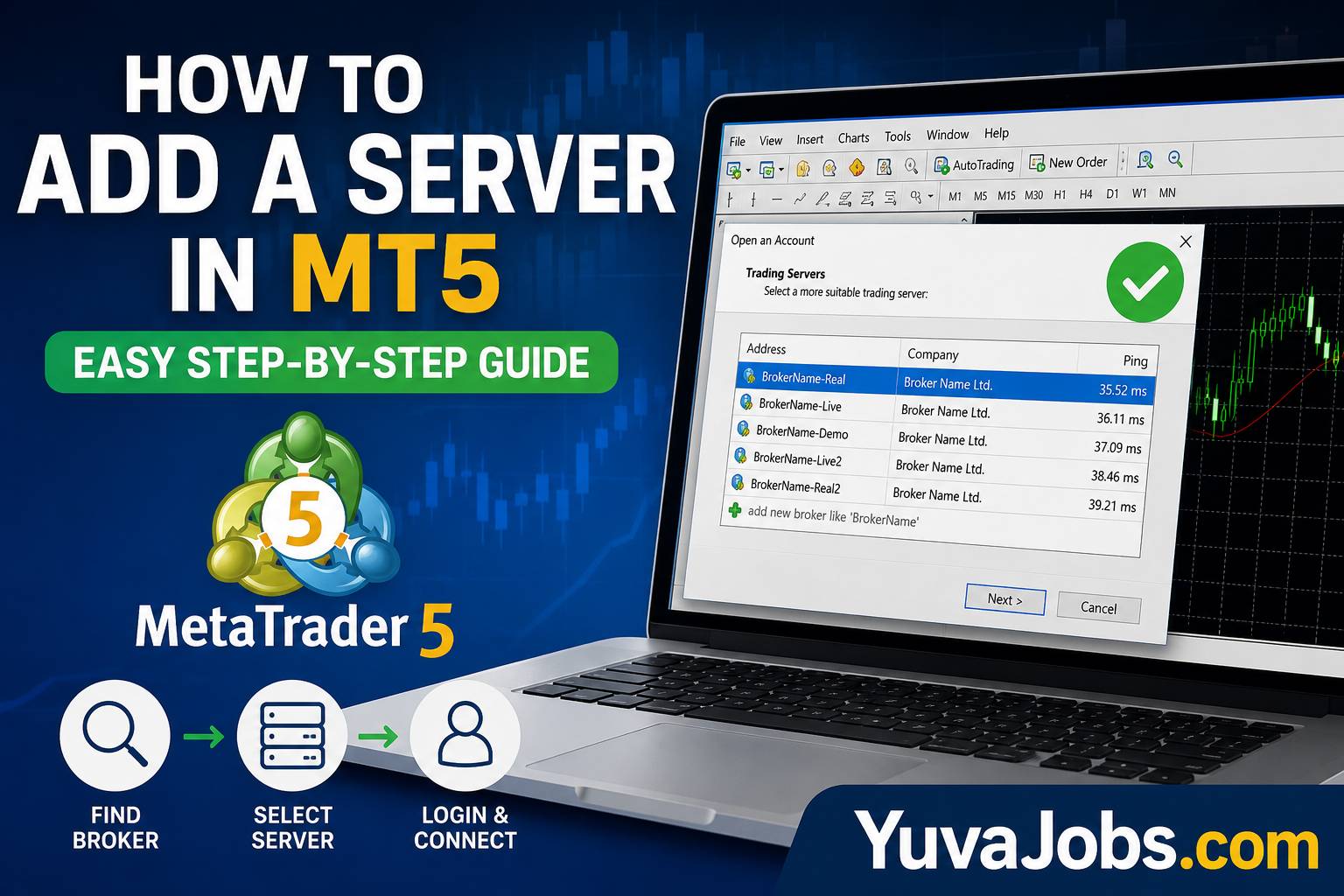
3. Choose the correct server
Many brokers have multiple servers.
You might see names such as:
- BrokerName-Live
- BrokerName-Live2
- BrokerName-Demo
- BrokerName-Real03
- BrokerName-Europe
Select the exact server listed in your broker’s email.
Using the wrong server usually causes an “Invalid Account” or “Authorization Failed” message even if your password is correct.
4. Enter your login credentials
Type:
- Trading account number.
- Trading password.
- Selected server.
Then click Finish or Login.
MT5 should establish the connection within a few seconds if everything matches.
5. Add a server manually if it doesn’t appear
Sometimes the search returns nothing.
In that case:
- Download the official MT5 installer directly from your broker.
- Install it without removing your existing MT5 installation.
- Launch the broker-specific version.
- Log in again.
Many brokers include their server configuration inside their custom installer, which automatically adds servers that may not appear in the public directory.
6. Refresh the server list
If the broker exists but no servers appear:
- Close MT5 completely.
- Reopen the application.
- Search again.
- Restart your computer if necessary.
And give the search a little time before assuming it failed.
7. Add a server on Android or iPhone
The mobile process is slightly different.
Open MT5.
Tap Settings.
Choose New Account.
Select Login to an Existing Account.
Search for your broker.
Pick the correct server.
Enter your account number and password.
Tap Sign In.
The order is almost identical to the desktop version, although menu names vary slightly between Android and iOS.
8. Verify the connection
Once connected, check the lower-right corner on desktop.
You should see a live data speed (for example, 45 kb) instead of “No Connection.”
Open Market Watch.
If prices are moving, your server has been added successfully and your account is connected.
Common mistakes
The biggest mistake is confusing MT4 and MT5 accounts. An MT4 account cannot log into an MT5 server, even when both belong to the same broker. This catches many beginners because the account numbers often look similar.
Another frequent problem is selecting the wrong server. Brokers commonly operate separate demo, live, regional, and backup servers. Logging into “Demo” with a live account simply won’t work—even though the username and password are correct.
But passwords also cause confusion. Many brokers provide an investor password alongside the trading password. The investor password allows viewing the account but not trading. Double-check which one you’re entering.
A less obvious issue appears when users install the generic MT5 platform months before opening a brokerage account. Some broker servers don’t populate immediately in older installations. Installing the broker’s latest MT5 package often fixes this without changing anything else.
Here’s the thing: if the server genuinely isn’t listed by your broker anymore, no manual typing trick inside MT5 will make it appear. You’ll need updated server information from the broker.
Tips to do it better
Save your broker’s welcome email instead of deleting it after opening your account. That message usually contains the exact server name, which is much easier than trying to remember whether your account belongs on “Live02” or “Real5.”
So keep MT5 updated whenever a new version becomes available—older builds occasionally struggle to discover recently added broker servers.
If you use several brokers (many active traders do), install each broker’s customized MT5 in its own folder. That keeps server lists separate and reduces login mistakes.
Realistically, writing down your account number, server name, and whether it’s a demo or live account saves far more time than repeatedly searching through emails months later.
One honest caveat: if your broker has shut down its server or migrated all clients to a new one, adding the old server isn’t possible. In that situation, only the broker can provide the replacement server information.
Once your server appears and the account connects successfully, the hardest part is over. Open the Market Watch window, confirm live prices are updating, and place a trade only after verifying you’re logged into the correct account type. If you ever change devices, repeat the same process using the same server name and credentials, and you’ll be connected again in just a few minutes.
