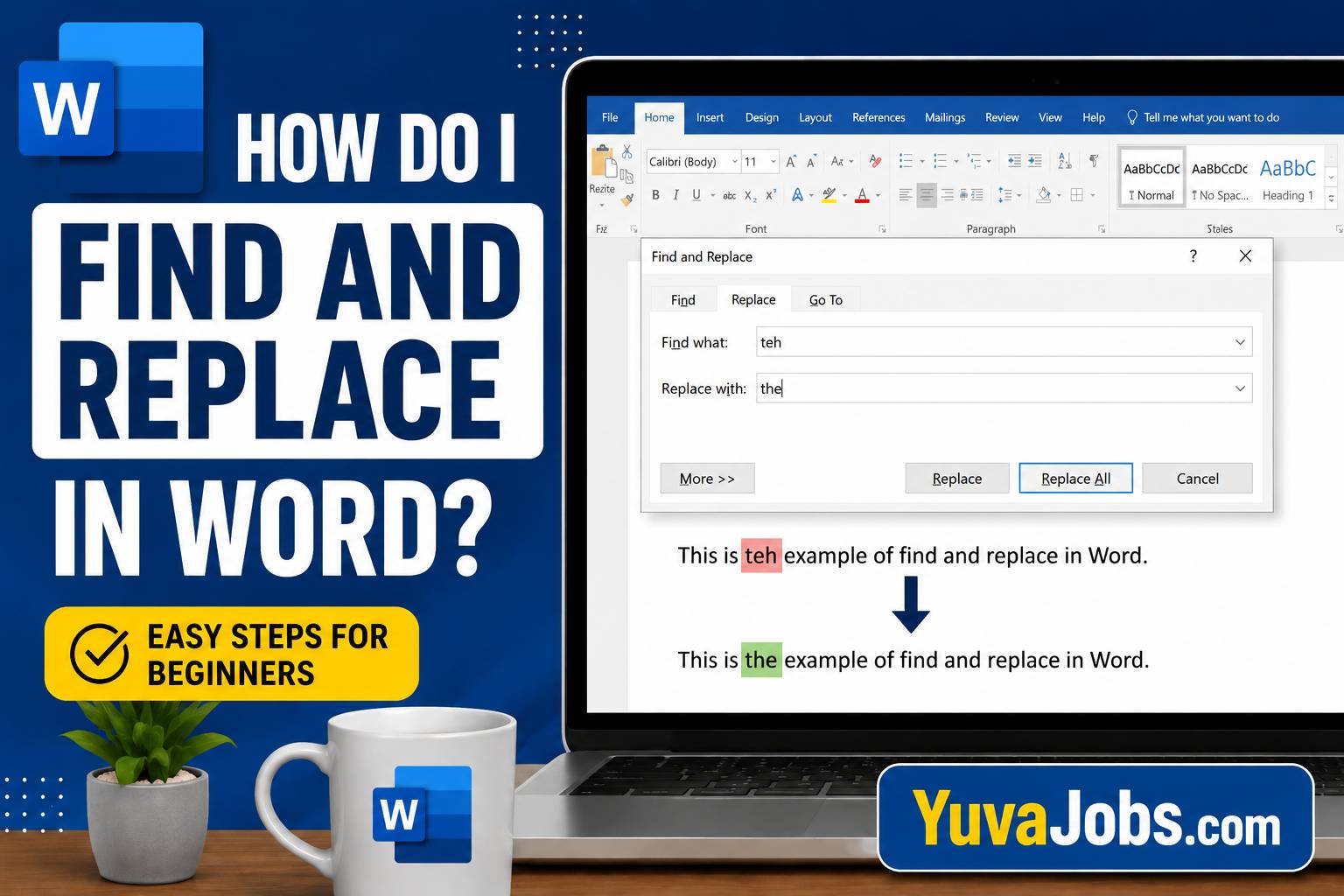
A single typo repeated hundreds of times can quietly turn a polished document into a frustrating editing job. Learning how do i find and replace in Word is one of those skills that saves far more time than most people expect. Instead of scrolling through page after page, you can locate every occurrence of a word, phrase, or formatting choice in seconds.
By the end of this guide, you’ll know how to search for text, replace individual words or every match at once, work with formatting, and avoid the mistakes that commonly lead to unwanted edits. Whether you’re using Microsoft Word on Windows, Mac, or the web, the steps are straightforward once you know where to look.
Before you start
You don’t need any special software beyond Microsoft Word, but the exact menus can vary slightly depending on your version (Microsoft 365, Word 2021, Word 2019, or Word for Mac). The Find and Replace feature is available in all modern versions, although some advanced options may appear in different locations.
Before replacing text across an entire document, save your work first—or create a copy if the document is especially important. That small precaution can save a lot of time if you accidentally replace something you didn’t intend to. And if you’re working in a shared document with Track Changes enabled, remember that replacements may appear as tracked edits rather than changing the text immediately.
Step-by-step instructions
1. Open your document
Start by opening the Microsoft Word document you want to edit.
This sounds obvious, but many beginners accidentally open a different version of the same file, make changes, and later discover they edited the wrong copy.
2. Open the Find and Replace window
Press Ctrl + H on Windows or Command + Shift + H on many Mac versions of Word.
Or, go to the Home tab and select Replace in the Editing group.
Using the keyboard shortcut is usually the fastest method—and once you memorize it, you’ll rarely need the menu again.
3. Enter the text you want to find
In the Find what box, type the exact word or phrase you’re searching for.
Be careful with spelling, spaces, punctuation, and capitalization if those details matter. Even an extra space can prevent Word from finding matches.
4. Enter the replacement text
Type the new word or phrase into the Replace with box.
Double-check the replacement before continuing. Here’s the thing: replacing hundreds of words takes only a second, but fixing a wrong replacement throughout a long document can take much longer.
5. Choose Replace or Replace All
You now have two main choices:
- Replace changes only the current match and then moves to the next one.
- Replace All changes every matching occurrence in the document immediately.
If you’re replacing names, technical terms, or words that may appear in different contexts, use Replace first. If every occurrence should become the same new text, Replace All is much faster.
6. Review the results
After Word finishes, it displays the number of replacements made.
Take a moment to scan the document (especially headings, tables, and footnotes). Sometimes a replacement makes perfect sense in one paragraph but not in another.
7. Use advanced options when needed
Click More >> to reveal additional search settings.
You can search using options such as:
- Match case (only replaces words with the same capitalization)
- Find whole words only
- Use wildcards for advanced pattern matching
- Ignore punctuation or spaces (depending on your Word version)
- Search formatting like bold, italic, font color, or paragraph styles
But be cautious with wildcard searches—they’re powerful, yet a small mistake in the pattern can produce unexpected matches.
8. Replace formatting instead of words
Word can replace formatting without changing the text.
For example, you can replace every bold word with regular text or change every instance of one font into another. Select Format in the Find and Replace dialog, choose the formatting you want to search for, then specify the replacement formatting.
This feature is especially useful when cleaning documents imported from other sources.
Common mistakes
One of the biggest mistakes is clicking Replace All before checking whether every occurrence should actually change. A person’s name, abbreviation, or product title may appear in different contexts where the replacement isn’t appropriate.
Another common issue is forgetting about capitalization. If you’re replacing “apple” but leave Match Case disabled, Word may also replace “Apple,” which could change company names unintentionally.
And beginners often overlook extra spaces before or after words. If Word isn’t finding anything, the search term may contain an invisible space copied from another document.
Some users also forget that Find and Replace searches more than the main body of text. Depending on your settings and document structure, you may need to check headers, footers, text boxes, footnotes, comments, or linked content separately. Realistically, spending one extra minute reviewing the document after the replacement is far better than discovering an editing error after sharing the file.
Tips to do it better
Use Ctrl + F first if you only want to locate text without replacing it. Once you’re sure you’ve found the correct word, switch to Ctrl + H for replacements.
And if you’re editing a long report, replace one occurrence at a time until you’re confident the replacement works exactly as expected. After that, using Replace All becomes much safer.
You can also combine Find and Replace with formatting searches to standardize headings, fonts, or highlighted text across an entire document (which many people overlook). The truth is, this feature isn’t just for correcting spelling mistakes—it can dramatically reduce formatting work as well.
One limitation to remember is that very advanced replacements involving complex patterns or multiple formatting rules may require wildcard searches or even Word macros. Most everyday editing tasks, however, don’t need those advanced techniques.
Editing a document doesn’t have to involve endless scrolling or repetitive corrections. Once you know how do i find and replace in Word, you can update text, fix repeated mistakes, and even change formatting in just a few clicks. Start by trying the feature on a copy of a document, explore the advanced options as you become comfortable, and you’ll quickly find yourself editing large files with much greater speed and confidence
