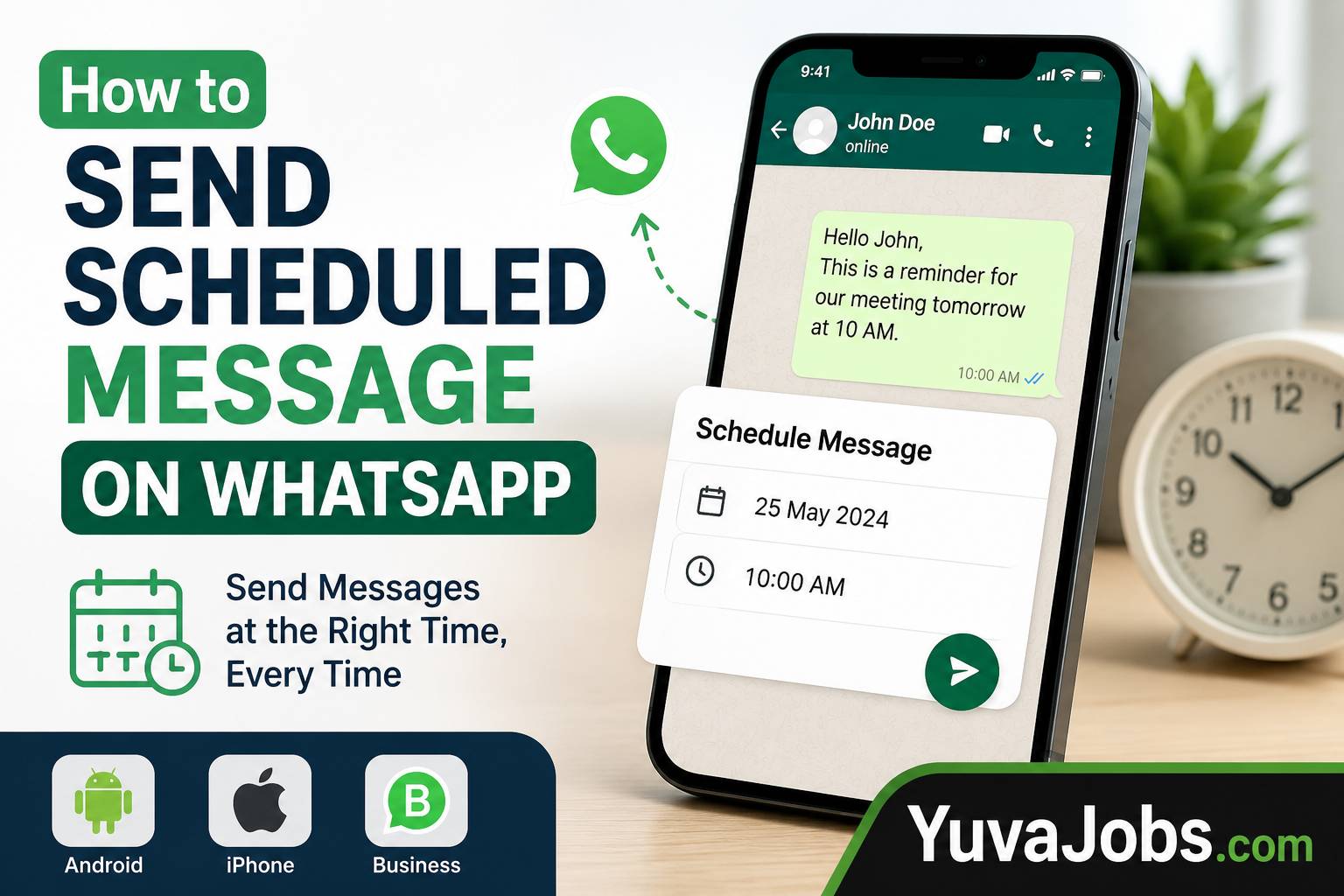
A missed message can create more problems than most people expect. A forgotten birthday, a delayed client follow-up, or an anniversary greeting sent hours late often leaves the wrong impression. Learning how to send scheduled message on WhatsApp solves that problem by letting your message go out automatically at the right time—even when you’re asleep, busy, or away from your phone.
By the end of this guide, you’ll know exactly how to schedule WhatsApp messages on Android, iPhone, WhatsApp Business, and desktop. You’ll also understand which methods work reliably, which have limitations, and the small details that often cause scheduled messages to fail.
Before you start
The method you use depends on your device because WhatsApp itself does not include a built-in feature for scheduling personal chats.
Here’s what you’ll need:
- An Android phone if you plan to use a third-party scheduling app.
- An iPhone if you want to automate messages through the Shortcuts app.
- WhatsApp Business if you’re scheduling automatic greeting or away messages.
- A stable internet connection at the scheduled time.
- Battery optimization disabled for scheduling apps on Android (many people miss this step, and the scheduled message never sends).
And remember—some scheduling apps require accessibility permissions so they can automatically send messages. Review these permissions before enabling them and download apps only from trusted sources.
Step-by-step instructions
1. Check whether you’re using WhatsApp or WhatsApp Business
Start by identifying which version of WhatsApp you have installed.
Regular WhatsApp is designed for personal messaging and doesn’t include message scheduling. WhatsApp Business offers automatic greeting and away messages, although it still doesn’t allow custom scheduled chats for every contact.
Knowing your version saves time because the available options differ.
2. Schedule messages on Android
If you use Android, install a trusted scheduling application from the Google Play Store.
After installation:
- Open the scheduling app.
- Grant the permissions it requests (especially Accessibility).
- Tap Create New Schedule.
- Select the WhatsApp contact or group.
- Write your message.
- Choose the date and time.
- Save the schedule.
The app will either send the message automatically or remind you to approve it, depending on your Android version and security settings.
But here’s where many first-time users get stuck—the phone must usually remain powered on, and some manufacturers aggressively stop background apps to save battery. Disable battery optimization for the scheduling app if messages fail to send.
3. Schedule messages on iPhone
Apple handles automation differently.
Open the Shortcuts app and follow these steps:
- Tap Automation.
- Create a new Personal Automation.
- Select Time of Day.
- Choose your preferred schedule.
- Add the Send Message action.
- Enter the recipient.
- Type your message.
- Disable “Ask Before Running” if your iOS version allows it.
- Save the automation.
Some iOS versions still require user confirmation before sending messages because of Apple’s privacy restrictions. That’s normal rather than a problem with WhatsApp.
4. Use WhatsApp Business automatic messages
If you’re running a business, this method is often enough.
Open WhatsApp Business and go to:
Settings → Business Tools → Away Message
Or:
Settings → Business Tools → Greeting Message
Choose when these messages should be sent, who should receive them, and customize the text.
These features aren’t designed for birthdays or reminders, but they’re excellent for responding outside business hours.
5. Test before relying on it
Never assume everything is working.
Create a test schedule for five minutes later and send it to yourself or a family member.
Watch whether:
- The message sends automatically.
- The scheduled time is accurate.
- Permissions remain enabled.
- Internet connectivity stays active.
So you’ll know your setup works before scheduling something that actually matters.
Common mistakes
One of the biggest mistakes is assuming WhatsApp includes native scheduling for personal messages. It doesn’t, which is why many users spend time searching through settings that simply aren’t there.
Another common issue is denying accessibility permissions to Android scheduling apps. Without those permissions, the app often cannot complete the sending process even though the schedule appears correctly.
People also forget battery optimization. Many Android phones automatically stop background apps after a few hours (especially brands with aggressive power-saving features). That prevents scheduled messages from running on time.
And don’t overlook time zones. If you’ve recently traveled or manually changed your device clock, your scheduled message may go out earlier or later than expected.
Here’s the thing: even the best scheduling setup deserves an occasional test after major operating system updates because Android and iOS sometimes change automation permissions.
Tips to do it better
Schedule messages a few minutes earlier than an absolute deadline whenever timing matters. A small buffer accounts for temporary network delays without affecting the purpose of the message.
Use clear, complete text before saving the schedule instead of planning to edit it later. Some scheduling apps don’t make editing particularly easy once a message has been created.
Realistically, keeping your phone connected to Wi-Fi or mobile data improves reliability—especially overnight when some devices enter deeper battery-saving modes.
Or consider recurring automations for weekly reminders if your scheduling app supports repeating events. That saves time and reduces the chance of forgetting routine messages.
One limitation deserves mentioning: third-party scheduling apps depend on Android permissions and operating system behavior, so they may occasionally require reauthorization after major software updates.
Sending messages at exactly the right moment doesn’t require staying glued to your phone. Once you’ve chosen the method that matches your device, tested it once, and confirmed permissions remain active, scheduling becomes a simple routine. Your next step is easy: create a short test message for a few minutes from now. If it arrives exactly as expected, you’ll know your setup is ready for birthdays, reminders, client follow-ups, and every important message you don’t want to forget.

Adan
I’m Mohd. Adan, an SEO Expert and Professional Content Writer dedicated to creating high-quality, search-friendly content. I specialize in SEO, content strategy, keyword research, and technical optimization. Through YuvaJobs.com, my mission is to publish accurate, helpful, and original articles that improve user experience and help readers find reliable information quickly.
Our Fact Checking Process
We prioritize accuracy and integrity in our content. Here’s how we maintain high standards:
- Expert Review: All articles are reviewed by subject matter experts.
- Source Validation: Information is backed by credible, up-to-date sources.
- Transparency: We clearly cite references and disclose potential conflicts.
Our Review Board
Our content is carefully reviewed by experienced professionals to ensure accuracy and relevance.
- Qualified Experts: Each article is assessed by specialists with field-specific knowledge.
- Up-to-date Insights: We incorporate the latest research, trends, and standards.
- Commitment to Quality: Reviewers ensure clarity, correctness, and completeness.
Look for the expert-reviewed label to read content you can trust.