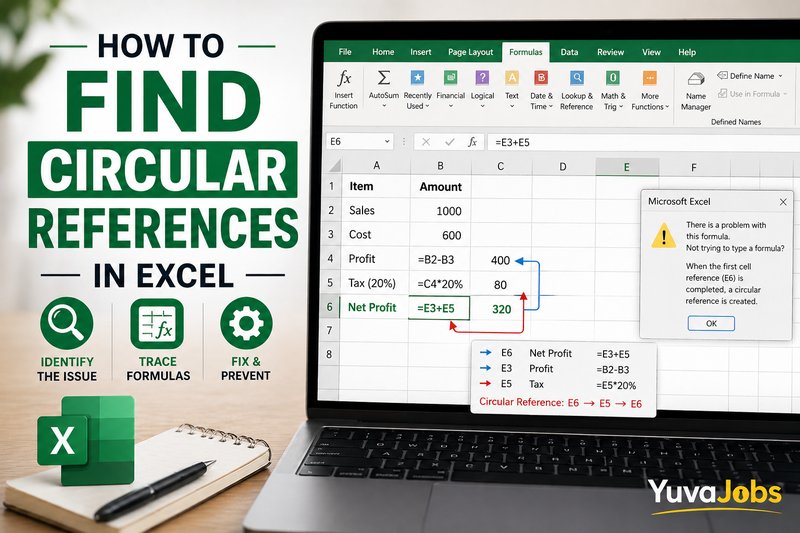
Excel doesn’t usually fail loudly. It just… hesitates. Numbers stop updating, formulas behave strangely, and somewhere in the background, a circular reference is quietly breaking your logic. Knowing how to find circular references in Excel becomes essential the moment your sheet stops behaving predictably. And the frustrating part is this: Excel often gives you just enough warning to know something’s wrong, but not enough clarity to fix it instantly.
I’ve seen this happen in financial models, inventory sheets, even simple budgets. The formula looks fine at a glance, but underneath, it’s feeding itself. That loop is what causes the issue—and until you break it, nothing calculates properly.
What causes this
Most circular references don’t come from complex formulas—they come from small, easy-to-miss mistakes. A common scenario: a formula in cell A1 refers to B1, and B1 (directly or indirectly) refers back to A1. That loop creates a dependency chain Excel can’t resolve.
And here’s the subtle part—Excel calculates cells in sequence. When it hits a formula that depends on its own result (even indirectly), it doesn’t know where to start. So it either returns zero, keeps recalculating endlessly (if iteration is enabled), or throws a warning.
Another frequent cause shows up when users drag formulas without locking references. For example, copying a formula like =A1+B1 downward without considering relative references can accidentally create a loop in later rows. It’s not obvious unless you inspect each formula carefully.
But there’s also a less talked-about case: intentional circular references. These are used in advanced financial modeling where iterative calculations are enabled. The problem is, most users don’t realize they’ve created one accidentally—and Excel treats both cases similarly unless configured otherwise.
So the real issue isn’t just the loop. It’s that Excel doesn’t always tell you how deep the loop goes, especially in large sheets (and that’s where most people get stuck).
How to fix it
Fixing circular references is less about clicking a button and more about tracing logic carefully. Here’s the exact process that works reliably.
1. Check Excel’s warning message
When a circular reference exists, Excel usually shows a warning in the status bar (bottom left). It may also display a message box when the file opens. Pay attention to the cell reference it mentions—that’s your starting point, not necessarily the root cause.
2. Use the built-in Circular References tool
Go to Formulas > Error Checking > Circular References. Excel will list cells involved in the loop. Click each one to jump directly to it. This tool only shows one chain at a time, so you may need to repeat this step.
3. Trace precedents and dependents
Select the problematic cell, then go to Formulas > Trace Precedents. This draws arrows showing which cells feed into it. Then use Trace Dependents to see where its result flows. Follow the arrows until you see the loop close—that’s your circular reference.
4. Break the loop deliberately
This is where judgment matters. You need to decide which part of the formula should not depend on the other. Sometimes it’s as simple as replacing a reference with a fixed value. Other times, you need to restructure the formula entirely.
For example, if A1 = B1 + 10 and B1 = A1 * 2, neither can resolve independently. You must remove one dependency or redesign the calculation flow.
5. Check iterative calculation settings
Go to File > Options > Formulas. Look for “Enable iterative calculation.” If this is turned on, Excel allows circular references to exist but calculates them repeatedly until a limit is reached.
But here’s the thing—this setting can hide problems. If you didn’t intentionally enable it, turn it off and re-evaluate your formulas. Otherwise, you may get results that look correct but are actually approximations.
6. Recalculate the workbook
Press Ctrl + Alt + F9 to force a full recalculation. This ensures no residual calculation errors remain after your fix.
If that didn’t work
Sometimes the circular reference isn’t obvious because it spans multiple sheets or hidden cells. I’ve seen cases where the loop runs through three worksheets, making it almost invisible at first glance.
One possibility is named ranges. If a formula uses a named range that refers back to the original cell, Excel won’t always make that clear. Go to Formulas > Name Manager and inspect each definition.
Another edge case involves tables (structured references). When formulas auto-fill inside tables, they can create loops if one column references another that loops back indirectly. These are harder to detect because Excel hides some of the logic behind structured names.
Or the issue could be external links. If your workbook references another file, and that file references back to yours, you’ve created a cross-workbook circular reference. Excel won’t always flag this clearly.
Realistically, when basic tracing fails, you need to simplify. Copy formulas into a blank sheet, reduce dependencies, and rebuild step by step until the loop becomes visible.
How to prevent it
The simplest prevention method is discipline with formula design. Always think in one direction—inputs to outputs—and avoid backward dependencies.
And lock references intentionally. Use absolute references ($A$1) where needed so formulas don’t shift unpredictably when copied.
Another habit that helps is auditing formulas as you build. Don’t wait until the sheet is complete. Check dependencies early, especially in large models.
And if you ever enable iterative calculation, document why. Otherwise, someone (including future you) will spend hours trying to debug something that was actually intentional.
Closing
Circular references aren’t rare—they’re just easy to miss until they break something important. The key is not just finding them, but understanding why they happened in the first place. Once you trace the loop and break it cleanly, Excel behaves normally again.
If you’re stuck right now, start with the Circular References tool and trace arrows step by step. Don’t rush it. The loop is always there—you just need to follow it far enough to see where it closes.
