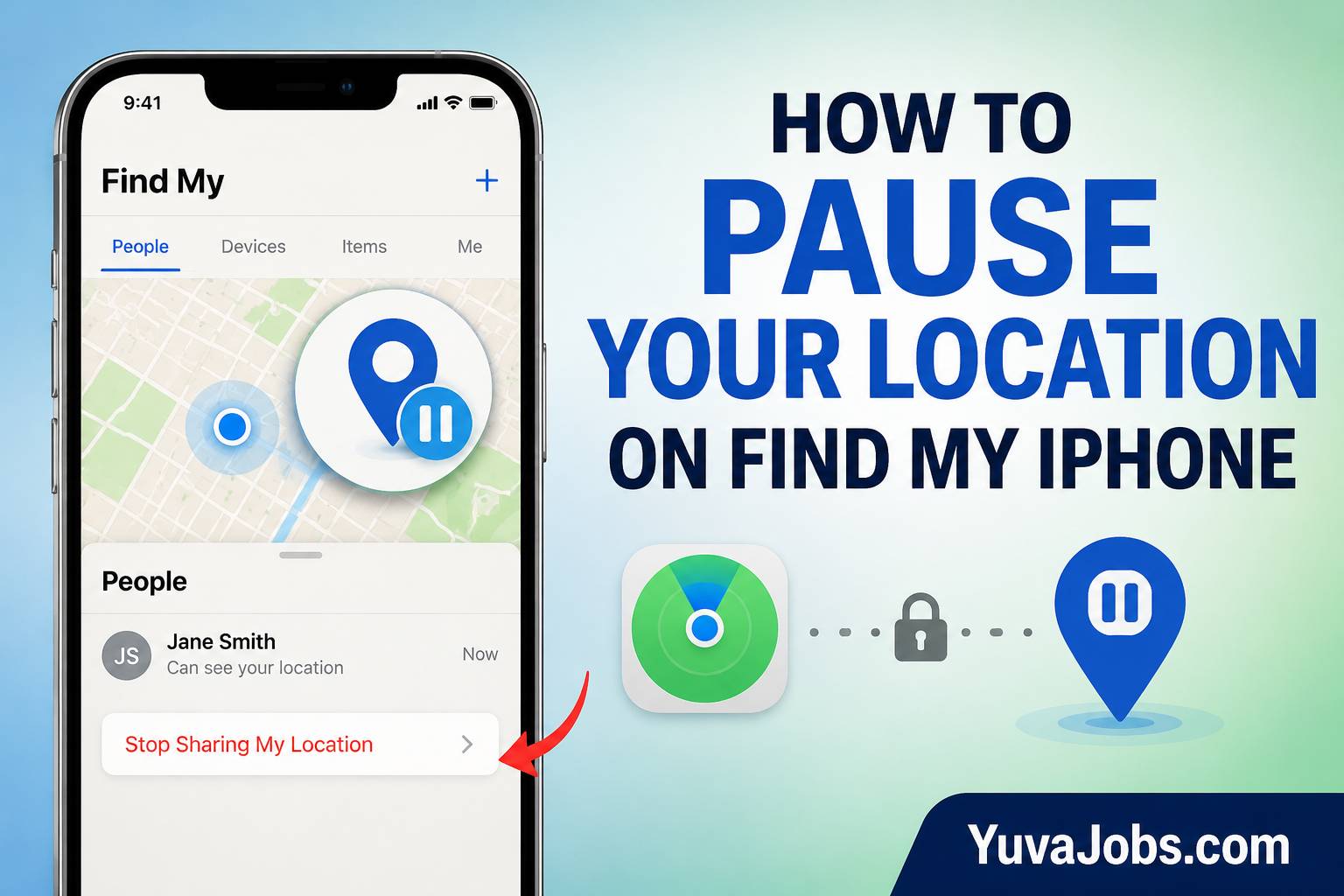
our iPhone can quietly share more than you realize, especially when Find My is connected to family members, friends, or people you previously trusted with your location. Learning how to pause your location on Find My iPhone gives you more control over when your whereabouts are visible without forcing you to change every location permission on the device. After following this guide, you’ll know how to stop sharing with one person, pause location sharing more broadly, check whether the change actually worked, and turn sharing back on later. The tricky part is choosing the correct setting. Turning off the wrong option can affect Maps and other apps, while changing the right one can solve the problem in seconds.
Before you start
Before touching any settings, decide exactly what you want to accomplish. If you only want one person to stop seeing your location, you don’t need to disable location access for your entire iPhone. If you want to stop sharing your location with everyone through Apple’s Find My service, you’ll need a different setting.
You should have your iPhone nearby and know your device passcode or Apple Account credentials if your device asks for authentication. The exact wording can vary between iOS versions, so a newer iPhone may not look identical to an older tutorial (this is normal).
Also, think about where your location is being shared. Find My, Messages, Family Sharing, and third-party apps can handle location permissions separately. So changing one setting may not affect another service.
One more warning: stopping Find My location sharing does not mean your iPhone becomes completely untraceable. Emergency services and certain network or device functions may still have access to location information under different rules.
Step-by-step instructions
1. Open Find My on your iPhone
Find the Find My app on your iPhone and open it.
If you can’t see it on your Home Screen, swipe down and use Spotlight Search to search for Find My. The app is usually represented by a green-and-blue radar-style icon.
Opening the app first lets you see your current location-sharing setup rather than changing a broad system setting blindly. That’s useful because the best method depends on whether you’re trying to stop sharing with one person or everyone.
2. Open the People tab
Once Find My opens, tap People at the bottom of the screen.
You’ll see people who currently have access to your shared location through Apple’s location-sharing system. Select the person whose access you want to change.
This is the most targeted approach when you only want to stop one individual from seeing your location—your other location-sharing relationships can remain unchanged.
3. Stop sharing with the selected person
Look for Stop Sharing My Location or a similarly worded option on the person’s information page.
Tap the option and confirm the change if your iPhone asks you to do so. Your location should no longer be actively shared with that person through Find My.
And this is where many beginners make a mistake: they jump straight into the iPhone’s Location Services settings because they assume that is the only way to hide their location. It isn’t. If your goal involves one specific contact, changing the sharing permission inside Find My is usually the cleaner solution.
4. Pause location sharing more broadly
If you want to stop sharing your location with everyone through Find My, open Settings.
Tap your name or Apple Account at the top, then select Find My. Look for Share My Location and switch it off.
The exact menu names may vary slightly depending on your iOS version, but the setting should be located within your Apple Account’s Find My controls.
This option is broader than stopping sharing with one contact. So, realistically, don’t use it simply because you want to hide your location from a single person.
5. Check your location-sharing status
After making the change, open Find My again and check the People section.
Confirm that the person you selected can no longer access your current location, or verify that broader location sharing has been disabled if that was your intention.
But don’t be surprised if someone can still see an older location or a previous location status. Stopping live sharing doesn’t necessarily mean that every piece of previously displayed information instantly disappears from another person’s memory or screenshots.
6. Check other apps if privacy is the goal
If you’re trying to reduce location exposure rather than simply pause Find My, open Settings > Privacy & Security > Location Services.
Review which apps have permission to access your location. You can select individual apps and choose an appropriate permission level, such as Never, Ask Next Time Or When I Share, While Using the App, or Always, depending on the app and iOS version.
This step matters because turning off Find My sharing does not automatically revoke location access from every other app installed on your iPhone.
7. Restore sharing when you need it again
When you’re ready to share your location again, return to Find My and open People.
Depending on your iOS version and previous settings, you may need to select a contact and use the option to share your location again. Follow the prompts and choose the sharing duration if Apple provides options for your situation.
And remember that pausing location sharing isn’t always a temporary timer. In many cases, you have to manually turn sharing back on later.
Common mistakes
The first mistake is turning off Location Services when the real goal is simply to stop sharing through Find My. This can affect navigation, weather, ride-hailing, camera features, and other apps that depend on location.
Another common problem is changing the global Share My Location setting when the user only wanted to hide their location from one contact. That can stop sharing more widely than intended.
People also sometimes delete the Find My app or remove it from the Home Screen and expect location sharing to stop. But the app itself isn’t the same thing as your Apple Account’s location-sharing settings. Removing the icon doesn’t automatically change those permissions.
So, if your location still appears somewhere after you change Find My, check whether you’re sharing it through Messages, Family Sharing, or another application. Each service can have its own controls.
There is also a limitation that guides sometimes gloss over: stopping Find My sharing isn’t a universal “make my phone invisible” switch. It changes Apple’s location-sharing behavior, but it doesn’t override emergency location features or every possible method by which a device’s location can be determined.
Tips to do it better
Start with the smallest change that solves your actual problem. If only one person needs to stop seeing your location, manage that person’s access instead of switching off location services throughout the phone.
Before changing anything, check the People tab in Find My. This gives you a clearer picture of who currently has access and helps prevent accidental changes.
And if you’re troubleshooting, don’t change several location settings simultaneously. Make one adjustment, check the result, and then move to the next setting if necessary. This makes it much easier to identify which control actually solved the issue.
For extra privacy, review app permissions under Privacy & Security > Location Services separately. A weather app or social platform may still have location access even after you stop sharing your location through Find My (and that’s a separate permission).
Closing
Pausing your location on Find My iPhone is easier when you first decide whether you want to stop sharing with one person or everyone. Use the People tab for targeted control, and check your Apple Account’s Find My settings for broader sharing changes. Avoid switching off Location Services unless you also want to affect other apps. Your next step is to open Find My, tap People, and review exactly who can currently see your location before making the change
