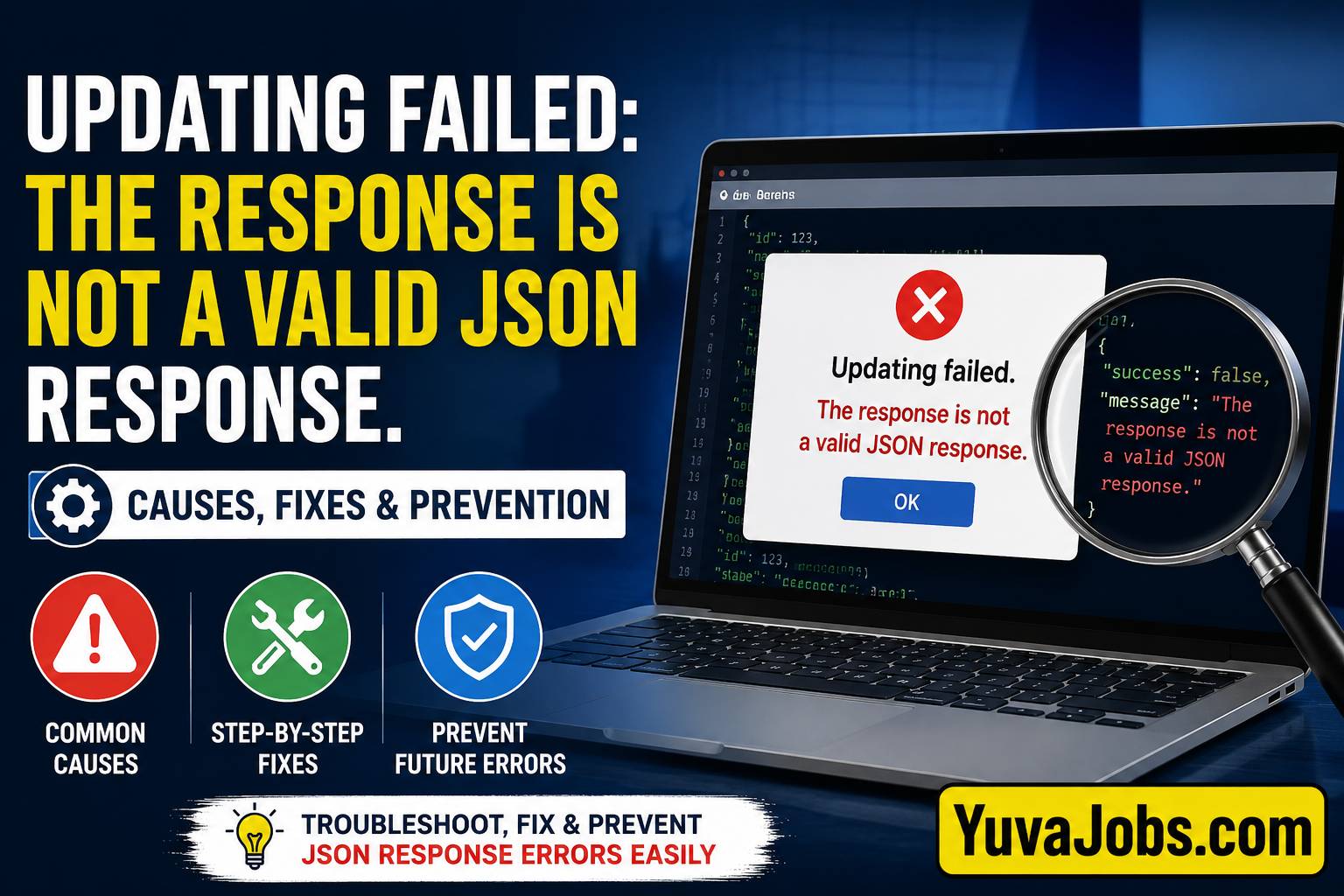
When an application sends an update request, the server is expected to return a valid JSON response. Instead, it may receive HTML, a PHP warning, an authentication error, a firewall block page, or even an empty response. Since the client expects JSON, it immediately throws the error “updating failed. the response is not a valid json response.”
The most common environment where users encounter this message is WordPress using the Block Editor (Gutenberg), although similar errors appear in REST API integrations, React applications, Node.js services, Laravel APIs, mobile apps, and custom dashboards.
Sometimes the server actually processes the update—but because the response is corrupted afterward, the editor reports failure anyway.
And that’s why refreshing the page occasionally shows the changes were saved despite the error.
Another frequent cause comes from server-side warnings (especially after plugin or theme updates). A single unexpected PHP notice printed before the JSON response instantly breaks the format—even though the underlying code may still execute correctly.
Here’s the thing: restarting the browser or clearing cache rarely fixes a genuine JSON response problem because the issue usually exists between the client and server rather than inside the browser itself.
What causes this
Several completely different failures can produce the exact same error message, which makes troubleshooting confusing.
A very common cause is an incorrectly configured REST API. In WordPress, the Block Editor communicates with endpoints under /wp-json/. If those endpoints return a 401 Unauthorized, 403 Forbidden, 404 Not Found, 500 Internal Server Error, or HTML login page instead of JSON, the editor cannot process the response.
Server configuration is another frequent source. Misconfigured Apache .htaccess rules, Nginx rewrite directives, reverse proxies, or caching layers sometimes redirect API requests unexpectedly. The browser receives an HTML page while expecting structured JSON.
PHP errors are especially deceptive. A fatal error, warning, or notice inserted into the output changes something like:
{"success":true}
into something resembling:
Warning: Undefined variable...

{"success":true}
That response is no longer valid JSON.
Plugin conflicts create another variation. Security plugins, firewall modules, maintenance plugins, output compression tools, and optimization plugins occasionally intercept API requests or modify headers.
But hosting environments also matter. Some managed hosting providers enable ModSecurity rules or Web Application Firewalls that silently block certain POST requests.
Authentication failures deserve attention too (particularly after domain migrations). If cookies expire or REST authentication fails, the request reaches the server but receives an authentication page rather than JSON.
Realistically, the same error message can represent dozens of different underlying failures, which is why guessing rarely works.
How to fix it
Follow these steps in order instead of changing multiple settings at once.
1. Open your browser’s Developer Tools
Press F12 (or Ctrl + Shift + I).
Open the Network tab.
Attempt the update again.
Look for the failed request—typically something like:
POST /wp-json/wp/v2/posts/123
Check the HTTP status code.
200usually means the response content is malformed.401indicates authentication failed.403often points to security software or firewall restrictions.404usually means rewrite rules or REST routes are broken.500almost always indicates a server-side error.
2. View the actual response
Click the failed request.
Inspect the Response tab.
If you see HTML instead of JSON, you’ve already identified the direction of the problem.
Examples include:
- Login page
- PHP Warning
- PHP Fatal Error
- Maintenance page
- Cloudflare challenge
- Hosting firewall message
The response itself usually tells you more than the error message.
3. Check server error logs
For Apache:
/var/log/apache2/error.log
For Nginx:
/var/log/nginx/error.log
PHP-FPM commonly logs to locations such as:
/var/log/php8.x-fpm.log
(or another version depending on your PHP installation).
Look for entries matching the exact timestamp of the failed update.
4. Enable debugging carefully
If you’re using WordPress, edit wp-config.php:
define('WP_DEBUG', true);
define('WP_DEBUG_LOG', true);
define('WP_DEBUG_DISPLAY', false);
Errors will be written to:
/wp-content/debug.log
Keep WP_DEBUG_DISPLAY set to false; displaying errors directly in the browser can itself corrupt JSON responses.
5. Test plugins and themes
Deactivate plugins one at a time (especially security, caching, optimization, and firewall plugins).
Retry the update after each change.
If the problem disappears, reactivate plugins individually until the faulty one is identified.
Then temporarily switch to a default theme such as Twenty Twenty-Six to rule out theme-specific output.
6. Verify REST API accessibility
Visit:
https://yourdomain.com/wp-json/
A healthy installation should return structured JSON.
If you see an error page, redirect, login screen, or blank output, investigate your server configuration, permalink settings, or security software.
7. Check reverse proxy and firewall settings
Cloudflare, ModSecurity, reverse proxies, and load balancers sometimes modify or block API responses.
Review recent firewall rules, rate limits, and request filtering.
And if the problem started immediately after changing DNS, SSL, or hosting, verify that HTTPS redirection and certificates are configured consistently across the entire stack.
If that didn’t work
Some environments introduce less obvious problems.
Mixed HTTP and HTTPS URLs remain surprisingly common. If your site loads over HTTPS but the REST endpoint still references HTTP, browsers may silently block requests. Check your Site URL, Home URL, and application configuration.
Memory limits can also trigger incomplete responses. PHP may terminate execution before JSON is fully generated. Increasing memory_limit or correcting inefficient code often resolves intermittent failures (although this is only appropriate if memory exhaustion is confirmed in logs).
Or the response could be altered by custom middleware. API gateways, CDN edge workers, reverse proxies, or custom authentication services occasionally inject banners, headers, or diagnostic text into responses.
One limitation worth acknowledging is that the same message appears across many different applications. The troubleshooting approach stays largely the same, but exact file locations, logging methods, and configuration screens vary depending on the software and hosting environment.
How to prevent it
Avoid making multiple configuration changes before testing each one. When several plugins, firewall rules, and server settings change together, identifying the real cause becomes much harder.
Keep PHP, your CMS, themes, plugins, and server software compatible with one another. Test updates in a staging environment before applying them to production whenever possible.
Monitor server logs regularly instead of waiting for visible failures. Early warnings often reveal deprecated functions, authentication issues, or plugin conflicts before they break JSON responses.
And after major migrations, always verify the REST API endpoint separately before assuming the application itself has a problem.
Fixing updating failed. the response is not a valid json response. usually comes down to finding what interrupted or replaced the expected JSON response. Resist the temptation to apply random fixes from forum threads. Start with the failed network request, inspect the server’s response, and match it with your server logs. That method consistently narrows the issue to its real source, whether it’s a plugin conflict, server error, authentication problem, or configuration mistake. Once you identify the actual response being returned, the correct fix is usually much more straightforward than the error message suggests
