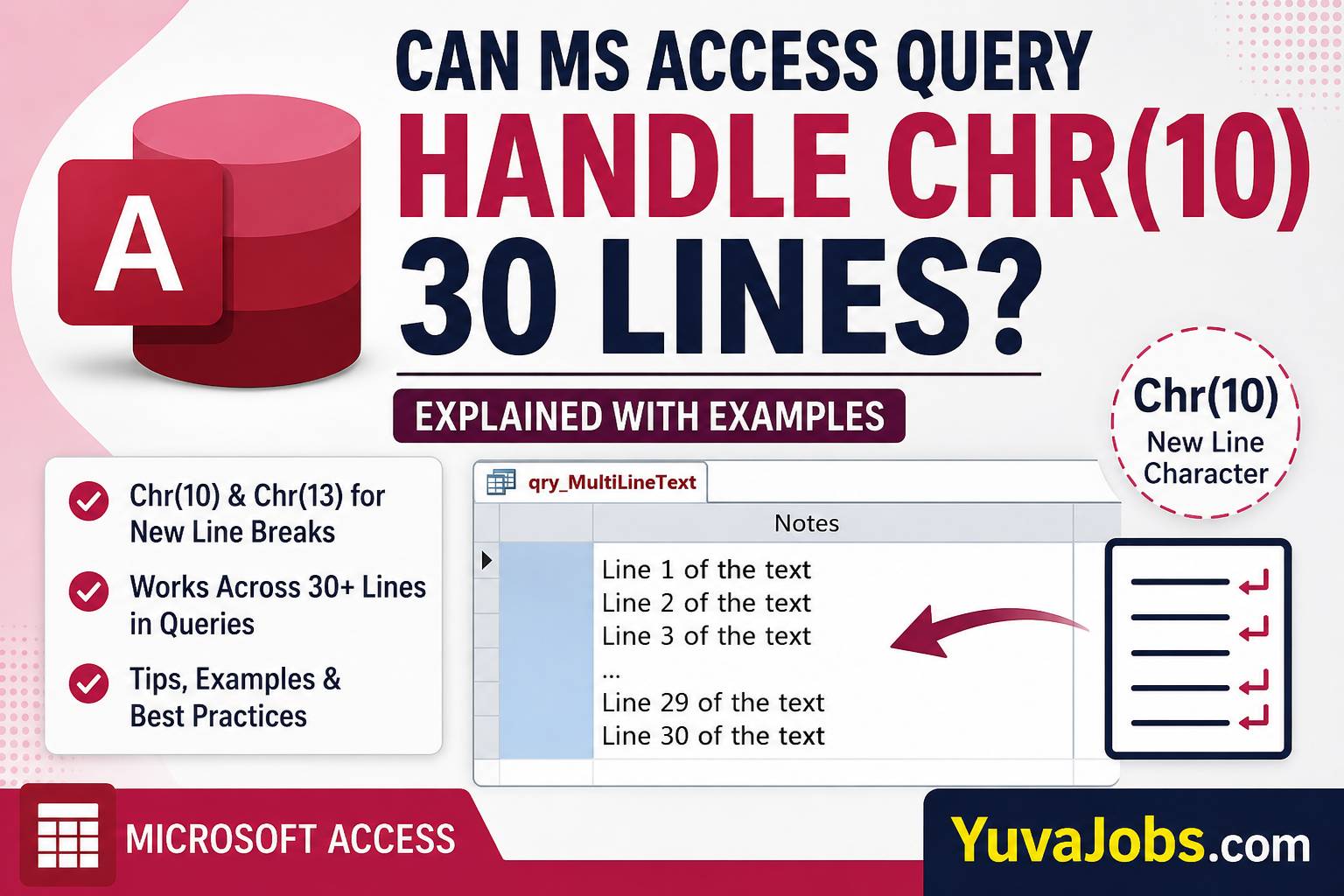
Long text stored in a database often looks perfect until a query tries to display it. That’s usually the moment when line breaks disappear, records merge into a single paragraph, or exported files suddenly become difficult to read. Many users searching whether can ms access query handel chr 10 30 lines are not really asking about the Chr(10) function itself. They want to know whether Microsoft Access can safely preserve dozens of line breaks inside a query result without corrupting the data or cutting it short.
The short answer is yes. Microsoft Access queries can handle Chr(10) across 30 lines—and far beyond that—provided the underlying field type, query expression, forms, reports, and export destination all support multiline text correctly. The real challenge isn’t the query engine. It is understanding where line breaks are preserved, where they are ignored, and how Windows stores them internally.
Background and Context
Text formatting inside databases has always been slightly more complicated than it appears. Most Windows applications treat a new line as two characters instead of one:
Chr(13)= Carriage Return (CR)Chr(10)= Line Feed (LF)
Together they become:
Chr(13) & Chr(10)This combination creates a proper Windows line break.
And this matters because Microsoft Access was designed around Windows conventions. While Chr(10) alone works in some situations, many controls, reports, and exports expect both characters together.
Consider a memo stored inside a Long Text field.
Instead of one paragraph, it may contain:
First Line
Second Line
Third Line
...
30th Line
The database stores every line break as characters inside the text itself (not as separate rows). When an Access query retrieves that field, it normally returns the entire text exactly as stored.
But there is one detail many tutorials skip—the display depends on where the query result is viewed. Datasheet View, Forms, Reports, VBA, exports to Excel, and exported CSV files all interpret line breaks differently (and sometimes not at all). That difference often creates the impression that Access removed the formatting when, in reality, another application simply chose not to display it.
The Main Substance
The Access query engine has no practical limitation that says “Chr(10) can only appear a certain number of times.” If your field contains 30 line breaks, 100 line breaks, or even several hundred, the query processes the value as text.
For example:
SELECT
"Line 1"
& Chr(13) & Chr(10)
& "Line 2"
& Chr(13) & Chr(10)
& "Line 3"
AS Notes;
The output becomes:
Line 1
Line 2
Line 3
Now imagine expanding this to 30 lines.
Line 1
Line 2
...
Line 30
Access treats this as one Long Text value.
But here’s where users often become confused.
Suppose you build an expression like:
=[Address1]
& Chr(13) & Chr(10)
& [Address2]
& Chr(13) & Chr(10)
& [City]
The query is correct.
Yet Datasheet View may show everything on one line because row heights do not automatically expand for multiline content. When the same query feeds a report or a multiline textbox on a form, every line appears correctly.
Another common situation involves replacing text.
Example:
Replace([Comments], ";", Chr(13) & Chr(10))If the original field contains:
Apple;Orange;BananaThe query returns:
Apple
Orange
Banana
And yes, this works perfectly even if the replacement creates 30 or more separate lines.
The underlying storage also matters.
Access field types behave differently:
| Field Type | Supports Multiple Lines | Recommended |
|---|---|---|
| Short Text | Limited by 255 characters | No |
| Long Text (Memo) | Yes | Yes |
| Calculated Text | Depends on result length | Sometimes |
| Attachment | Not applicable | No |
A Long Text field can store approximately 65,536 characters for display, while internally Access can manage much larger text depending on version and storage conditions. Thirty lines of ordinary text rarely exceed even a few thousand characters.
But expressions inside queries have practical limits. Extremely large concatenated expressions may become difficult to maintain, and very complex SQL statements can approach Access expression-size restrictions. That limitation comes from the expression builder rather than the number of Chr(10) characters themselves.
Here’s the thing: if your query is only generating 30 lines of readable text, you’re operating well within normal Access capabilities.
Another real-world example appears in email generation through VBA.
SELECT
"Dear Customer,"
& Chr(13) & Chr(10)
& Chr(13) & Chr(10)
& "Your order has shipped."
& Chr(13) & Chr(10)
& "Tracking Number:"
& Chr(13) & Chr(10)
& [TrackingID]
Developers frequently create emails containing 20–40 formatted lines this way. The query itself presents no problem.
Practical Angle
Many Access databases generate invoices, quotations, shipping labels, inspection reports, or audit notes. Those documents often require multiline formatting instead of one continuous paragraph.
Suppose an employee stores inspection notes like this:
Machine Started
Temperature Normal
Oil Pressure Stable
Operator Present
Maintenance Scheduled
...
After thirty separate observations, the field still behaves like ordinary text. A query can retrieve it, append more information, or combine it with other fields without removing the line breaks.
So if your output looks wrong, the first place to investigate is not the SQL statement.
Check these items instead:
- Is the field a Long Text field rather than Short Text?
- Is the textbox’s Enter Key Behavior set for new lines?
- Does the control allow multiline display?
- Is the export destination removing carriage returns?
- Are you using
Chr(10)alone instead ofChr(13) & Chr(10)?
Realistically, most formatting problems come from reports, forms, or export settings rather than the query engine itself.
One honest limitation deserves mentioning. If you’re exporting to CSV, many third-party applications treat embedded line breaks differently. Some spreadsheet programs preserve them, while others display everything on one line unless the file is imported with the correct settings. That isn’t an Access defect—it reflects differences in how software interprets text files.
What to Know Going Forward
Working with multiline text becomes much easier once you understand the distinction between storing data and displaying it. Access stores line breaks as ordinary characters inside the text field. Queries simply return those characters.
And when creating formatted output, the safest choice remains:
Chr(13) & Chr(10)rather than using only Chr(10).
If you’re building reports, automated emails, exported documents, or printable forms, always test the final destination instead of relying only on Datasheet View. The same query may appear different across Access forms, reports, Excel, Word, or PDF exports—even though the stored text never changed.
That small detail explains many of the “missing line break” problems discussed in Access forums.
Closing
Microsoft Access queries can comfortably handle Chr(10) across 30 lines, and in most situations they can manage far more than that without difficulty. The real success comes from pairing the correct field type with proper line break characters and testing how the output is displayed outside the query window. If your multiline text still appears incorrect, inspect the form, report, export format, or destination application before assuming the SQL expression is at fault. That approach saves time and usually reveals the actual source of the problem much faster than rewriting a perfectly valid query.
