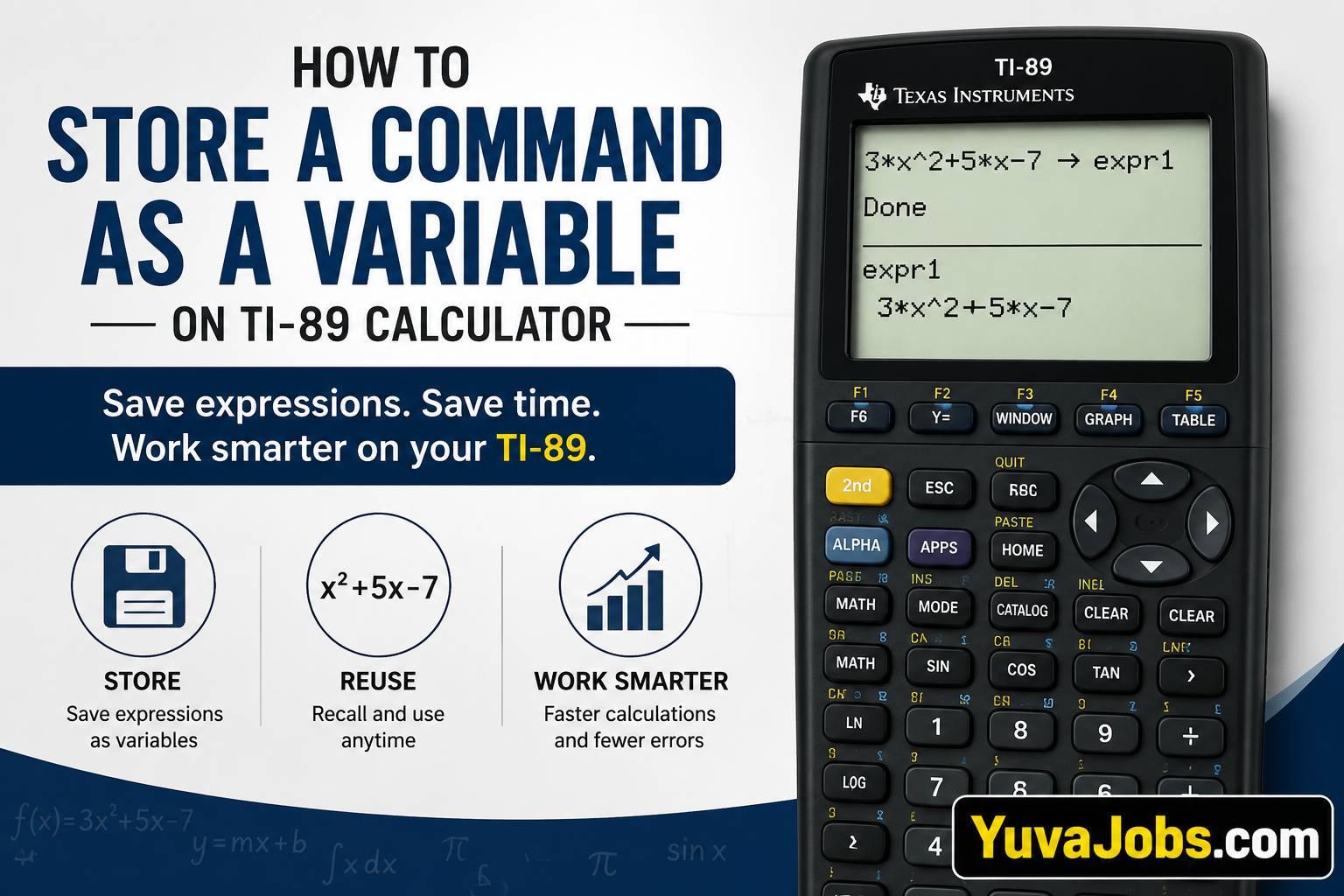
Small changes in how you use a TI-89 can save a surprising amount of time. Learning how to store a command as a variable TI 89 users can reuse is one of those changes. Instead of typing the same expression repeatedly, you can save it once and recall it whenever you need it. That makes homework, programming, and graphing much faster while reducing typing mistakes. By the time you finish this guide, you’ll know the correct way to store expressions, understand when a variable is the right choice, and recognize situations where a function or program is actually the better option.
Before you start
The TI-89 supports storing numbers, algebraic expressions, lists, matrices, functions, and even programs. Before following the steps, make sure your calculator is working in the mode you expect and that there is enough free memory available.
You’ll need:
- A working TI-89, TI-89 Titanium, or another calculator with a very similar interface.
- Basic familiarity with entering expressions.
- An unused variable name if you don’t want to overwrite existing data.
But keep one thing in mind—variables are meant for storing values or expressions, not every calculator command. Commands such as clearing memory or changing calculator modes cannot simply be stored inside a variable. If your goal is to automate multiple commands, you’ll want to create a program instead.
Step-by-step instructions
1. Enter the expression you want to save
Start by typing the expression exactly as you normally would.
For example:
3*x^2 + 5*x - 7Don’t press Enter yet if you intend to store it immediately.
2. Press the Store key
Locate the STO→ key on your TI-89.
The store operator tells the calculator that the expression on the left should be saved into something on the right. This is different from assigning a value using ordinary mathematical notation.
Your screen should begin to look something like this:
3*x^2+5*x-7 → expr13. Choose a variable name
Type a variable name after the store symbol.
Examples include:
expr1
A
formula
quadExp
Short names are easier to remember, although descriptive names help if you save many expressions (especially for larger projects).
4. Press Enter
Press ENTER.
The calculator stores the expression in the chosen variable.
And from this point forward, typing the variable name recalls the stored expression instead of making you re-enter everything.
5. Recall the stored variable
At the Home screen, type the variable name:
expr1Then press ENTER.
The stored expression appears exactly as it was saved.
If variables contain algebraic expressions with unknown variables like x, the expression itself is displayed. If every symbol already has a numerical value assigned, the calculator may evaluate the expression instead.
6. Use the variable inside another calculation
Stored expressions become much more useful when combined with other operations.
For example:
expr1 + 10or
factor(expr1)or
expand(expr1)This avoids repetitive typing and reduces the chance of introducing small errors.
7. Store numerical results
The same method also works with numbers.
Example:
125 → ALater:
A * 8returns the expected calculation using the stored value.
So one technique works for both numbers and symbolic expressions.
8. When a function is the better choice
Sometimes users say they want to “store a command,” but they actually want something that accepts different inputs.
Instead of storing:
3*x^2+5*x-7you can define:
f(x):=3*x^2+5*x-7Now entering:
f(2)or
f(10)automatically substitutes the chosen value for x.
Here’s the thing: if you’ll reuse the same formula with different inputs, defining a function is usually much more convenient than storing the expression as a simple variable.
Common mistakes
Many beginners accidentally overwrite an existing variable without realizing it. If you already stored important data in A, saving something new into A replaces the previous value immediately. Double-check the variable name before pressing ENTER.
Another frequent problem is expecting calculator commands to behave like stored expressions. A variable can hold data, but commands that control calculator behavior cannot simply be saved this way. For repeated command sequences, create a program instead.
And many users forget that variables retain their contents even after finishing one calculation. Later results may seem incorrect because an old variable still contains data from yesterday’s work. Clearing or updating variables when changing topics prevents confusing results.
Or you might store an expression using x, then later assign a number to x elsewhere on the calculator. Suddenly the stored expression evaluates differently than expected. That isn’t a calculator bug—it’s simply using the current value of x.
One limitation deserves mentioning honestly: storing an expression as a variable does not automatically make it reusable with different arguments. For repeated calculations involving changing inputs, functions remain the better tool.
Tips to do it better
Create meaningful variable names instead of relying only on single letters. After several homework assignments, names like velocityEq or circleArea are much easier to recognize than A or B.
But avoid unnecessarily long names because they take more time to type each time you recall them.
Group related expressions together whenever possible. If you’re solving several physics problems, keep all related formulas stored during that session instead of constantly deleting and recreating them (this makes reviewing your work much easier).
The truth is, many experienced TI-89 users rely more on user-defined functions than plain variables because functions adapt to changing values with almost no extra effort.
And if you repeatedly perform several calculations in the same order, learning the TI-89 programming features will save even more time than storing individual expressions.
Saving commands on a TI-89 becomes straightforward once you understand the difference between variables, functions, and programs. Store expressions in variables when you need to reuse them exactly as written, define functions when inputs will change, and use programs for longer automated tasks. Your next step is simple: store one expression, recall it in a new calculation, and practice using it a few times until the process feels natural
