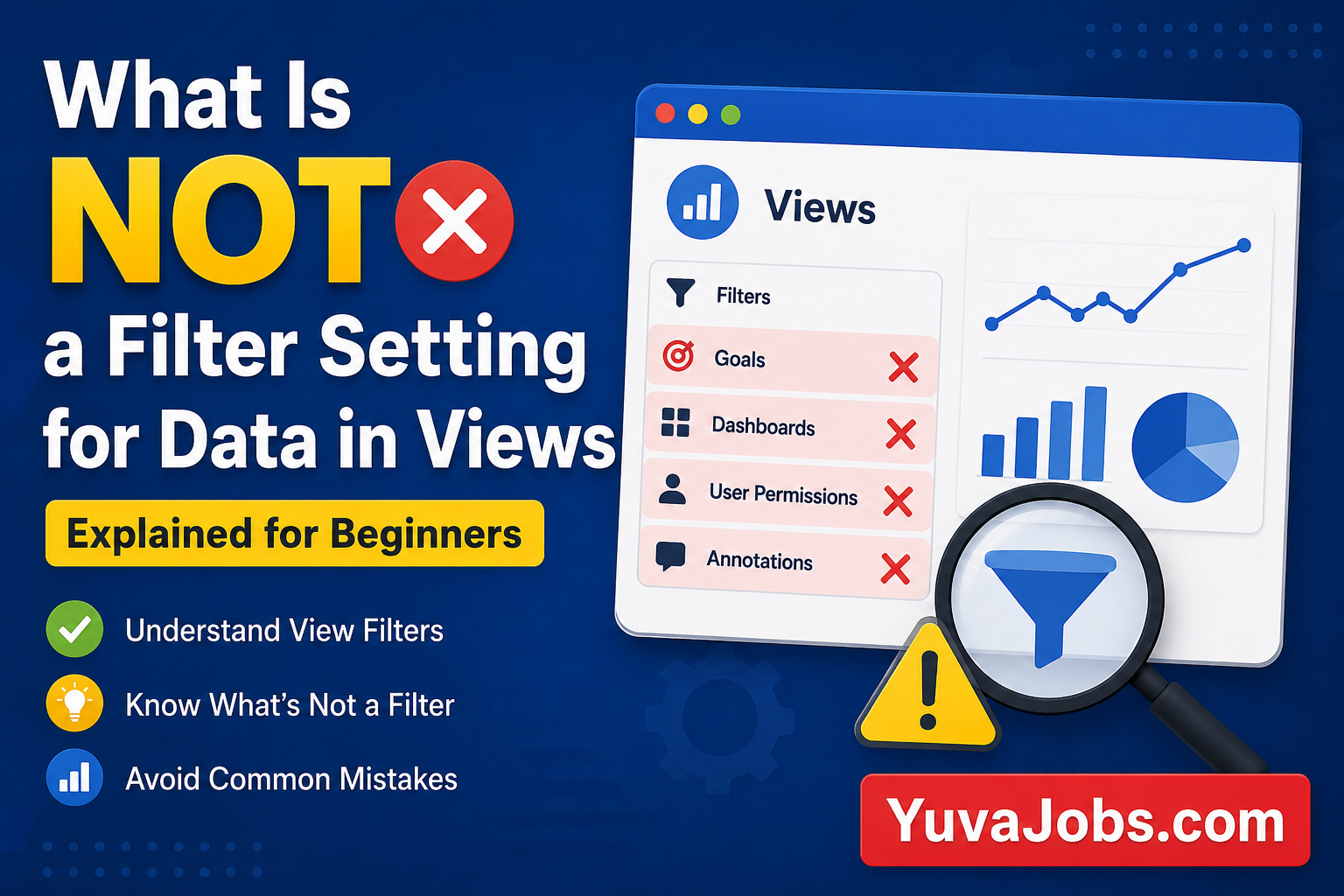
sata reports can look confusing even when they contain the right information. One of the biggest reasons is misunderstanding what is not a filter setting for data in views. People often memorize filter options for exams or certification tests without understanding what filters actually do, which makes similar questions surprisingly difficult. By the end of this guide, you’ll know how view filters work, recognize settings that are not filters, avoid common mistakes, and answer related questions with confidence whether you’re working with analytics tools or preparing for an assessment.
Before You Start
Before going through the steps, it helps to know which platform you’re working with because the wording changes slightly between versions. Many people encounter this question while studying web analytics, especially older Universal Analytics materials, while others see it in online quizzes or certification exams.
You’ll only need:
- Access to your analytics platform if you want to test filters yourself.
- Basic understanding of accounts, properties, and views.
- A sample report if you want to see how filters affect data.
And here’s one detail many beginners miss—filters generally change or limit the data shown inside a specific view rather than changing the original source data. That distinction explains why some settings are classified as filters while others are not.
One honest caveat: if you’re using newer analytics platforms that no longer rely on traditional Views, some terminology has changed. The underlying idea of filtering data still exists, but the menu names and setup process may differ.
Step-by-Step Instructions
1. Understand what a data view actually does
Start by remembering that a view controls how data is presented after collection. Think of it as a customized window into your data rather than the data itself. This helps you separate reporting settings from collection settings, which is where many people become confused.
2. Learn the common filter settings
Most analytics platforms that use Views include filters designed to include, exclude, or modify incoming data.
Examples include:
- Excluding internal company traffic.
- Including only traffic from a certain hostname.
- Filtering traffic by geographic location.
- Converting request URLs to lowercase.
- Replacing values using search and replace filters.
These are genuine filter settings because they actively affect which data appears in the selected view.
3. Identify settings that are not filters
Now compare those with other configuration options.
Items such as:
- Goals
- Dashboards
- User permissions
- Annotations
- Report shortcuts
- Custom alerts
are configuration features rather than view filters. They serve different purposes and do not decide which data enters the view.
For example, creating a Goal measures conversions, but it does not remove or include visits. Likewise, a Dashboard simply displays information already available in reports.
And that’s exactly why these options are considered not filter settings.
4. Apply a practical test
Whenever you’re unsure, ask one simple question:
“Does this setting change which data is included in the view?”
If the answer is yes, it’s probably a filter.
If the answer is no—and it only changes reporting, organization, visualization, notifications, or permissions—it is not a filter setting.
This quick check works surprisingly well during certification exams because many questions use similar wording.
5. Practice with real examples
Imagine three different actions:
- Excluding traffic from your office IP address.
- Showing only traffic from a particular country.
- Creating a Goal for completed purchases.
The first two change the data entering the view, so they are filters.
The third tracks conversions but leaves the data unchanged. Therefore, it is not a filter.
So instead of memorizing lists, focus on what each setting actually changes.
6. Watch for exam wording
Many certification questions are written to test your understanding rather than your memory.
For example:
“Which of the following is NOT a filter setting for data in Views?”
The correct answer is usually the option that manages reporting or configuration instead of filtering incoming data.
One popular example is Goals, because goals measure conversions rather than filtering data.
Another common answer is Dashboards, depending on the available choices.
(The exact answer always depends on the options provided.)
7. Verify before making permanent changes
If you’re working inside a live analytics account instead of taking an exam, create a testing view before applying filters whenever possible.
But remember that many filters permanently affect future data processing. Once filtered data has been processed, it usually cannot be recovered within that view. That’s why experienced analysts always test first instead of editing their primary reporting view immediately.
Common Mistakes
Many beginners assume that every setting inside a View is automatically a filter. That’s rarely true. Views contain many configuration options, but only some of them control incoming data.
Another common mistake is confusing Goals with filters. Goals calculate conversions based on user behavior, yet they never remove sessions or pageviews from reports.
People also mix up Segments and Filters. A Segment temporarily changes how reports are displayed while keeping the underlying data intact. Filters, on the other hand, affect the data available inside the view itself. This difference causes plenty of incorrect exam answers.
And one more issue appears during real-world implementation: users edit their only reporting view without creating a backup. If a filter excludes valuable traffic by mistake, recovering historical information can become impossible. The truth is, spending five minutes creating a test view saves hours of frustration later.
Tips to Do It Better
Instead of memorizing every filter type, group settings by purpose. If something controls which data enters a view, treat it as a filter. If it measures, displays, organizes, or reports on existing data, it belongs somewhere else.
Keep a simple comparison chart while studying. Writing down filters on one side and non-filter settings on the other makes patterns much easier to recognize.
Or try practicing with sample scenarios instead of flashcards. Looking at real reporting situations helps you understand why each option exists rather than simply remembering names.
Realistically, this approach takes a little longer at first, but it sticks much better when similar questions appear in exams with different wording.
Closing
Knowing what is not a filter setting for data in views becomes much easier once you focus on the purpose of each feature instead of trying to memorize every option. Filters change the data that enters a view, while settings like Goals, Dashboards, permissions, and reports perform different jobs. Your next step is simple: open a practice analytics account or review a few sample exam questions and apply the “Does this change incoming data?” test to every option. That habit builds confidence far faster than memorization alone.
What Is Not a Filter Setting for Data in Views
Data reports can look confusing even when they contain the right information. One of the biggest reasons is misunderstanding what is not a filter setting for data in views. People often memorize filter options for exams or certification tests without understanding what filters actually do, which makes similar questions surprisingly difficult. By the end of this guide, you’ll know how view filters work, recognize settings that are not filters, avoid common mistakes, and answer related questions with confidence whether you’re working with analytics tools or preparing for an assessment.
Before You Start
Before going through the steps, it helps to know which platform you’re working with because the wording changes slightly between versions. Many people encounter this question while studying web analytics, especially older Universal Analytics materials, while others see it in online quizzes or certification exams.
You’ll only need:
- Access to your analytics platform if you want to test filters yourself.
- Basic understanding of accounts, properties, and views.
- A sample report if you want to see how filters affect data.
And here’s one detail many beginners miss—filters generally change or limit the data shown inside a specific view rather than changing the original source data. That distinction explains why some settings are classified as filters while others are not.
One honest caveat: if you’re using newer analytics platforms that no longer rely on traditional Views, some terminology has changed. The underlying idea of filtering data still exists, but the menu names and setup process may differ.
Step-by-Step Instructions
1. Understand what a data view actually does
Start by remembering that a view controls how data is presented after collection. Think of it as a customized window into your data rather than the data itself. This helps you separate reporting settings from collection settings, which is where many people become confused.
2. Learn the common filter settings
Most analytics platforms that use Views include filters designed to include, exclude, or modify incoming data.
Examples include:
- Excluding internal company traffic.
- Including only traffic from a certain hostname.
- Filtering traffic by geographic location.
- Converting request URLs to lowercase.
- Replacing values using search and replace filters.
These are genuine filter settings because they actively affect which data appears in the selected view.
3. Identify settings that are not filters
Now compare those with other configuration options.
Items such as:
- Goals
- Dashboards
- User permissions
- Annotations
- Report shortcuts
- Custom alerts
are configuration features rather than view filters. They serve different purposes and do not decide which data enters the view.
For example, creating a Goal measures conversions, but it does not remove or include visits. Likewise, a Dashboard simply displays information already available in reports.
And that’s exactly why these options are considered not filter settings.
4. Apply a practical test
Whenever you’re unsure, ask one simple question:
“Does this setting change which data is included in the view?”
If the answer is yes, it’s probably a filter.
If the answer is no—and it only changes reporting, organization, visualization, notifications, or permissions—it is not a filter setting.
This quick check works surprisingly well during certification exams because many questions use similar wording.
5. Practice with real examples
Imagine three different actions:
- Excluding traffic from your office IP address.
- Showing only traffic from a particular country.
- Creating a Goal for completed purchases.
The first two change the data entering the view, so they are filters.
The third tracks conversions but leaves the data unchanged. Therefore, it is not a filter.
So instead of memorizing lists, focus on what each setting actually changes.
6. Watch for exam wording
Many certification questions are written to test your understanding rather than your memory.
For example:
“Which of the following is NOT a filter setting for data in Views?”
The correct answer is usually the option that manages reporting or configuration instead of filtering incoming data.
One popular example is Goals, because goals measure conversions rather than filtering data.
Another common answer is Dashboards, depending on the available choices.
(The exact answer always depends on the options provided.)
7. Verify before making permanent changes
If you’re working inside a live analytics account instead of taking an exam, create a testing view before applying filters whenever possible.
But remember that many filters permanently affect future data processing. Once filtered data has been processed, it usually cannot be recovered within that view. That’s why experienced analysts always test first instead of editing their primary reporting view immediately.
Common Mistakes
Many beginners assume that every setting inside a View is automatically a filter. That’s rarely true. Views contain many configuration options, but only some of them control incoming data.
Another common mistake is confusing Goals with filters. Goals calculate conversions based on user behavior, yet they never remove sessions or pageviews from reports.
People also mix up Segments and Filters. A Segment temporarily changes how reports are displayed while keeping the underlying data intact. Filters, on the other hand, affect the data available inside the view itself. This difference causes plenty of incorrect exam answers.
And one more issue appears during real-world implementation: users edit their only reporting view without creating a backup. If a filter excludes valuable traffic by mistake, recovering historical information can become impossible. The truth is, spending five minutes creating a test view saves hours of frustration later.
Tips to Do It Better
Instead of memorizing every filter type, group settings by purpose. If something controls which data enters a view, treat it as a filter. If it measures, displays, organizes, or reports on existing data, it belongs somewhere else.
Keep a simple comparison chart while studying. Writing down filters on one side and non-filter settings on the other makes patterns much easier to recognize.
Or try practicing with sample scenarios instead of flashcards. Looking at real reporting situations helps you understand why each option exists rather than simply remembering names.
Realistically, this approach takes a little longer at first, but it sticks much better when similar questions appear in exams with different wording.
Closing
Knowing what is not a filter setting for data in views becomes much easier once you focus on the purpose of each feature instead of trying to memorize every option. Filters change the data that enters a view, while settings like Goals, Dashboards, permissions, and reports perform different jobs. Your next step is simple: open a practice analytics account or review a few sample exam questions and apply the “Does this change incoming data?” test to every option. That habit builds confidence far faster than memorization alone.
What Is Not a Filter Setting for Data in Views
Data reports can look confusing even when they contain the right information. One of the biggest reasons is misunderstanding what is not a filter setting for data in views. People often memorize filter options for exams or certification tests without understanding what filters actually do, which makes similar questions surprisingly difficult. By the end of this guide, you’ll know how view filters work, recognize settings that are not filters, avoid common mistakes, and answer related questions with confidence whether you’re working with analytics tools or preparing for an assessment.
Before You Start
Before going through the steps, it helps to know which platform you’re working with because the wording changes slightly between versions. Many people encounter this question while studying web analytics, especially older Universal Analytics materials, while others see it in online quizzes or certification exams.
You’ll only need:
- Access to your analytics platform if you want to test filters yourself.
- Basic understanding of accounts, properties, and views.
- A sample report if you want to see how filters affect data.
And here’s one detail many beginners miss—filters generally change or limit the data shown inside a specific view rather than changing the original source data. That distinction explains why some settings are classified as filters while others are not.
One honest caveat: if you’re using newer analytics platforms that no longer rely on traditional Views, some terminology has changed. The underlying idea of filtering data still exists, but the menu names and setup process may differ.
Step-by-Step Instructions
1. Understand what a data view actually does
Start by remembering that a view controls how data is presented after collection. Think of it as a customized window into your data rather than the data itself. This helps you separate reporting settings from collection settings, which is where many people become confused.
2. Learn the common filter settings
Most analytics platforms that use Views include filters designed to include, exclude, or modify incoming data.
Examples include:
- Excluding internal company traffic.
- Including only traffic from a certain hostname.
- Filtering traffic by geographic location.
- Converting request URLs to lowercase.
- Replacing values using search and replace filters.
These are genuine filter settings because they actively affect which data appears in the selected view.
3. Identify settings that are not filters
Now compare those with other configuration options.
Items such as:
- Goals
- Dashboards
- User permissions
- Annotations
- Report shortcuts
- Custom alerts
are configuration features rather than view filters. They serve different purposes and do not decide which data enters the view.
For example, creating a Goal measures conversions, but it does not remove or include visits. Likewise, a Dashboard simply displays information already available in reports.
And that’s exactly why these options are considered not filter settings.
4. Apply a practical test
Whenever you’re unsure, ask one simple question:
“Does this setting change which data is included in the view?”
If the answer is yes, it’s probably a filter.
If the answer is no—and it only changes reporting, organization, visualization, notifications, or permissions—it is not a filter setting.
This quick check works surprisingly well during certification exams because many questions use similar wording.
5. Practice with real examples
Imagine three different actions:
- Excluding traffic from your office IP address.
- Showing only traffic from a particular country.
- Creating a Goal for completed purchases.
The first two change the data entering the view, so they are filters.
The third tracks conversions but leaves the data unchanged. Therefore, it is not a filter.
So instead of memorizing lists, focus on what each setting actually changes.
6. Watch for exam wording
Many certification questions are written to test your understanding rather than your memory.
For example:
“Which of the following is NOT a filter setting for data in Views?”
The correct answer is usually the option that manages reporting or configuration instead of filtering incoming data.
One popular example is Goals, because goals measure conversions rather than filtering data.
Another common answer is Dashboards, depending on the available choices.
(The exact answer always depends on the options provided.)
7. Verify before making permanent changes
If you’re working inside a live analytics account instead of taking an exam, create a testing view before applying filters whenever possible.
But remember that many filters permanently affect future data processing. Once filtered data has been processed, it usually cannot be recovered within that view. That’s why experienced analysts always test first instead of editing their primary reporting view immediately.
Common Mistakes
Many beginners assume that every setting inside a View is automatically a filter. That’s rarely true. Views contain many configuration options, but only some of them control incoming data.
Another common mistake is confusing Goals with filters. Goals calculate conversions based on user behavior, yet they never remove sessions or pageviews from reports.
People also mix up Segments and Filters. A Segment temporarily changes how reports are displayed while keeping the underlying data intact. Filters, on the other hand, affect the data available inside the view itself. This difference causes plenty of incorrect exam answers.
And one more issue appears during real-world implementation: users edit their only reporting view without creating a backup. If a filter excludes valuable traffic by mistake, recovering historical information can become impossible. The truth is, spending five minutes creating a test view saves hours of frustration later.
Tips to Do It Better
Instead of memorizing every filter type, group settings by purpose. If something controls which data enters a view, treat it as a filter. If it measures, displays, organizes, or reports on existing data, it belongs somewhere else.
Keep a simple comparison chart while studying. Writing down filters on one side and non-filter settings on the other makes patterns much easier to recognize.
Or try practicing with sample scenarios instead of flashcards. Looking at real reporting situations helps you understand why each option exists rather than simply remembering names.
Realistically, this approach takes a little longer at first, but it sticks much better when similar questions appear in exams with different wording.
Closing
Knowing what is not a filter setting for data in views becomes much easier once you focus on the purpose of each feature instead of trying to memorize every option. Filters change the data that enters a view, while settings like Goals, Dashboards, permissions, and reports perform different jobs. Your next step is simple: open a practice analytics account or review a few sample exam questions and apply the “Does this change incoming data?” test to every option. That habit builds confidence far faster than memorization alone.
What Is Not a Filter Setting for Data in Views
Data reports can look confusing even when they contain the right information. One of the biggest reasons is misunderstanding what is not a filter setting for data in views. People often memorize filter options for exams or certification tests without understanding what filters actually do, which makes similar questions surprisingly difficult. By the end of this guide, you’ll know how view filters work, recognize settings that are not filters, avoid common mistakes, and answer related questions with confidence whether you’re working with analytics tools or preparing for an assessment.
Before You Start
Before going through the steps, it helps to know which platform you’re working with because the wording changes slightly between versions. Many people encounter this question while studying web analytics, especially older Universal Analytics materials, while others see it in online quizzes or certification exams.
You’ll only need:
- Access to your analytics platform if you want to test filters yourself.
- Basic understanding of accounts, properties, and views.
- A sample report if you want to see how filters affect data.
And here’s one detail many beginners miss—filters generally change or limit the data shown inside a specific view rather than changing the original source data. That distinction explains why some settings are classified as filters while others are not.
One honest caveat: if you’re using newer analytics platforms that no longer rely on traditional Views, some terminology has changed. The underlying idea of filtering data still exists, but the menu names and setup process may differ.
Step-by-Step Instructions
1. Understand what a data view actually does
Start by remembering that a view controls how data is presented after collection. Think of it as a customized window into your data rather than the data itself. This helps you separate reporting settings from collection settings, which is where many people become confused.
2. Learn the common filter settings
Most analytics platforms that use Views include filters designed to include, exclude, or modify incoming data.
Examples include:
- Excluding internal company traffic.
- Including only traffic from a certain hostname.
- Filtering traffic by geographic location.
- Converting request URLs to lowercase.
- Replacing values using search and replace filters.
These are genuine filter settings because they actively affect which data appears in the selected view.
3. Identify settings that are not filters
Now compare those with other configuration options.
Items such as:
- Goals
- Dashboards
- User permissions
- Annotations
- Report shortcuts
- Custom alerts
are configuration features rather than view filters. They serve different purposes and do not decide which data enters the view.
For example, creating a Goal measures conversions, but it does not remove or include visits. Likewise, a Dashboard simply displays information already available in reports.
And that’s exactly why these options are considered not filter settings.
4. Apply a practical test
Whenever you’re unsure, ask one simple question:
“Does this setting change which data is included in the view?”
If the answer is yes, it’s probably a filter.
If the answer is no—and it only changes reporting, organization, visualization, notifications, or permissions—it is not a filter setting.
This quick check works surprisingly well during certification exams because many questions use similar wording.
5. Practice with real examples
Imagine three different actions:
- Excluding traffic from your office IP address.
- Showing only traffic from a particular country.
- Creating a Goal for completed purchases.
The first two change the data entering the view, so they are filters.
The third tracks conversions but leaves the data unchanged. Therefore, it is not a filter.
So instead of memorizing lists, focus on what each setting actually changes.
6. Watch for exam wording
Many certification questions are written to test your understanding rather than your memory.
For example:
“Which of the following is NOT a filter setting for data in Views?”
The correct answer is usually the option that manages reporting or configuration instead of filtering incoming data.
One popular example is Goals, because goals measure conversions rather than filtering data.
Another common answer is Dashboards, depending on the available choices.
(The exact answer always depends on the options provided.)
7. Verify before making permanent changes
If you’re working inside a live analytics account instead of taking an exam, create a testing view before applying filters whenever possible.
But remember that many filters permanently affect future data processing. Once filtered data has been processed, it usually cannot be recovered within that view. That’s why experienced analysts always test first instead of editing their primary reporting view immediately.
Common Mistakes
Many beginners assume that every setting inside a View is automatically a filter. That’s rarely true. Views contain many configuration options, but only some of them control incoming data.
Another common mistake is confusing Goals with filters. Goals calculate conversions based on user behavior, yet they never remove sessions or pageviews from reports.
People also mix up Segments and Filters. A Segment temporarily changes how reports are displayed while keeping the underlying data intact. Filters, on the other hand, affect the data available inside the view itself. This difference causes plenty of incorrect exam answers.
And one more issue appears during real-world implementation: users edit their only reporting view without creating a backup. If a filter excludes valuable traffic by mistake, recovering historical information can become impossible. The truth is, spending five minutes creating a test view saves hours of frustration later.
Tips to Do It Better
Instead of memorizing every filter type, group settings by purpose. If something controls which data enters a view, treat it as a filter. If it measures, displays, organizes, or reports on existing data, it belongs somewhere else.
Keep a simple comparison chart while studying. Writing down filters on one side and non-filter settings on the other makes patterns much easier to recognize.
Or try practicing with sample scenarios instead of flashcards. Looking at real reporting situations helps you understand why each option exists rather than simply remembering names.
Realistically, this approach takes a little longer at first, but it sticks much better when similar questions appear in exams with different wording.
Closing
Knowing what is not a filter setting for data in views becomes much easier once you focus on the purpose of each feature instead of trying to memorize every option. Filters change the data that enters a view, while settings like Goals, Dashboards, permissions, and reports perform different jobs. Your next step is simple: open a practice analytics account or review a few sample exam questions and apply the “Does this change incoming data?” test to every option. That habit builds confidence far faster than memorization alone.
What Is Not a Filter Setting for Data in Views
Data reports can look confusing even when they contain the right information. One of the biggest reasons is misunderstanding what is not a filter setting for data in views. People often memorize filter options for exams or certification tests without understanding what filters actually do, which makes similar questions surprisingly difficult. By the end of this guide, you’ll know how view filters work, recognize settings that are not filters, avoid common mistakes, and answer related questions with confidence whether you’re working with analytics tools or preparing for an assessment.
Before You Start
Before going through the steps, it helps to know which platform you’re working with because the wording changes slightly between versions. Many people encounter this question while studying web analytics, especially older Universal Analytics materials, while others see it in online quizzes or certification exams.
You’ll only need:
- Access to your analytics platform if you want to test filters yourself.
- Basic understanding of accounts, properties, and views.
- A sample report if you want to see how filters affect data.
And here’s one detail many beginners miss—filters generally change or limit the data shown inside a specific view rather than changing the original source data. That distinction explains why some settings are classified as filters while others are not.
One honest caveat: if you’re using newer analytics platforms that no longer rely on traditional Views, some terminology has changed. The underlying idea of filtering data still exists, but the menu names and setup process may differ.
Step-by-Step Instructions
1. Understand what a data view actually does
Start by remembering that a view controls how data is presented after collection. Think of it as a customized window into your data rather than the data itself. This helps you separate reporting settings from collection settings, which is where many people become confused.
2. Learn the common filter settings
Most analytics platforms that use Views include filters designed to include, exclude, or modify incoming data.
Examples include:
- Excluding internal company traffic.
- Including only traffic from a certain hostname.
- Filtering traffic by geographic location.
- Converting request URLs to lowercase.
- Replacing values using search and replace filters.
These are genuine filter settings because they actively affect which data appears in the selected view.
3. Identify settings that are not filters
Now compare those with other configuration options.
Items such as:
- Goals
- Dashboards
- User permissions
- Annotations
- Report shortcuts
- Custom alerts
are configuration features rather than view filters. They serve different purposes and do not decide which data enters the view.
For example, creating a Goal measures conversions, but it does not remove or include visits. Likewise, a Dashboard simply displays information already available in reports.
And that’s exactly why these options are considered not filter settings.
4. Apply a practical test
Whenever you’re unsure, ask one simple question:
“Does this setting change which data is included in the view?”
If the answer is yes, it’s probably a filter.
If the answer is no—and it only changes reporting, organization, visualization, notifications, or permissions—it is not a filter setting.
This quick check works surprisingly well during certification exams because many questions use similar wording.
5. Practice with real examples
Imagine three different actions:
- Excluding traffic from your office IP address.
- Showing only traffic from a particular country.
- Creating a Goal for completed purchases.
The first two change the data entering the view, so they are filters.
The third tracks conversions but leaves the data unchanged. Therefore, it is not a filter.
So instead of memorizing lists, focus on what each setting actually changes.
6. Watch for exam wording
Many certification questions are written to test your understanding rather than your memory.
For example:
“Which of the following is NOT a filter setting for data in Views?”
The correct answer is usually the option that manages reporting or configuration instead of filtering incoming data.
One popular example is Goals, because goals measure conversions rather than filtering data.
Another common answer is Dashboards, depending on the available choices.
(The exact answer always depends on the options provided.)
7. Verify before making permanent changes
If you’re working inside a live analytics account instead of taking an exam, create a testing view before applying filters whenever possible.
But remember that many filters permanently affect future data processing. Once filtered data has been processed, it usually cannot be recovered within that view. That’s why experienced analysts always test first instead of editing their primary reporting view immediately.
Common Mistakes
Many beginners assume that every setting inside a View is automatically a filter. That’s rarely true. Views contain many configuration options, but only some of them control incoming data.
Another common mistake is confusing Goals with filters. Goals calculate conversions based on user behavior, yet they never remove sessions or pageviews from reports.
People also mix up Segments and Filters. A Segment temporarily changes how reports are displayed while keeping the underlying data intact. Filters, on the other hand, affect the data available inside the view itself. This difference causes plenty of incorrect exam answers.
And one more issue appears during real-world implementation: users edit their only reporting view without creating a backup. If a filter excludes valuable traffic by mistake, recovering historical information can become impossible. The truth is, spending five minutes creating a test view saves hours of frustration later.
Tips to Do It Better
Instead of memorizing every filter type, group settings by purpose. If something controls which data enters a view, treat it as a filter. If it measures, displays, organizes, or reports on existing data, it belongs somewhere else.
Keep a simple comparison chart while studying. Writing down filters on one side and non-filter settings on the other makes patterns much easier to recognize.
Or try practicing with sample scenarios instead of flashcards. Looking at real reporting situations helps you understand why each option exists rather than simply remembering names.
Realistically, this approach takes a little longer at first, but it sticks much better when similar questions appear in exams with different wording.
Closing
Knowing what is not a filter setting for data in views becomes much easier once you focus on the purpose of each feature instead of trying to memorize every option. Filters change the data that enters a view, while settings like Goals, Dashboards, permissions, and reports perform different jobs. Your next step is simple: open a practice analytics account or review a few sample exam questions and apply the “Does this change incoming data?” test to every option. That habit builds confidence far faster than memorization alone.

Adan
I’m Mohd. Adan, an SEO Expert and Professional Content Writer dedicated to creating high-quality, search-friendly content. I specialize in SEO, content strategy, keyword research, and technical optimization. Through YuvaJobs.com, my mission is to publish accurate, helpful, and original articles that improve user experience and help readers find reliable information quickly.
Our Fact Checking Process
We prioritize accuracy and integrity in our content. Here’s how we maintain high standards:
- Expert Review: All articles are reviewed by subject matter experts.
- Source Validation: Information is backed by credible, up-to-date sources.
- Transparency: We clearly cite references and disclose potential conflicts.
Our Review Board
Our content is carefully reviewed by experienced professionals to ensure accuracy and relevance.
- Qualified Experts: Each article is assessed by specialists with field-specific knowledge.
- Up-to-date Insights: We incorporate the latest research, trends, and standards.
- Commitment to Quality: Reviewers ensure clarity, correctness, and completeness.
Look for the expert-reviewed label to read content you can trust.