A media player feels faster when it responds exactly the way your hands expect. Learning how to crteate a new command key in mpc-hc64.exe can save time every time you watch a video, especially if you use features that do not already have convenient shortcuts. Instead of searching through menus, a single key press can control playback, subtitles, audio tracks, or dozens of other commands.
By the end of this guide, you’ll know exactly how to create a new keyboard command in MPC-HC 64-bit, how to avoid shortcut conflicts, and what to do if your new key assignment refuses to work. The steps are beginner-friendly, but they also include details that many quick tutorials leave out.
Before you start
You only need a few things before assigning a new command key.
- A working installation of MPC-HC 64-bit (Media Player Classic – Home Cinema).
- Permission to change the application’s settings (some workplace computers may restrict this).
- A keyboard connected to your PC.
- A media file is optional, although testing shortcuts while a video is playing makes verification much easier.
And one detail makes a bigger difference than most people expect—the version of MPC-HC matters. Older releases may arrange the Options window slightly differently (the command names are usually the same, but their order may vary).
If your settings are stored in a read-only configuration file (this occasionally happens after copying MPC-HC from another computer), new shortcuts may not be saved after you close the program. Check that the application has permission to write its configuration before making several changes.
Step-by-step instructions
1. Open MPC-HC64.exe
Launch the Media Player Classic Home Cinema application normally.
This ensures you’re editing the correct profile. If you have both 32-bit and 64-bit versions installed, open the one you actually use because each installation may keep separate settings.
2. Open the Options window
Click View from the top menu.
Select Options.
A settings window will appear with categories listed along the left side.
3. Find the Keys section
Scroll through the categories until you see Player.
Open it, then click Keys.
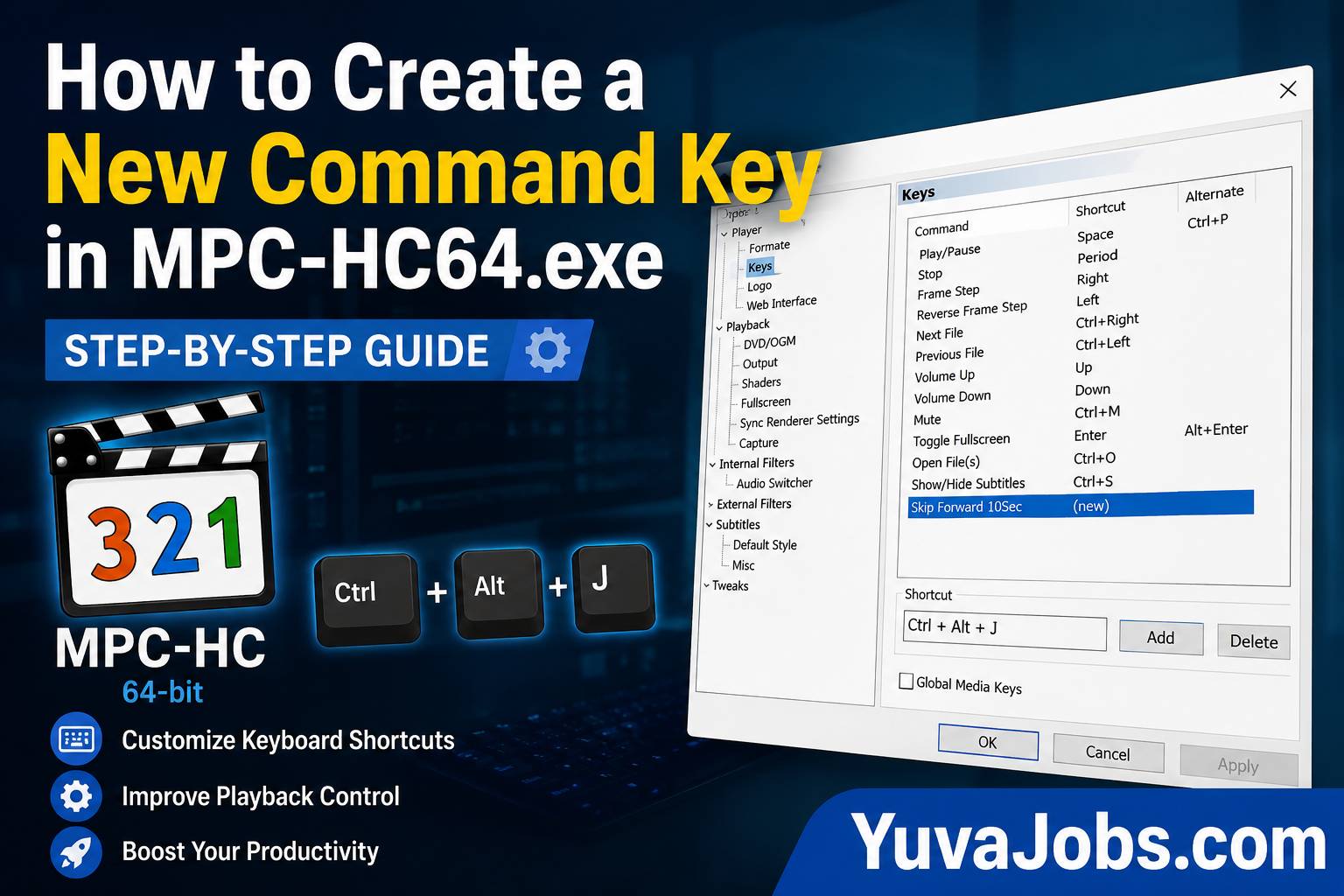
This page contains every keyboard shortcut available in MPC-HC. You’ll see the command name, its current shortcut, and any alternative keys already assigned.
4. Choose the command you want to edit
Browse the command list until you find the action you want.
Examples include:
- Play/Pause
- Next Frame
- Increase Volume
- Toggle Full Screen
- Subtitle Delay
- Audio Delay
- Open File
Click the command once so it becomes highlighted.
5. Assign a new keyboard shortcut
Press the Add button (or edit the existing shortcut, depending on your MPC-HC version).
Click inside the shortcut field.
Now press the key combination you want to use.
For example:
- Ctrl + Alt + P
- Shift + S
- F9
- Ctrl + J
The pressed combination should immediately appear in the field.
6. Check for conflicts
But don’t immediately save the change.
If another command already uses that shortcut, MPC-HC may warn you, or the duplicate assignment may simply overwrite your expectations later.
If you notice the same shortcut already assigned elsewhere, either remove the old assignment or choose another key combination. The truth is, shortcut conflicts are one of the biggest reasons people think their new command “doesn’t work.”
7. Save the new command
Click Apply.
Then select OK.
Closing the window without applying changes may discard your new shortcut depending on the program version.
8. Test the shortcut
Open any video.
Press the newly assigned key.
Watch whether the intended command executes immediately.
So if nothing happens, return to the Keys menu and verify that:
- the shortcut was actually saved,
- another application is not intercepting the key combination,
- the selected command supports keyboard activation.
Common mistakes
Many users accidentally assign a shortcut that’s already used by Windows or another application running in the background. For example, combinations involving Win, Alt, or multimedia keys can be intercepted before MPC-HC ever receives them.
Another frequent issue appears when people forget to click Apply before closing the Options window. The shortcut seems configured during the session, but after restarting MPC-HC, everything returns to its previous state.
And beginners sometimes edit the wrong installation (especially when both portable and installed versions exist on the same computer). The shortcut gets saved—but only inside the copy they rarely open.
A less obvious problem involves portable versions stored in protected folders such as Program Files. If Windows blocks configuration changes (particularly without administrator permissions), the settings file may never update. Realistically, moving the portable folder into a writable location like Documents or another user folder often fixes this without any additional troubleshooting.
One honest caveat deserves mentioning: not every keyboard combination is practical. Extremely complex shortcuts may technically work, but they’re harder to remember and slower to press during playback.
Tips to do it better
Keep frequently used playback controls on nearby keys instead of choosing combinations scattered across the keyboard. Your fingers will build muscle memory much faster.
Or consider reserving the function keys for playback features while using Ctrl-based shortcuts for settings-related commands. This creates a natural separation that becomes easier to remember after a few days.
Create a small backup of your MPC-HC configuration file before making many shortcut changes (especially if you’ve customized dozens of commands). Restoring one file is much easier than rebuilding every assignment from memory.
And avoid replacing shortcuts you already use comfortably unless there’s a clear benefit. Small improvements usually produce a smoother experience than redesigning the entire keyboard layout at once.
Final thoughts
Creating a new command key in MPC-HC64.exe takes only a few minutes once you know where the keyboard settings are located. Most problems come from conflicting shortcuts, unsaved changes, or editing the wrong installation rather than from the feature itself. Start by assigning one shortcut you use every day, test it during playback, and then gradually customize the rest of your controls until the player feels natural for the way you watch videos.
