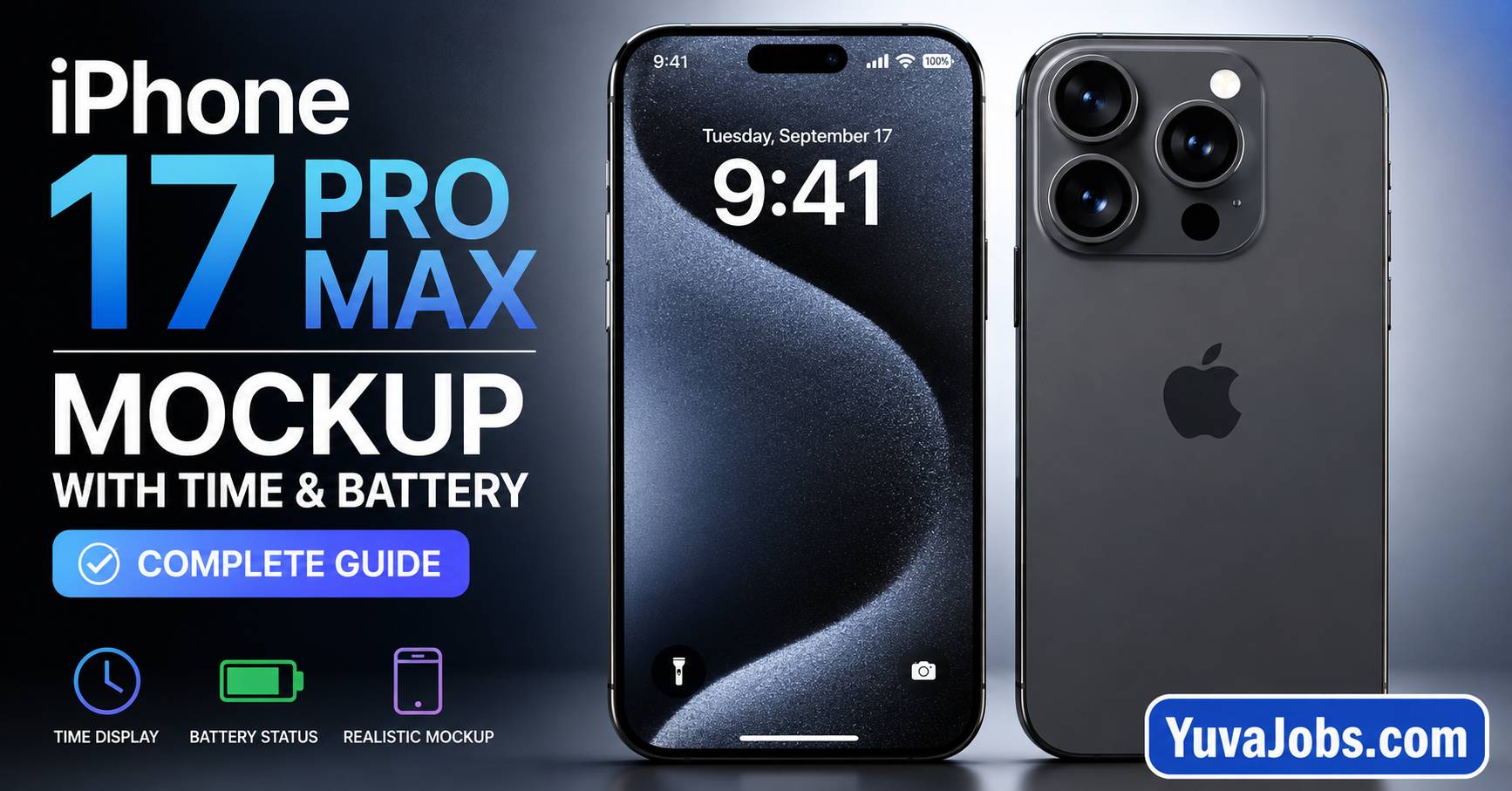
iphone 17pro max mockup with time an
iphone 17pro max mockup with time and battery
Tiny details often decide whether a smartphone mockup looks authentic or obviously edited. An iphone 17pro max mockup with time and battery is a perfect example. Designers, app developers, bloggers, and marketers frequently need a realistic device frame that includes a believable status bar, but the wrong time, missing battery icon, or inconsistent signal indicators immediately make the design feel fake.
The challenge isn’t usually creating the mockup itself. It’s matching Apple’s visual style without introducing inconsistencies. I’ve seen many otherwise excellent presentations lose credibility because the status bar didn’t match the screenshot or because the battery percentage conflicted with the displayed charging state. The good news is that these problems are easy to fix once you know where they originate.
What causes this
Most people assume the status bar is automatically included in every device mockup. It isn’t—and that’s where confusion begins.
Many downloadable PSD mockups intentionally leave the status bar blank because designers may want different screenshots, different carrier names, or localized system icons. When someone inserts a screenshot, the template often expects the screenshot to already contain the time, battery, Wi-Fi, and cellular indicators.
But some mockups include a separate editable status bar layer. If that layer remains enabled while your screenshot already has its own status bar, the result becomes duplicated icons or overlapping text.
Another common issue appears when screenshots are generated using design software instead of an actual iPhone. Applications such as Figma, Sketch, or Photoshop may export only the interface while excluding the system status bar. That leaves empty space at the top of the mockup—or worse, a mismatched placeholder.
And there’s another variation—some mockup creators intentionally use generic status icons instead of Apple’s exact system assets for licensing reasons. That means icon spacing, battery shape, and font weight may differ slightly from what appears on an actual device.
Here’s the thing: there is currently no officially released iPhone 17 Pro Max hardware (at the time of writing). Many “iPhone 17 Pro Max” mockups available online are concept designs or updated templates based on industry expectations rather than official Apple design files. That’s perfectly acceptable for presentations, provided you understand they are unofficial representations.
Realistically, the biggest source of problems isn’t Photoshop. It’s mixing assets created by different designers.
How to fix it
If your iPhone 17 Pro Max mockup doesn’t display the correct time or battery icons, work through these steps in order.
1. Verify whether the screenshot already includes a status bar
Open your screenshot before placing it into the mockup.
Look carefully at the top edge.
If you already see:
- Time
- Battery
- Wi-Fi
- Cellular signal
disable the mockup’s separate Status Bar layer before exporting.
In Photoshop, this usually means opening the Layers panel and turning off folders named:
Status Bar
UI
Top Icons
Overlay
System Icons
This prevents duplicate elements.
2. Open the Smart Object correctly
Most premium PSD mockups use Smart Objects.
Double-click the layer named something similar to:
Replace Screen
Your Design
Screen
Display
A new Photoshop document opens.
Paste your screenshot there.
Save using:
Ctrl + SReturn to the main PSD.
The mockup updates automatically.
Many users accidentally paste directly into the main document instead of the Smart Object, causing scaling and alignment problems.
3. Match the status bar manually
If your screenshot lacks a status bar, edit the template’s icons.
Update:
- Time
- Battery percentage
- Charging indicator (if needed)
- Wi-Fi icon
- Cellular signal strength
Keep everything consistent.
For promotional images, many designers use 9:41 because Apple frequently uses that time in product marketing. Other realistic options include 10:09 or 11:11, depending on the presentation style.
But consistency matters more than the specific time.
4. Check font compatibility
Apple’s system interface uses the SF Pro family.
If your PSD substitutes another font, text spacing changes noticeably.
Install the correct SF Pro font family if the mockup documentation specifies it. Otherwise, Photoshop may replace it with a default font, producing different alignment.
5. Export correctly
Export using:
File
→ Export
→ Export As
Choose:
- PNG for transparent backgrounds
- JPEG for website previews
- 2× resolution for Retina-quality graphics
Avoid repeatedly saving JPEG files because each export introduces additional compression artifacts.
And before publishing, zoom to 200% to inspect the status bar. Small alignment mistakes become obvious at higher magnification even when they look acceptable at normal viewing size.
If that didn’t work
Sometimes the issue isn’t the PSD at all.
Some mockups were built for older iPhone screen dimensions. Even if they’re advertised as “iPhone 17 Pro Max,” they may actually reuse an earlier device template with updated marketing text. That creates slight misalignment around Dynamic Island, bezels, or screen corners.
Or the Smart Object itself may have incorrect dimensions. Compare the canvas size of the Smart Object with your screenshot. If aspect ratios differ, crop the screenshot before placing it into the template instead of stretching it.
Another possibility involves exported screenshots from Figma or Sketch. Those exports often omit operating system overlays unless a dedicated status bar component has been added to the design. The fix is straightforward: include a matching status bar component before exporting, rather than trying to rebuild it afterward.
One limitation deserves mentioning. Because Apple has not officially released complete design resources for every future device variation, different mockup creators may interpret dimensions differently. You may occasionally need minor manual adjustments even when using high-quality premium templates.
How to prevent it
Building mockups becomes much easier when you standardize your workflow.
Keep screenshots and mockup templates from the same design ecosystem whenever possible. Mixing files from unrelated sources often introduces subtle spacing differences that are difficult to correct later.
Save an editable master PSD before exporting final graphics. That allows quick updates if you later need a different battery level or presentation time.
So whenever you receive a new mockup, inspect the Layers panel first. Knowing whether the status bar is editable—or already embedded—prevents most editing mistakes before they happen.
Final thoughts
A polished iphone 17pro max mockup with time and battery depends less on advanced Photoshop skills than on careful attention to small interface details. Matching the status bar, using the correct Smart Object workflow, and maintaining consistent system icons create a result that feels authentic instead of assembled from mismatched assets.
Your next step is simple: open your mockup PSD, inspect whether the status bar is separate or embedded, then update only the elements that actually need changing. That single check eliminates the majority of mockup issues designers encounter
