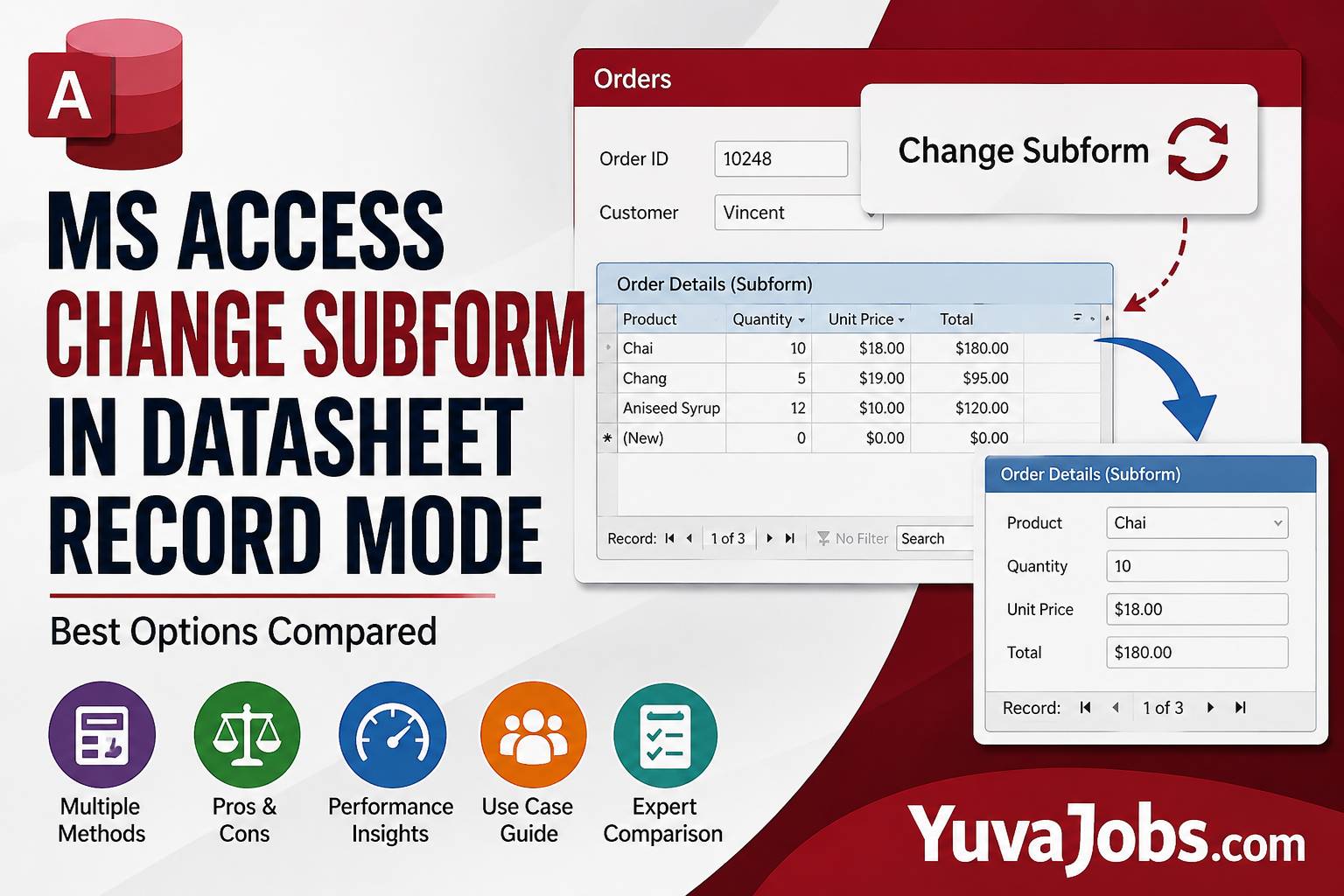
Changing a subform in Microsoft Access sounds like a small design choice until your database starts growing. Then it becomes one of those decisions that quietly affects data entry speed, user mistakes, maintenance, and even future upgrades. Many developers begin with a datasheet subform because it is quick to build, only to realize later that a different form view would better match the workflow. Others wonder whether switching forms dynamically is the better long-term solution.
This comparison looks beyond the obvious settings and explores the practical ways to change a subform form under datasheet record mode. You’ll learn when simply changing the source object is enough, when multiple subforms make more sense, and when custom code is justified. By the end, you’ll have a realistic understanding of each approach, including its strengths, limitations, and the situations where it performs best.
What Actually Matters When Choosing
The biggest mistake isn’t selecting the wrong form view. It’s designing the subform around today’s requirement instead of tomorrow’s maintenance.
Datasheet view works exceptionally well for rapid editing because users already understand spreadsheet-like interfaces. But once conditional formatting, calculated controls, command buttons, or validation logic become part of the design, datasheets begin to show their limits. The friction appears gradually—and usually after users have become dependent on the existing layout.
Another overlooked factor is whether records remain editable after changing the form. Different Recordset Types, Allow Edits settings, linked master/child fields, and filter conditions can affect editing behavior without producing obvious errors (which makes troubleshooting frustrating).
And performance deserves more attention than it usually receives. Loading a complicated continuous form with dozens of calculated controls may slow navigation, while a simple datasheet loads almost instantly. If the parent form refreshes frequently, that difference becomes noticeable during everyday work.
Here’s the thing: developers often focus on appearance first, yet maintainability is usually the better deciding factor. A solution requiring only a property change today may save hours of debugging months later.
One more consideration is user familiarity. Experienced Access users often prefer datasheets for bulk editing, while occasional users generally perform better with structured continuous forms that clearly label each field. That tradeoff rarely appears in documentation, but it becomes obvious after watching real people use the application.
The Options, Covered Honestly
Option 1: Replace the Subform Source Object
This is usually the simplest approach. Instead of modifying the existing datasheet, change the Subform Control’s Source Object so it loads another form.
For example, the parent form may initially display a datasheet. A command button or combo box then changes the Source Object property to another form designed in Continuous Forms or Single Form view.
The advantages are clear. Each form remains independent, maintenance is straightforward, and different layouts can reuse the same underlying table or query.
The downside is that each form loads separately. If several forms require identical calculations or formatting, keeping them synchronized requires extra work. Small changes sometimes have to be repeated across multiple forms.
This option works best for databases where users switch between overview and detailed editing.
Option 2: Convert the Datasheet into a Continuous Form
Many developers eventually discover that Continuous Forms offer nearly all the benefits of datasheets while allowing much greater customization.
Labels remain visible.
Buttons become available.
Conditional formatting expands significantly.
Calculated controls are easier to manage.
And users can still scroll through multiple records efficiently.
The main drawback is development time. Recreating a polished datasheet layout inside a continuous form often takes longer than expected. Column sizing, alignment, alternating colors, and navigation all require manual attention.
Realistically, though, many mature Access applications eventually move toward Continuous Forms because they provide greater flexibility without completely changing the user experience.
Option 3: Dynamically Switch Forms with VBA
Sometimes different users need different layouts.
Instead of forcing everyone into the same interface, VBA can switch subforms depending on user selections, security roles, departments, or record types.
For example:
- Sales staff see editable datasheets.
- Managers view summarized information.
- Administrators receive maintenance screens.
This creates a highly adaptable application.
But complexity increases quickly. Every additional form introduces testing requirements, event handling, and synchronization issues. Developers also need to ensure bookmarks, filters, and current records remain consistent after switching.
This method shines in enterprise databases but may be excessive for smaller projects.
Option 4: Keep the Datasheet and Enhance It
Sometimes changing the form isn’t necessary at all.
Datasheets support sorting, filtering, resizing columns, calculated fields, and conditional formatting. Small usability improvements often solve the original complaint without redesigning the interface.
This option carries the lowest development cost.
Its weakness is flexibility. Datasheets cannot host command buttons for every row, display rich layouts, or organize controls as freely as standard forms.
Still, if users mainly edit rows of data, keeping the datasheet often proves to be the most stable decision.
Option 5: Build Separate Navigation Workflows
Instead of replacing the subform itself, some developers separate browsing from editing.
Users browse records in a datasheet.
Double-clicking a record opens another form dedicated to editing.
This keeps the datasheet clean while allowing sophisticated editing features elsewhere.
The limitation is extra navigation. Users handling hundreds of records each day may dislike repeatedly opening and closing forms.
Yet for databases involving detailed validation or complex relationships, this approach often reduces accidental edits and simplifies maintenance.
Side-by-Side Comparison
Who Should Pick What
If your priority is fast development, replacing the Source Object usually offers the best balance between flexibility and simplicity. You can maintain separate forms without rewriting the application’s architecture.
If your database continues growing every few months, choose Continuous Forms because they provide much more room for future enhancements. Adding controls, formatting, and validation later becomes much easier.
And if multiple departments use the same database, VBA-based switching can create tailored interfaces without duplicating entire applications. Just be prepared for additional maintenance as the project expands.
Users focused almost entirely on entering rows of information should probably stay with datasheets. Their speed remains difficult to beat, especially for experienced Access operators.
Or, if data quality matters more than entry speed, keeping a datasheet for browsing while opening a dedicated edit form often strikes the right balance. The truth is that this hybrid approach reduces accidental edits while preserving an efficient overview of the data.
One honest caveat deserves mentioning: requirements often evolve after users begin working with a database. A design that feels ideal during testing may need adjustments once real-world usage exposes bottlenecks, so plan for future changes instead of assuming the first implementation will remain unchanged.
Closing
Changing a subform form under datasheet record mode is less about finding one perfect technique and more about matching the design to how people actually work. Datasheets remain excellent for rapid editing, while Continuous Forms and dynamic switching provide far greater flexibility when workflows become more demanding. If you’re unsure where to start, replacing the subform’s Source Object is usually the safest first step because it introduces minimal risk while leaving room to expand later. Evaluate how your users interact with the database for a few weeks, then refine the interface based on real usage rather than assumptions.
